
Create a Nice Credit Card in Photoshop CS
Download PSD source (Tutorial ID 1498)!
1. Ctrl+N and create a New Document 500x500px.
2. Draw 2 shapes using Rounded Rectangle Tool in different Layers:

3. Apply for first Layer:
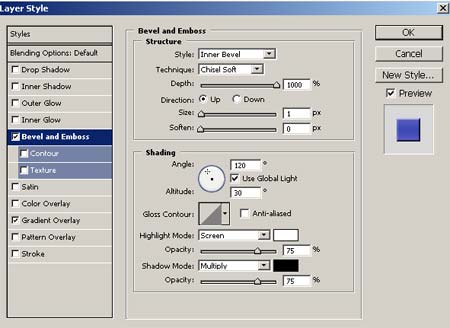

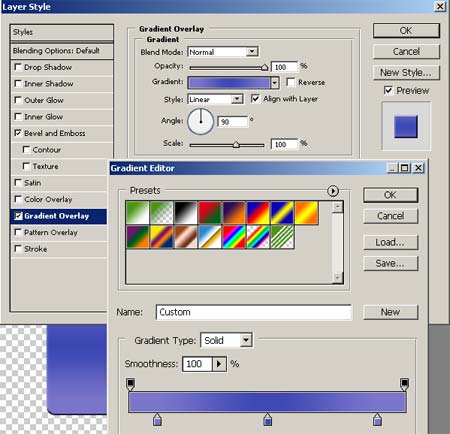
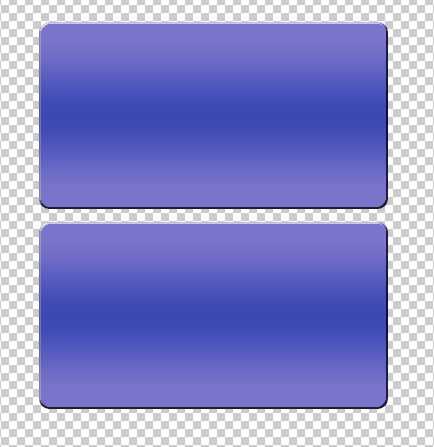
4. Repeat step 3 for Layer 2. Results:
5. Now find a nice composition, cut and put it on top of the creadit card shape, I found a nice globe:

6. We need to add number of a credit card, add 4 groups with 4 numbers, I use font Square721 BT with the following blending options:
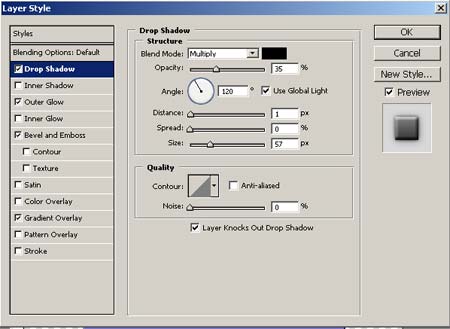
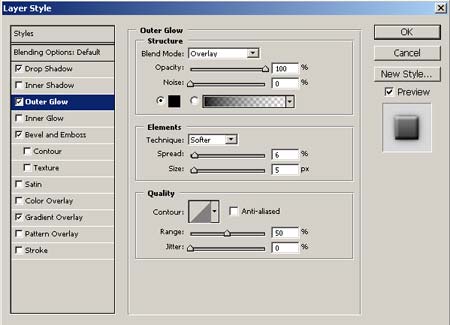
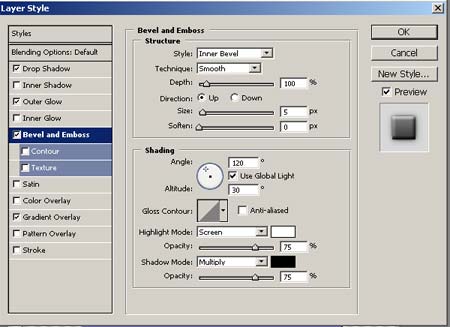
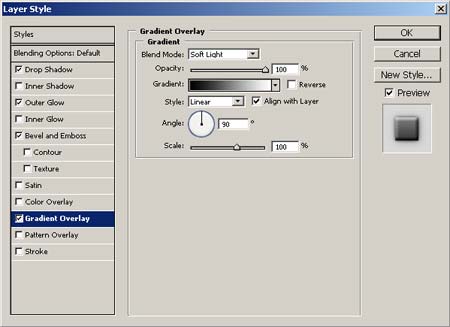
Results:

7. Now need to place in top of the credit card logo from MasterCard, Visa and your favourite Bank. From here you can download the logo for MasterCard, Visa and any Bank. My Results:
Results:
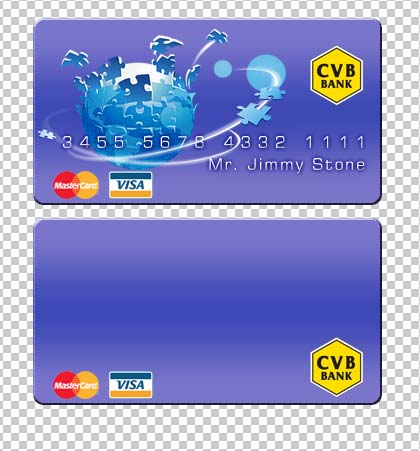
8. Duplicate the layer with credit card number and apply Edit->Transform->Flip Horizontal, put this layer on bottom card:
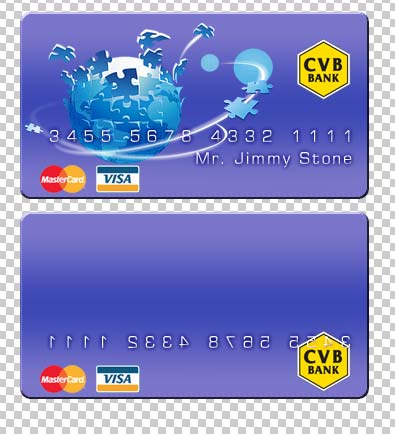
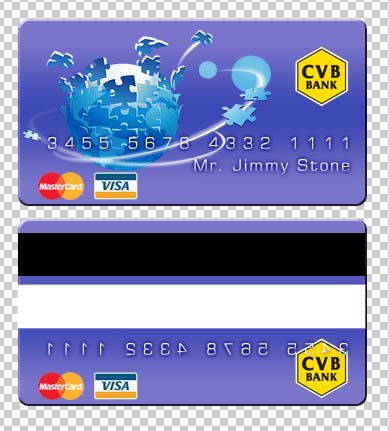
9. In this step add on bottom card the Magnetic Strip and Signature Line. Use Rectangle Tool and draw 2 rectangle with black and white color:
10. Finally add a signature, I use font Linotype Zapfino Two:
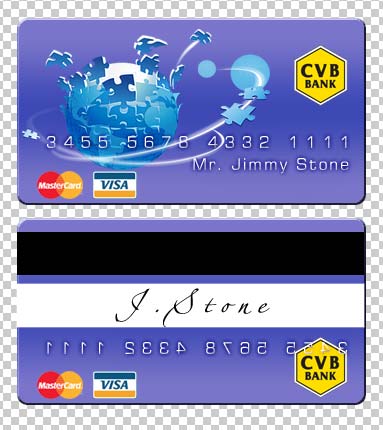
Good luck, and be sure to check out our other Photoshop Tutorials!
Download PSD source (Tutorial ID 1498)!
Comments