
Creating a postage stamp
May 8, 2006 | 0 comments
|
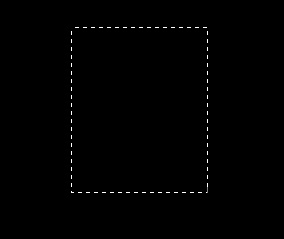
Start by creating a new file. Using rectagular marqee tool create a rectangle in new layer. |
 |
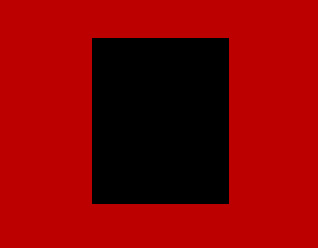
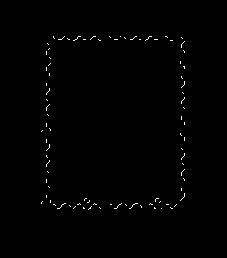
| Press Q to enable quick masking. |
 |
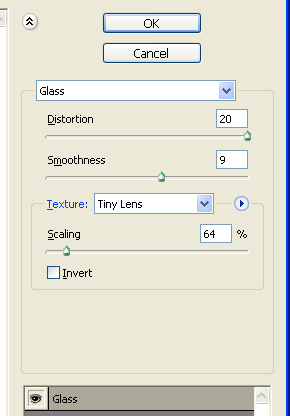
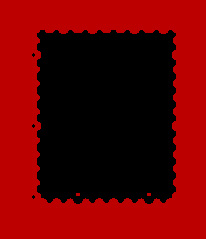
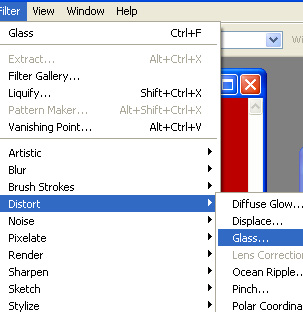
| From filter menu select distort>>glass. |
|
|
| Apply settings as shown. |
 |
 |
| Press Q again to disable quick mask. |
|
|
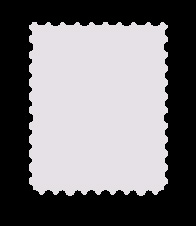
| Fill the selection with a light color. |
|
|
| Using rectangular shape tool create a rectangle. |
|

|
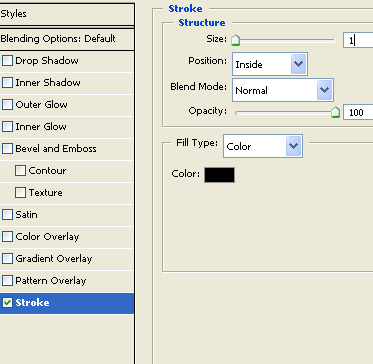
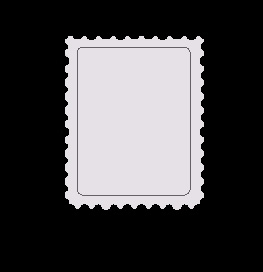
| Double click the layer to open layer style window and enable stroke. Apply settings as shown. |
 |
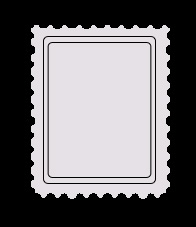
| Duplicate the layer and scale it down. |
 |
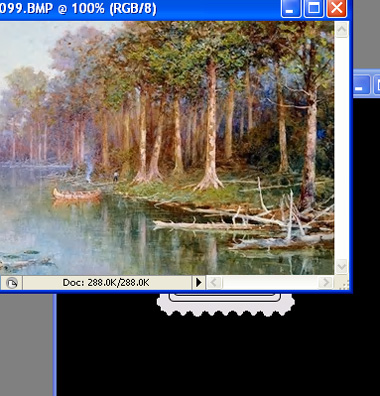
| Open the image you want to place inside the postage stamp. |
 |
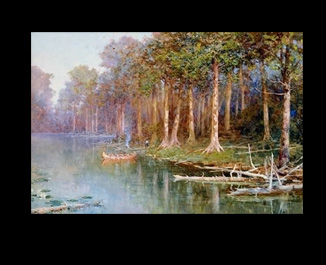
| Drag the image to the main file. |
 |
| Ctrl select the inner rectangle layer to get the selection. |
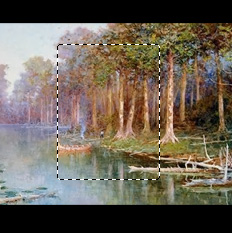 |
| Select the image layer and then add layer mask. (Third icon form the bottom of the layer pallete.) |
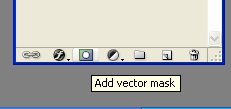 |
| Adjust the stamp layer. |
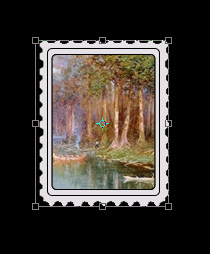 |
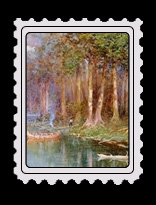 |
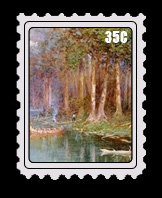
| Add some text to complate the stamp. |
|
|
Comments