
Birthday Party City Man
Party Man – Create a super 70s retro silhouette style piece
We create a new document, having dimensions 640×480 and a resolution 72dpi. Take a photo with a dancing man and place it on the background’s center. Now we can move off the background. Remember, our dancer will be a silhouette only and we need a special picture.
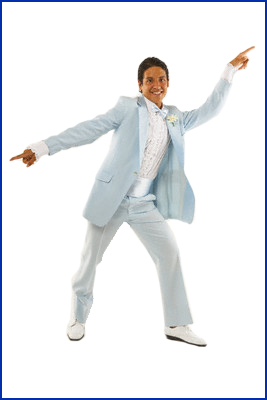
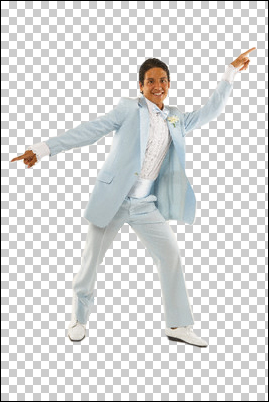
We cut out carefully the picture as not to remain anything unnecessary.
Now we transfer our dancer into a silhouette. It is possible to do using (Blending options), pressing the right button of the mouse.
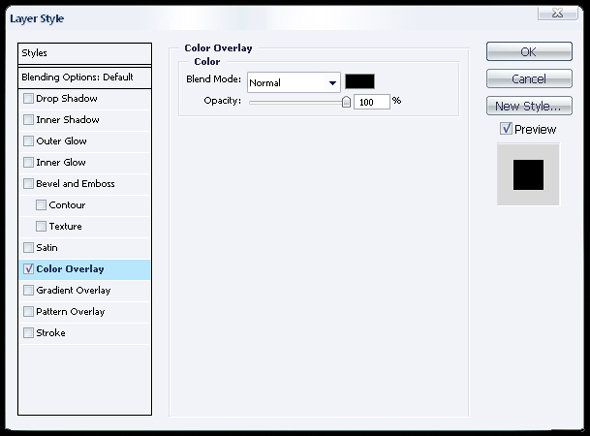
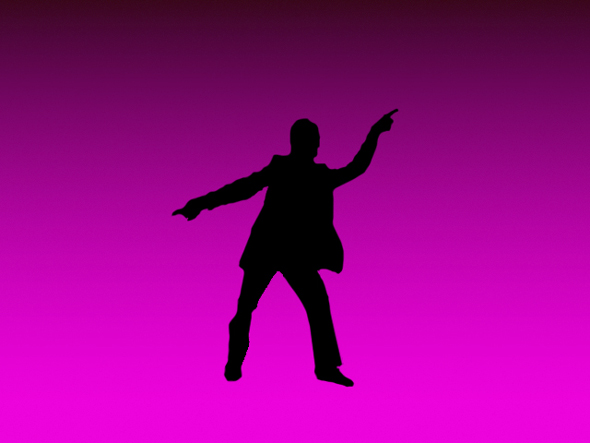
Here we choose Color Overlay, set out the black color and as a result we should have such a picture.

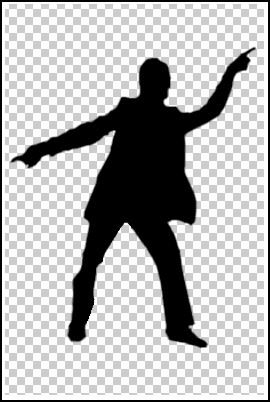
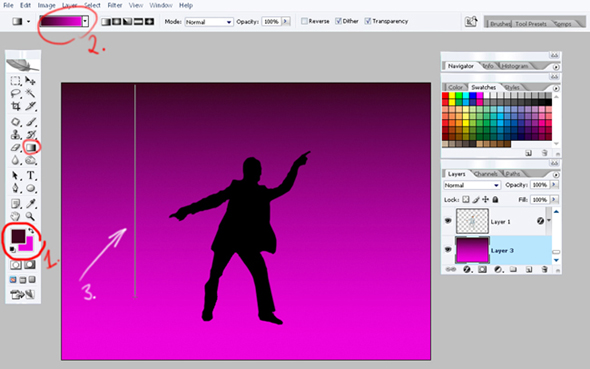
Now we have to create a background using gradient tool. 1. Set out the colors… Pink, color code (ec03dc) and an intensive red color, color code (3b0621). 2. Set out the regime of painting. 3. Paint starting with the upper part to the bottom, pressing and holding the “Shift” button.
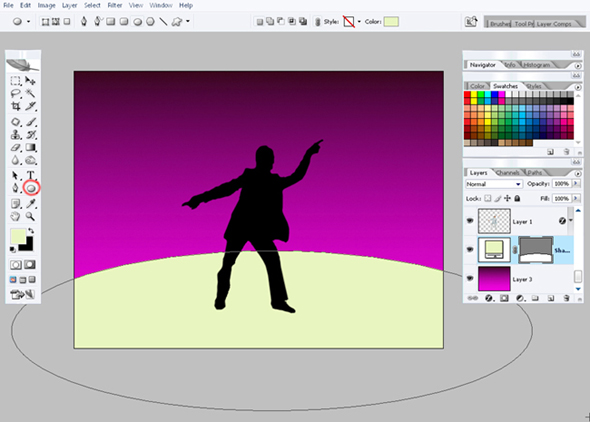
Create a dance-floor using Ellipse tool instrument. Draw the colored oval, color code (e9f5c0) like it is presented in the picture.
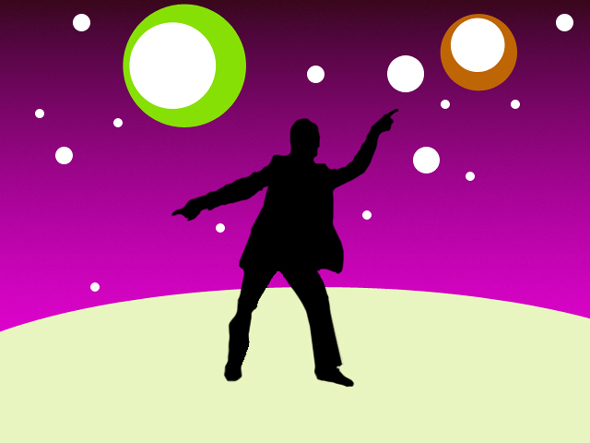
Now using the same instrument create circles of different colors and dimensions for decorating the background.
Remains the last thing! It’s the dancer’s shadow falling on the floor. We copy the background with the man and this copy we place in a vertical line using the function (free transform) provoked by the right button of the mouse. Now we have to change the color from black to gray, because the shadow must be dimmer than the silhouette. The shadow’s background we’ll place it under the dancer’s one.

And now we must be satisfied because of the final result 🙂
Comments