
Exporting your work from Flash
September 9, 2006 | 0 comments
Exporting your work from Flash
Let’s start out by first creating a simple 2D star in Flash:
- Launch Flash Professional 8, create a blank document, and name it star_graphic.fla.
- Click and hold the Rectangle tool and choose PolyStar Tool from the pop-up menu.
- Click the Option button in the Properties panel, set the properties of the PolyStar tool to Star, and the number of sides to 5. Set the Star Point Size property to 0.5.
-
Draw a star in the workspace (see Figure 1).
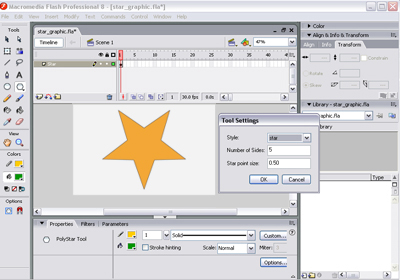
Figure 1. Drawing a 2D star in Flash
You can export your graphic from Flash in a variety of formats that After Effects will recognize, such as AI, EPS, and PNG. For this example, export the Flash graphic as a PNG image:
- Select File > Export > Export Image.
- In the Export Image dialog box, select PNG from the Save as Type pop-up menu.
- Name the image star.png and click Save to save the image.

Comments