Categories

Partners
  • Website Templates

  • Adobe Photoshop Tutorials

  • Bittorent and
    Google desktop programs

  • Free Stock Photos and Images

  • Adobe Photoshop Tutorials

  • Photoshop, Flash, 3dsmax tutorials
  • Search


    Advanced Search


    Subscribe

    Converting a 2D layer into a 3D layer
    Published  09/9/2006 | Macromedia Flash , After Effects


    Converting a 2D layer into a 3D layer

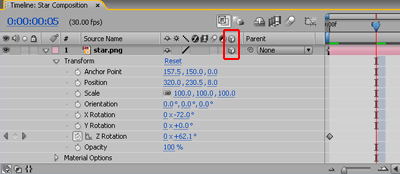
    After Effects uses two dimensions (x, y) to display the 2D layer. When you convert the layer to a 3D layer, After Effects adds a z-axis, which controls the position of your graphic in 3D space. After Effects adds the following layer properties to the 3D layer (see also Figure 4):

    • Anchor Point (z)
    • Position (z)
    • Orientation (z)
    • X Rotation
    • Y Rotation
    • Z Rotation
    3D layer added to the Timeline panel

    Figure 4. 3D layer added to the Timeline panel

    Note: To help simulate three dimensions, the Material Options properties that are also added determine how the layer interacts with an arbitrary "light source" that you specify.

    To convert the 2D layer to a 3D layer, click the 3D Layer switch in the Timeline panel or choose 3D Layer from the Layer menu.

    Article Series
    This article is part 4 of a 7 part series. Other articles in this series are shown below:
    1. Adding 3D to Flash projects using After Effects
    2. Exporting your work from Flash
    3. Importing your work into After Effects
    4. Converting a 2D layer into a 3D layer
    5. Animating the 3D layer
    6. Exporting your animation
    7. Getting back into Flash

    WiFiReview.com - your guide to the wireless world