
Ornamental design – Floral background
Ornamental design – Floral background
Create a new file with dimensions 600×600 and 72 dpi and paint it with the color ffbe00.

Using the instrument  , draw the pattern of white color like in the picture:

Copy this background.

Then choosing the function Free Transform turn around the pattern’s element horizontally. Turning on 90 degrees around the pattern’s axe, set it out like it is demonstrated in the picture:

Using the same instrument, continue creating more patterns:

Using the earlier method, copy the background with the new element and using the function Free Transform turn around the pattern on 180 degrees vertically, Turning a little around the pattern’s axe, set out everything like in the picture:

Using the same instrument , make easy pattern and set it out like in the picture:

Create one more element using the same instrument and also set it out like in the picture:

Then copy the background again with the new pattern and use the earlier method for displaying it correctly in the pattern’s composition:

Using the same instrument and the same method, draw everything like in the picture.
Make the upper part of the pattern.

Now copy and enlarge (Free Transform) the upper petals. Place them under the entire pattern.

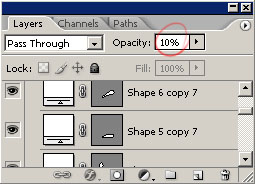
Set out the opacity of 10% in the backgrounds’ window.
Now copy and transform on 180 degrees everything except the upper part of the figure and enlarge it a little. Set out the opacity on 33% like in the picture.

The final result.

If you would like to offer us feedback on this or any of the tutorials, leave a comment. Have fun!
Comments