
The fluffy BMW effect
Make a new file with 732×524 parameters and 72 dpi. Take the car’s photo and place it in our file. Then paint the car’s body using .
.
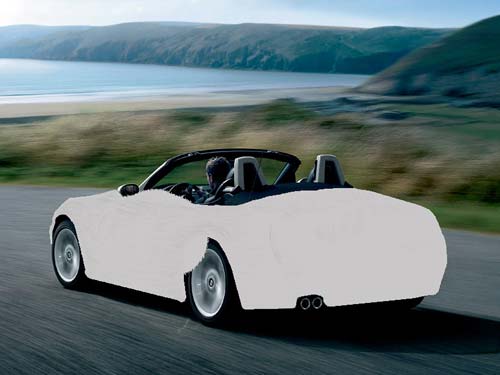
Choose the instrument  (Highlight) and Opacity of 10% and begin picturing the fur with small strokes.
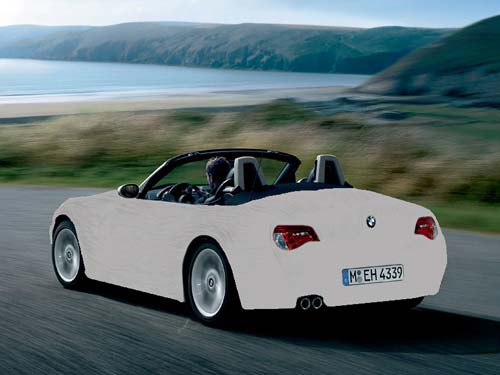
Cut out now the places for headlights, logo and doors’ handles. Black out a little our background using an option by clicking the Ctrl + L buttons. .
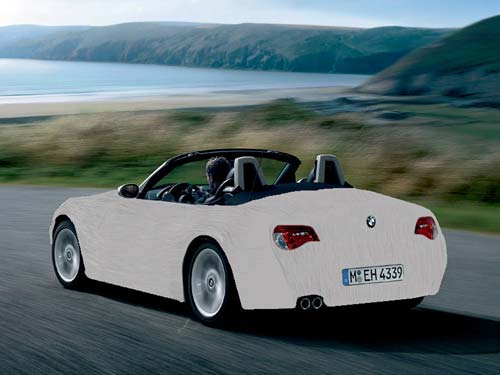

Keep picturing the fur but with a higher Opacity. Don’t forget about the fur’s direction It must lay down on the sides and on the air currents. Because of the car’s speed..
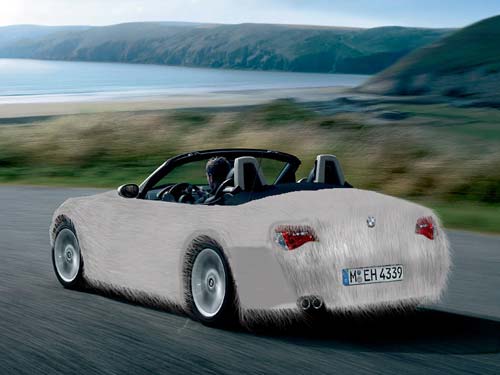
Choose now the instrument  (Highlight) and continue stroking the car. Use the following instrument
  to draw hair by the borders and the hair must come uncurled in the wind. The opacity is 80%. ..
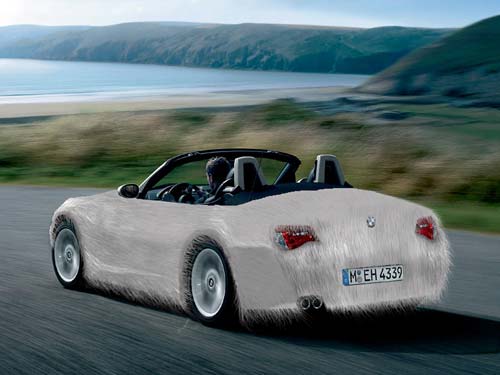
Alternate the strokes using instruments and . We’ll get a very real fur. Finish the picture by adding shadows on the new background, using instrument.
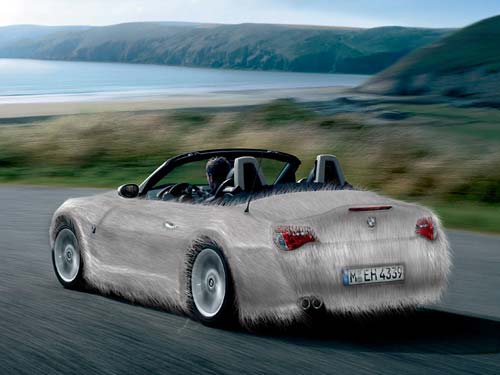
The final result.
Comments