Stylish Rectangles
May 10th, 2006 by ART-D Posted in Adobe Photoshop, Special Effects
|
This tutorial is a simple Photoshop tutorial for adding stylish rectangles in a sig or other artwork to give a touch up to it. it’s very simple and in my opinion it has a great effect sometimes! you should try it, I show you how! Good luck!
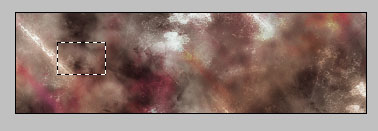
Well … We start with a background that you’re going to use for you sig or other piece. I started a new file (350*100) a great sig resolution in my opinion. Start making your background, with brushes, filters or whatever. I came up with this:
|
|

|
|
Now we want to add our stylish rectangles to give it a techy, stylish look. Now take you rectangular marquee tool.

Now make a small rectangle with it in a new layer. Make sure the feather is 0px! you can check the feather above. So make a rectangle like this:

|
|

|
|
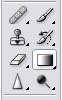
Now take the gradient tool.

And make sure your settings are like this:


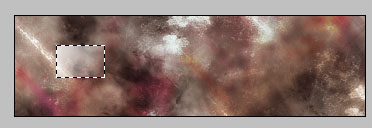
Now draw your gradient in the selection like this:
|
|
|
|
Now don’t remove the selection and do this: edit – stroke – (1px – center – white ). You can remove the selection now (ctr-d). Without the stroke it sometimes looks even better!!! You should have something like this now:
|
|

|
|
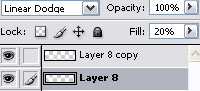
Now it’s almost finished. We only have to add some blending options. Set the blend mode to Linear dodge, I have opacity:100% – Fill:20%. Like this:

Now just play around with the fill and opacity and duplicate the layer a coupl eof times and place them in front of eachother, just don’t be scared to mess around. Like this:
|
|

|
|
Here’s an example where I used that effect.But I did it without the stroke!
|

If you enjoyed this article, please consider sharing it!