
Create Retro Gradient
October 5, 2006 | 0 comments
Retro Gradient
This is the perfect tutorial if you want that 60′-effect on your photo’s with this great retro-gradient. You can use any groovy color you want for this effect.
Style your photo’s with this 60’s-retro effect…
-
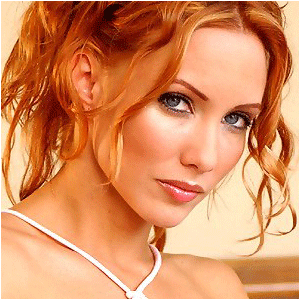
Step 1 Open up an image of something you want to add this effect to…
-
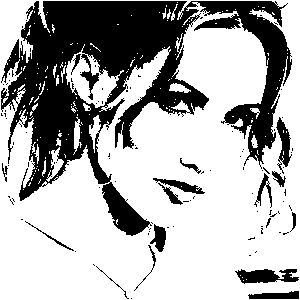
Step 2 Go to Image>Adjustments>Threshold and change the bar untill your picture looks kinda like mine:

-
Step 3 Create a layer UNDER this layer and add a desired gradient to it;
Change the blending-mode of the top-image so soft light;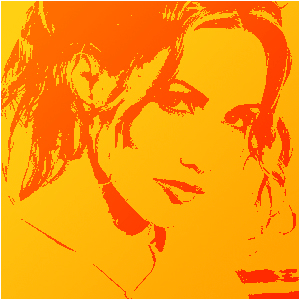
-
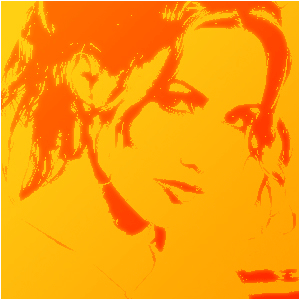
Step 4 What you also ca do, is merge the layers, copy the layer, blur it and set it to overlay, lighten or screen, depending on the image and the outcome you want!
Author : MICK MOOLHUIJSEN
HomePage : http://www.mickm.com

Comments