
Designing Red Floral Illustration
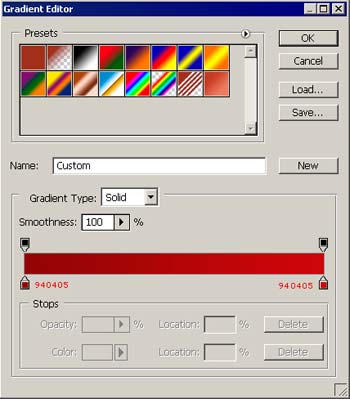
Create a new file 428x488px with 72 dpi. Use Blending Options for the gradient. Gradient’s installing is indicated in the picture.

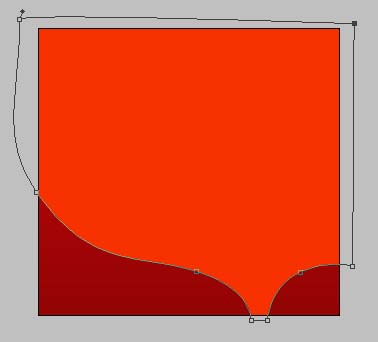
Then use the next instrument  to create a figure like it is shown in the picture. The color code is f73100.
Then the next one.

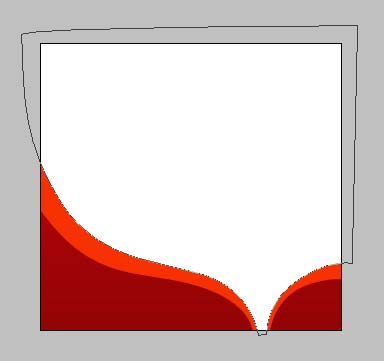
And one more with the color code d5340a.
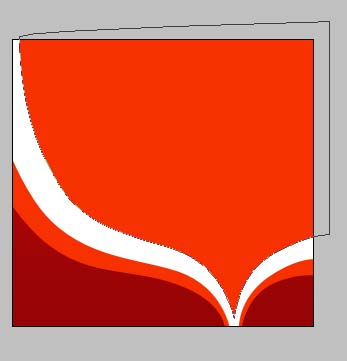
The last figure should be done together with the gradient. The parameters should be the same from the picture.
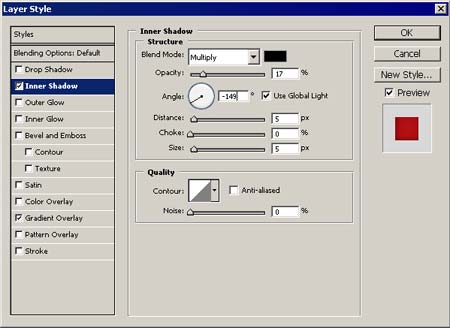
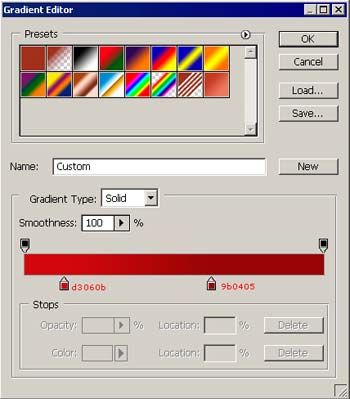

Now – the flowers. Display them under the figures’ backgrounds. They should be placed the way that only some parts of the flowers should be seen. Change their colors and dimensions.

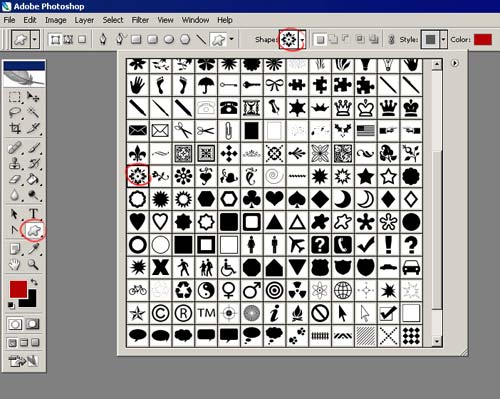
Take the heart from the same place we took the flowers. Place it under the central flower. The heart is painted in white, it is copied and the copy is minimized. Color the background.

The last feature includes introducing the stem’s elements suing the instrument .

The final result.
Comments