
Disco DJ Speakers Graphic
Use different layers and tools to create a stylish disco speakers graphic.
Create a new document with 300x300px and 72 dpi. Paint it. The parameters are indicated.

Blending Options

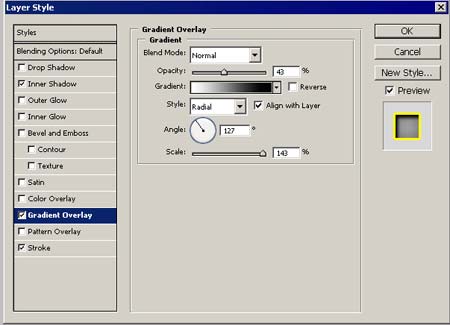
Gradient Overlay. The color codes are shown:


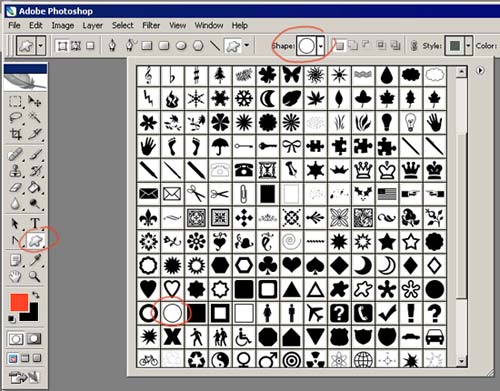
Use the instrument  to create a segment to the circumference in the lower upper corner. The parameters are also indicated.

Blending Options

Outer Glow. The color codes are indicated:

We got:

Create two more with the same instrument:

Using the instrument , create a circle and paint it with 019501.

One more inside the previous one with the color 000000

… and one more with the color 00a801

The last one should be painted with 000000

Using the same method create several other groups of circles, but don’t forget to place correctly the backgrounds.

In the upper group of circles, the last circle should have the color d0f352, all the others like the other groups.
Copy then the background with the biggest group of circles and display it above the others. Click on the right mouse’s button on the background with this group. Then Free Transform and stretch out the group, placing everything like in the picture:

Copy the background with the upper group of circles and display it above the others. Then click on the right mouse’s button, Free Transform and hold the SHIFT button, minimize a little the group, placing everything like in the picture.

Use the instrument  and create a figure with black color, placing it like it is done in the picture:

Make another figure using the same instrument with the color 007c00

Choose the instrument and create a frame. Paint it with e3fd5a.

The Function Free Transform will help us to change some things and display everything like in the picture:

Make one more figure and place it on the right side like in the picture:

The instrument  will help us to draw a circle of black color with the indicated parameters:



We’ll get the next one:

Use the previous instrument to make a circle of black color inside, like it is demonstrated in the picture:

Use the brush for painting inside the circle like in the picture:

Using the same method to create more circles’ groups and display them like in the picture:

The following instrument will help us to draw a star of black color. The instrument  give the possibility to stretch one edge like in the picture:

Inside the first star make one more with the color 59bd05

… and one more inside the second one with the color fbfe17 like in the picture:

Using the instrument , make one more figure with the color fbfe17 and place it the way it is shown in the picture:

And one more with the color 005301

Then the color 55ec01

The color 027a00

Using the same method draw a small star and light’s rays for the other speaker:

The final result!
Comments