
Vector Pineapple Effect
Vector Pineapple
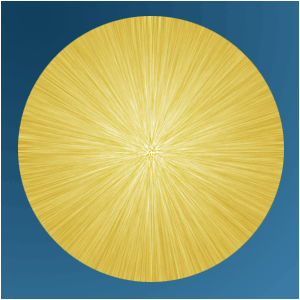
This technique was used to create the logo of KiwiDesigns.nl. Now I’m gonna learn it to you!
-
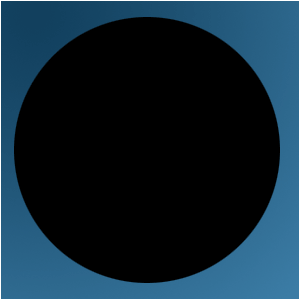
Step 1 Open up a new image any size and create a black circle;
-
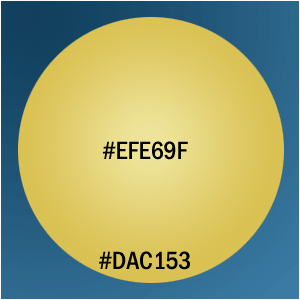
Step 2 Create a circular gradient with the colors #EFE69F and #DAC153;

-
Step 3 >Create a new layer and fill it with black;

-
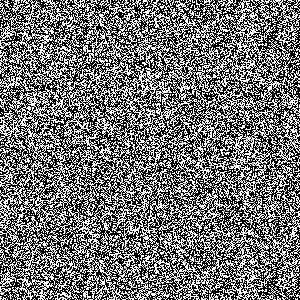
Step 4 Add Filter>Noise>Add Noise and set the slider all the way to the right;
-
Step 5 Add Filter>Blur>Radial Blur and set it to zoom and 100%;
Set it to overlay and press CTRL+G;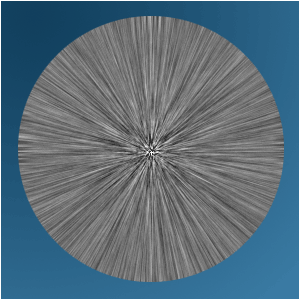
-
Step 6 Merge all layers EXCEPT THE BACKGROUND and delete a circle in the middle;

-
Step 7 Select the Move-Tool and duplicate the pinapple-layer;
Now while holding ALT, press down a few times;
-
Step 8 Merge the shadow layers and press CTRL+U to darken them and you’re done!

Author : MICK MOOLHUIJSEN
HomePage : http://www.mickm.com

Comments