Categories

Partners
  • Website Templates

  • Design Feeds

  • Adobe Photoshop Tutorials

  • Website Templates, WordPress Themes

  • Website Templates

  • Flash Web Sites

  • Photoshop Templates

  • Photo Contests

  • Photo Tips
  • Search


    Advanced Search


    Partner Links
  • Adobe Photoshop Tutorials

  • Free Stock Photos and Images


  • Website Templates

    Designing Floral Background - part 2
    Published  10/17/2006 | Drawing Techniques


    Get to represent the last flower. The color code is 8702d7

    Designing Floral Background in Photoshop CS

    Use the instrument to picture a leaf with the parameters indicated below.
    Designing Floral Background in Photoshop CS

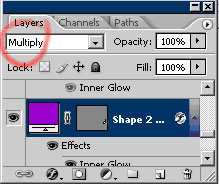
    Give it transparency by using a parameter from the layers’ window.
    Designing Floral Background in Photoshop CS

    Copy and transform (Free Transform) the leaves, until we’ll have a flower. The color codes of the pink leaf is d90dbe and the cherry colored leaf has the code bb2757.

    Designing Floral Background in Photoshop CS

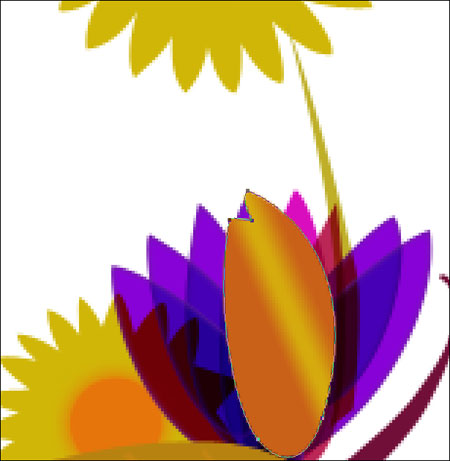
    Above all the leaves, draw a figure, like it is shown in the picture.
    Designing Floral Background in Photoshop CS

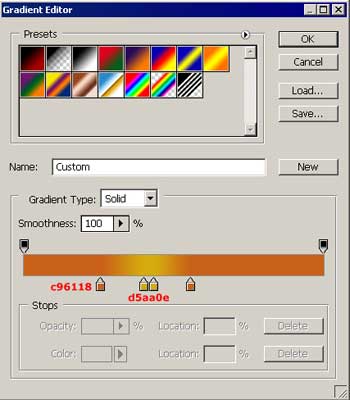
    With parameters (Blending Options\Gradient Overlay) from the picture.

    Designing Floral Background in Photoshop CS

    The angle has 20 dg. in the options before opening the shown above window.
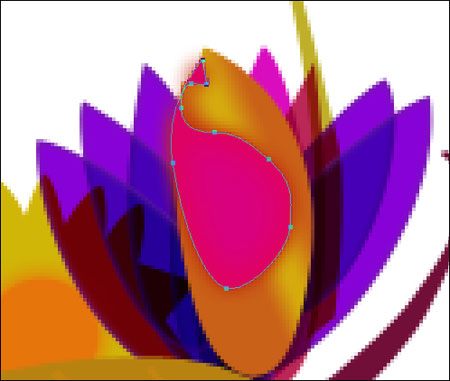
    One more figure.
    Designing Floral Background in Photoshop CS

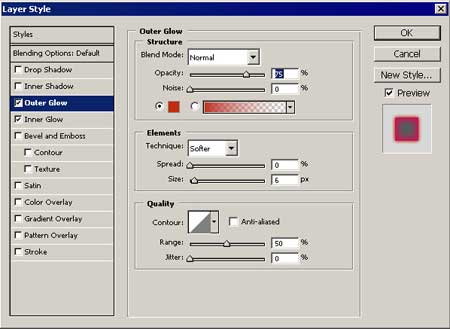
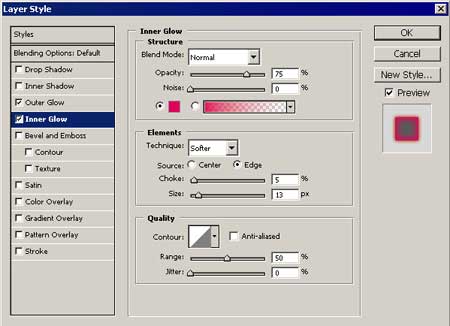
    Set out the parameters (Blending Options) like it is shown in the picture.
    Designing Floral Background in Photoshop CS

    Designing Floral Background in Photoshop CS

    Draw with the previous instrument a figure like the next one.

    Designing Floral Background in Photoshop CS

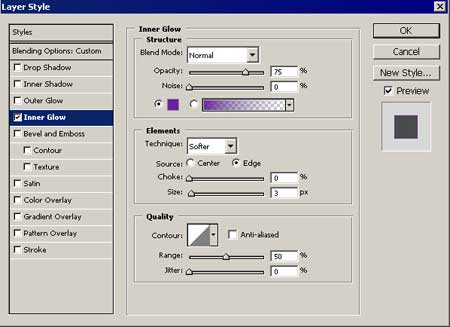
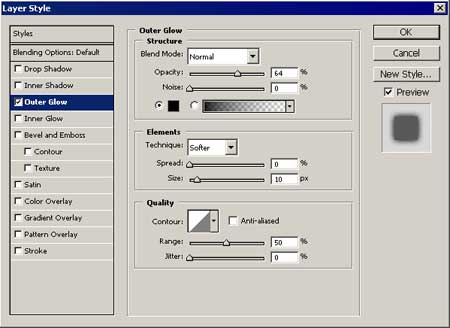
    The parameters from the picture (Blending Options)
    Designing Floral Background in Photoshop CS

    In the end create several circles of different sizes using the instrument . The color code is cc5825

    Designing Floral Background in Photoshop CS

    We’ve got such a nice composition!
    Article Series
    This article is part 2 of a 2 part series. Other articles in this series are shown below:
    1. Designing Floral Background - part 1
    2. Designing Floral Background - part 2