
Professional Web Layout for Business Company
October 24, 2006 | 0 comments
Basing on yesterday’s lesson about Professional Header for Business Company, now we will continue to create a Professional Web Layout for Business Company.
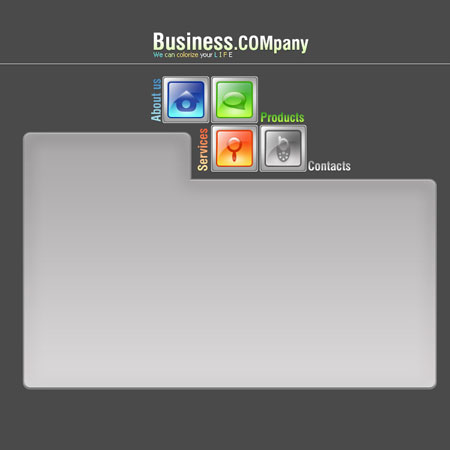
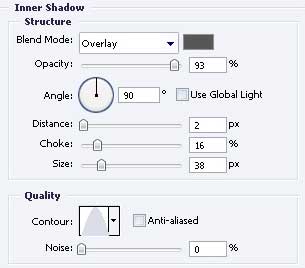
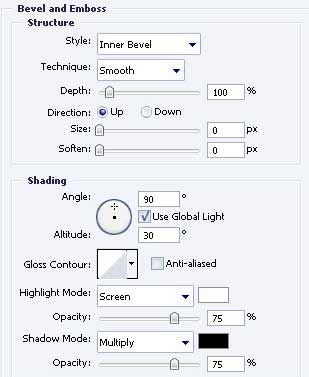
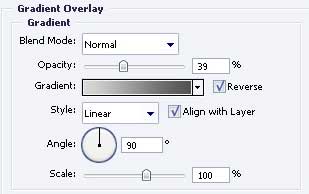
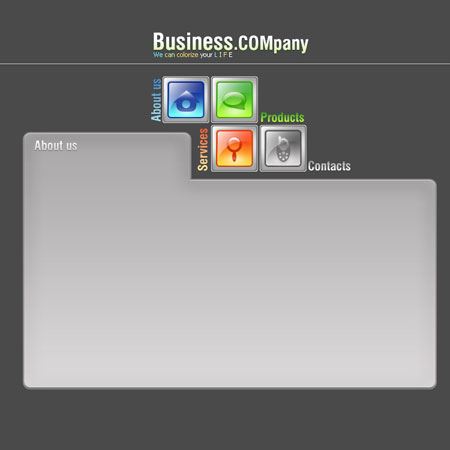
Take the instrument  and represent two figures one under another and stretch out with Free Transform option / keeping pressed Shift button. The parameters are indicated below.
Blending Options-Inner Shadow
Blending Options-Bevel and Emboss

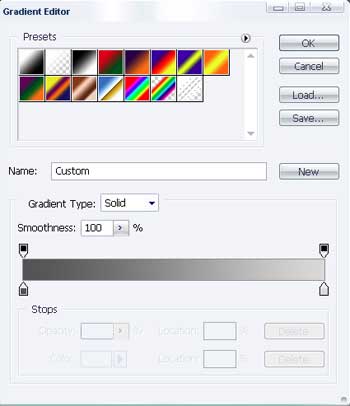
Blending Options-Gradient Overlay
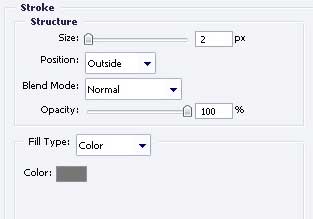
Blending Options-Stroke
Write the text then with the necessary type and indicated parameters below.
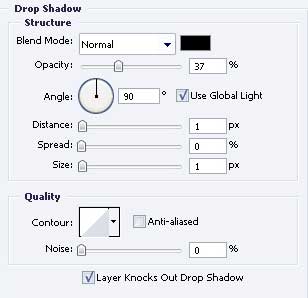
Blending Options-Drop Shadow
Blending Options-Gradient Overlay
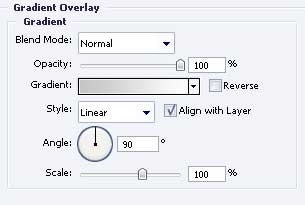
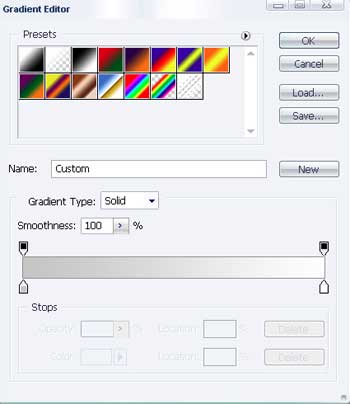
Gradient’s parameters
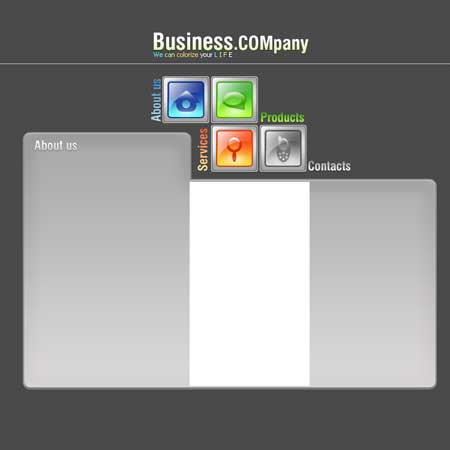
Take another instrument, like  and represent a white rectangle, exactly like it is done below.
Comments