
Draw magnifying glass
October 24, 2006 | 0 comments
Next task we shall see how to represent a magnifying glass, using the instrument .
.
Create a new file with 524x487px and 72 dpi. Draw the glass’s shadow of grey color. The color code must be E2E2E2.
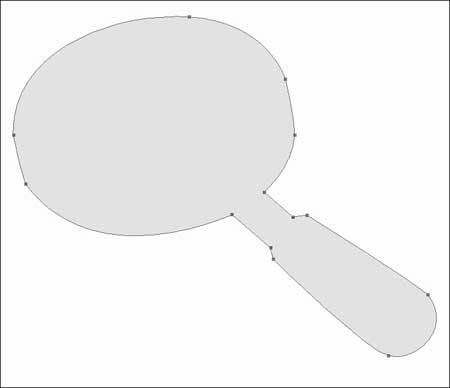
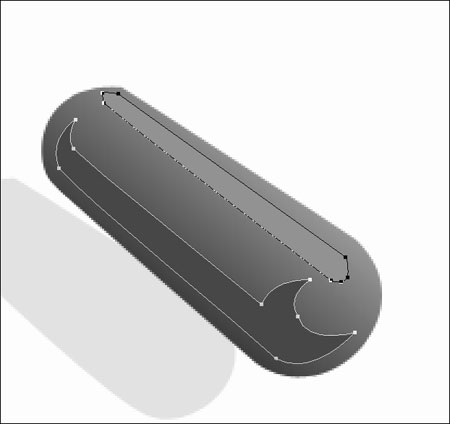
Then the handle. Set everything out like in the picture in Blending Options.
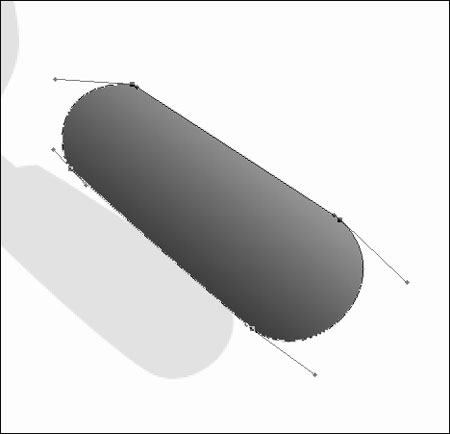
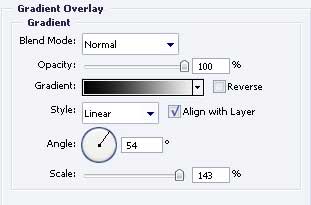

Represent the highlight on this handle and then – the shadow. The color code for the shadow is 464747 and for the highlight is 929292
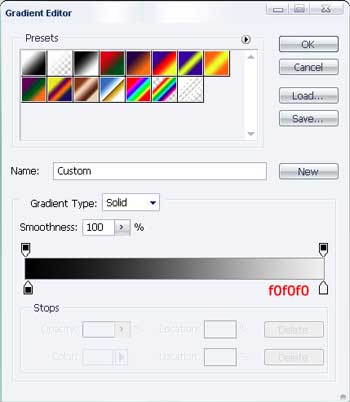
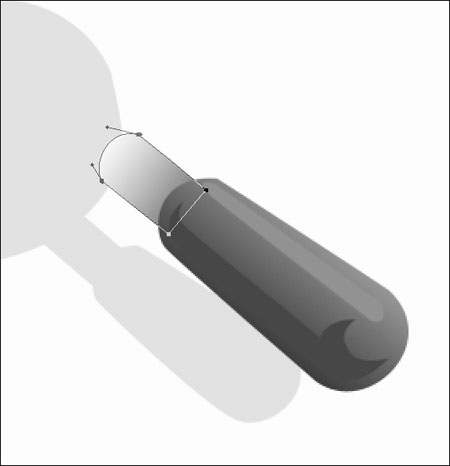
Represent the handle’s metal part and place out this layer under the handle’s layer. The gradient’s parameters are indicated in the picture.
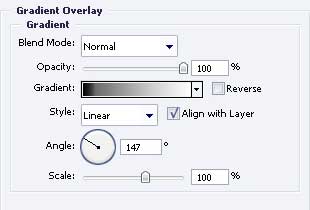
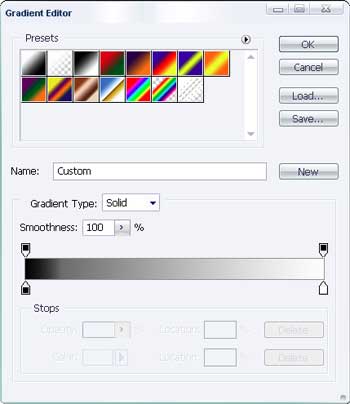
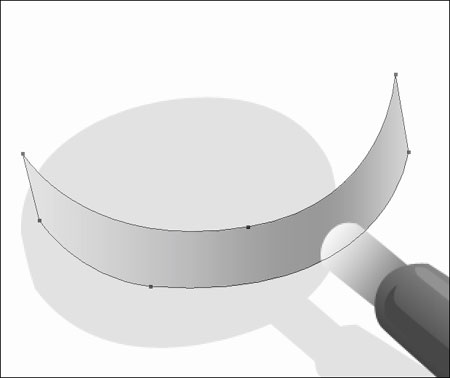
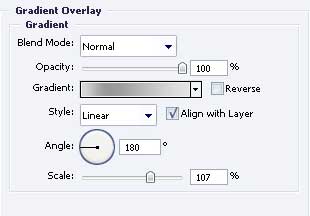
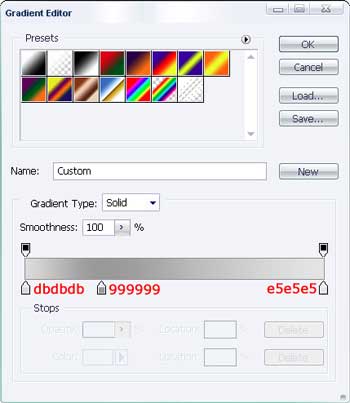
Pass to represent the magnifier’s frame. The gradient’s parameters are indicated in the picture.
Page: 1 2
Comments