Categories

Partners
 
  • Photoshop Templates

  • Website Templates

  • Web Templates

  • Flash Web Sites

  • WordPress Templates

  • Free Ringtones

  • Free Stock Photos and Images

  • Photoshop

  • St. Louis LASIK | LASIK info

  • Load Cells

  • osCommerce Templates

  • Web Hosting


  • Website Templates
    Search


    Advanced Search


     »  Home  »  Adobe Photoshop  »  Drawing Techniques  »  The Bird Phoenix
    The Bird Phoenix
    Published  10/26/2006 | Drawing Techniques
       
    The Bird Phoenix - part 2


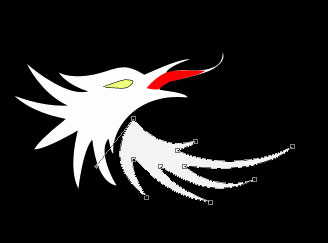
    Copy the bird’s wing layer and use Free Transform to turn it around like in the next picture.

    Draw the Bird Phoenix in Photoshop CS

    For your convenience, connect the layer with the lower bird’s wing and continue working on a new layer. Use the same instrument to represent the flame’s silhouette with the indicated parameters.

    Draw the Bird Phoenix in Photoshop CS

    Blending Options-Gradient Overlay

    Draw the Bird Phoenix in Photoshop CS

    Gradient’s parameters

    Draw the Bird Phoenix in Photoshop CS

    Use the previous instrument to picture the flame’s silhouette with the color F8EF6E.

    Draw the Bird Phoenix in Photoshop CS

    Hide temporarily the layer that has the upper bird’s wing on it. Combine all the layers regarding the flame in a group. Copy the group and use Free Transform to turn it around, like it is shown below.

    Draw the Bird Phoenix in Photoshop CS

    Show now all the layers regarding the bird’s wings and place them out above the flame’s layers. Making everything correctly, you’ll get the next:

    Draw the Bird Phoenix in Photoshop CS

    The final result!

    Draw the Bird Phoenix in Photoshop CS The Bird Phoenix
    In this tutorial we will learn how to draw the Bird Phoenix


    PSDTUTS+ Photoshop Tutorials and More