
Vector Wallpaper
Make anew file with 1024×768 px and 100 dpi. Take the following instrument  to create a background with the next color – FECA5C, the right side’s color is FEAC03, the gradient’s direction – from left to the right side.

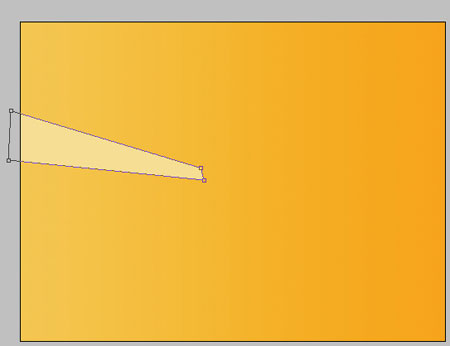
Take the instrument  to represent a figure with the indicated parameters. The color must be FFE0A2.
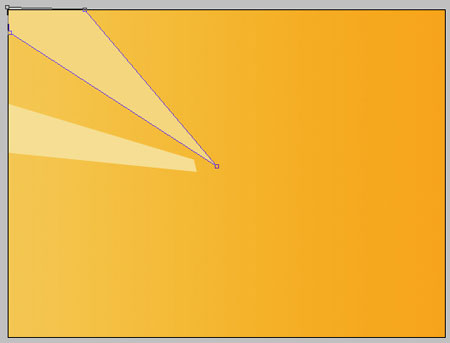
Take the same instrument to create one more with the color FED98D.

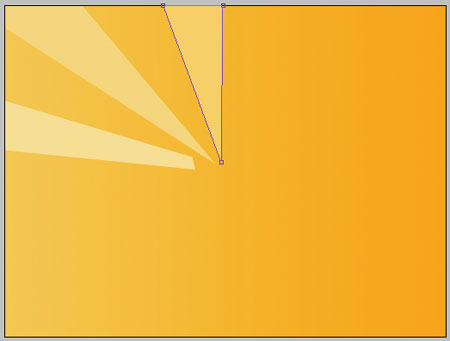
Take the same instrument to create one more figure, having the color FFD275
The same instrument and one more figure – FFCA5A.

The previous instrument and another figure – FEBE36.
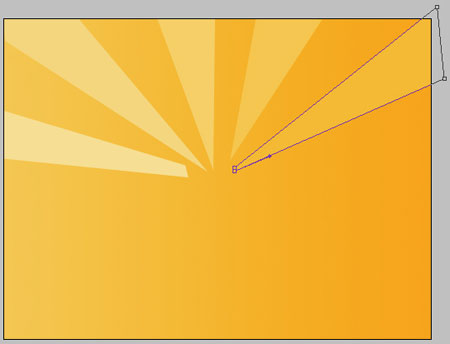
Create one more figure then with the indicated color – FDBF38 with the known instrument.

Represent the same way more figures with the same instrument, like it is done in the next picture.

Take the instrument to represent a heart with the color – EE1878 with the indicated parameters below.

Blending Options-Outer Glow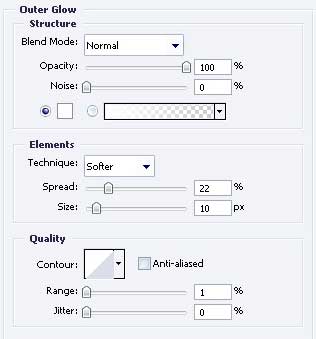
Comments