Categories

Partners
 
  • Photoshop Templates

  • Website Templates

  • Web Templates

  • Flash Web Sites

  • WordPress Templates

  • Free Ringtones

  • Free Stock Photos and Images

  • Photoshop

  • St. Louis LASIK | LASIK info

  • Load Cells

  • osCommerce Templates

  • Web Hosting


  • Website Templates
    Search


    Advanced Search


    Create the STOP sign
    Published  11/10/2006 | Drawing Techniques
       
    Create the STOP sign


    Create a new file with 450x340 px and 300 dpi. Use the next instrument to paint it. The color codes are indicated.

    Create the STOP sign in Photoshop CS

    Take the following tool to represent a figure like the next one with the same sizes.
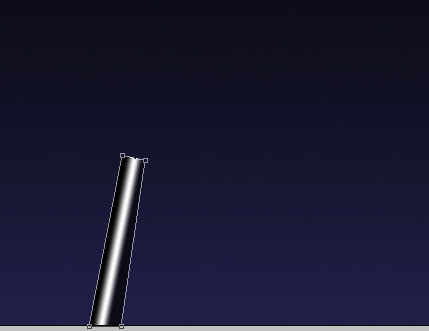
    Create the STOP sign in Photoshop CS

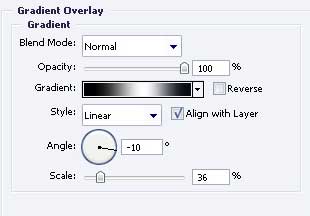
    Blending Options-Gradient Overlay

    Create the STOP sign in Photoshop CS

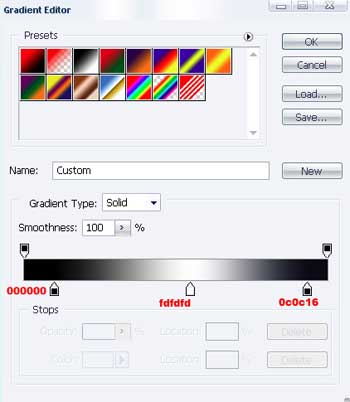
    Gradient’s parameters

    Create the STOP sign in Photoshop CS

    Using the same instrument picture a figure of white color.
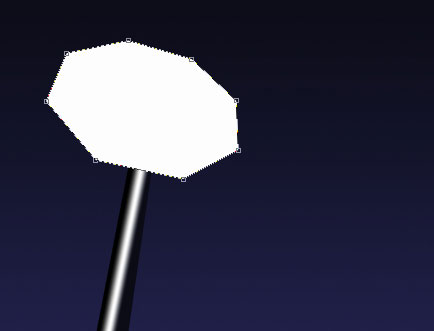
    Create the STOP sign in Photoshop CS

    Copy the new made layer and apply Free Transform to minimize it (holding on Shift button). Paint it with the color E40001, exactly like in the picture below.

    Create the STOP sign in Photoshop CS

    Add the text now, keeping the same type, size and the color – EBEBEB.
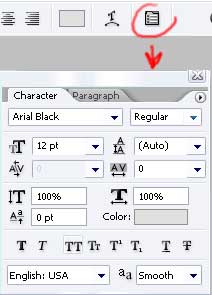
    Create the STOP sign in Photoshop CS

    Create the STOP sign in Photoshop CS

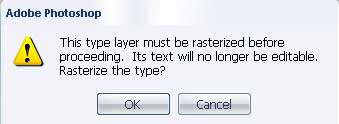
    Now Layer>Rasterize>Type

    Create the STOP sign in Photoshop CS

    Select OK and go to Edit>Transform>Distort
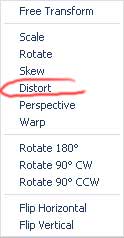
    Create the STOP sign in Photoshop CS


    Create the STOP sign in Photoshop CS

    Rotate the text exactly like in the picture below

    Create the STOP sign in Photoshop CS

    The final result!

    Create the STOP sign in Photoshop CS Create the STOP sign
    We will create in our tutorial the STOP sign.


    PSDTUTS+ Photoshop Tutorials and More