
A rose design element
Create a new file with 445×470 px and 300 dpi. Paint it in the following color – C00000

Take the next instrument  and represent several triangles of the same color – 900000, like in the image below.
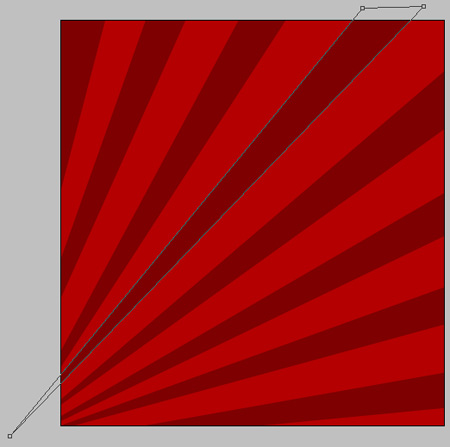
Use the previous instrument to picture several more triangles and color them in 700000. Place them out like in the next picture.
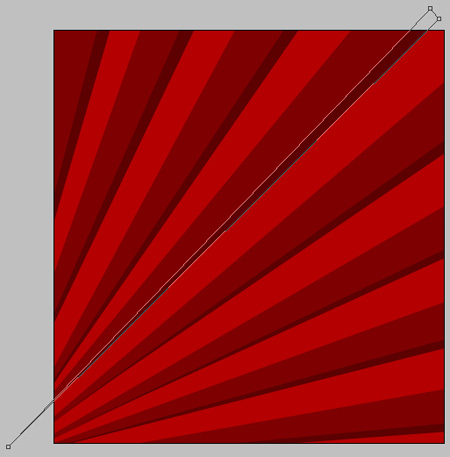

The previous instrument will be helpful in representing a figure of black color, like in the next picture.

Copy this new made layer.
Apply now this instrument  to move a little the splines on the necessary distance, exactly like it is shown below. Paint the picture in FEBABA.
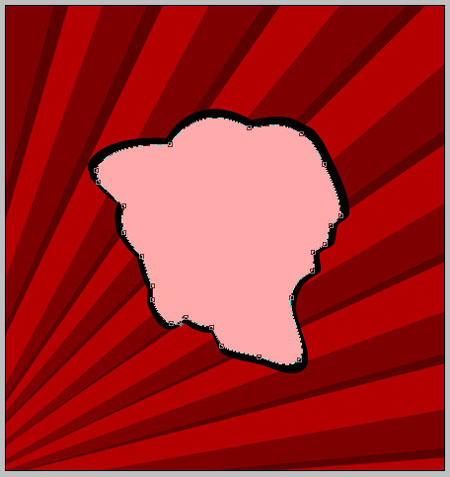
Copy the new made layer.
Take again the instrument to move the splines on the necessary distance and paint it in black.

Represent now the rose’s petals, applying the next instrument and creating a new figure. It must have the color – C71000 and must look also exactly like that one from the picture below.

Take the previous instrument to draw a figure of the demonstrated color – D20902, like in the image below.

Page: 1 2
Comments