Stylish Phone Icon

December 2nd, 2006 by ART-D Posted in Adobe Photoshop, Buttons

Open a new file, that would have 450×470 px and 300dpi.

Stylish Phone Icon in Photoshop CS

Take the next instrument and try to represent a circle like that one indicated next picture.

Stylish Phone Icon in Photoshop CS

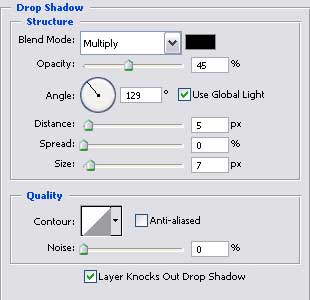
Blending Options-Drop Shadow

Stylish Phone Icon in Photoshop CS

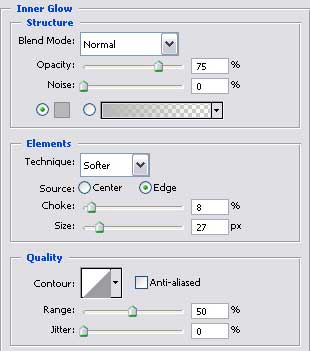
Blending Options-Inner Glow

Stylish Phone Icon in Photoshop CS

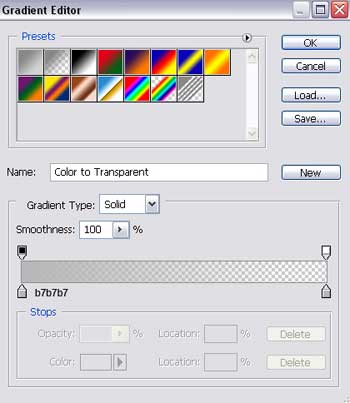
Gradient’s parameters.

Stylish Phone Icon in Photoshop CS

Copy this new made layer and apply Free Transform option to minimize it. Fill 0% on the layers and make everything look like it is demonstrated below. Keep the same parameters also.

Stylish Phone Icon in Photoshop CS

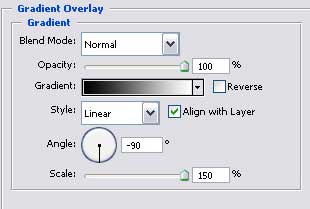
Blending Options-Gradient Overlay

Stylish Phone Icon in Photoshop CS

Post Pages: 1 2 3

  • Vanzahn

    07/09/2009

    Really nice button/icon and you’re obviously good at what you do but you have a terrible teaching style. You miss out salient points in the process and make it really hard to learn. :(

  • Vanzahn

    07/09/2009

    For example in between stages one and two you have to rasterize the layer and you don’t even mention it!

  • منتديات ماى بكتشرز

    14/10/2009

    Really nice button/icon and you’re obviously good at what you do but you have a terrible teaching style. You miss out salient points in the process and make it really hard to learn.