
Gel Text
May 4, 2006 | 0 comments
This Tutorial shows you how to make cool looking gel letters.
Step One.
Create a new image of any size, I choose 500×150 pixels.
Step Two.
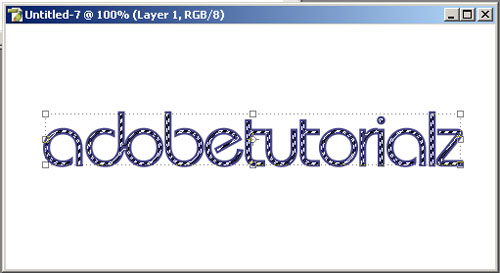
Use the text tool, and type out the message you want on the image with a black color. The font I used for this tutorial is “Angryblue Controlled”, which comes in a pack with the “Angryblue” font.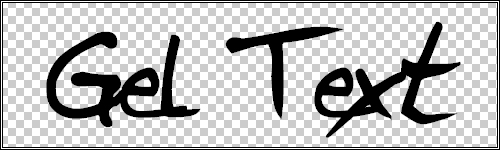
Step Three.
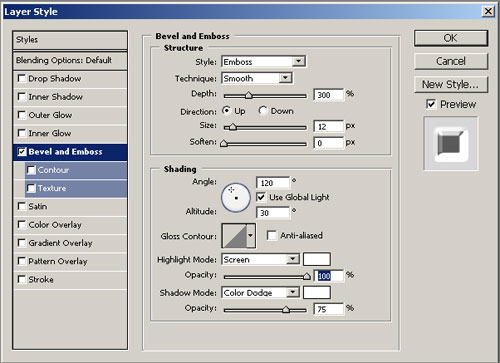
Click the left click the layer on the layers palette and choose blending options and use these settings to make the green gel text that I am going to show you. You can change the colors to whatever color you like if you want.
Step Four.
Drop Shadow & Inner Shadow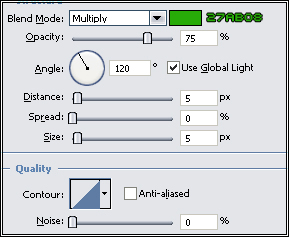
Outer Glow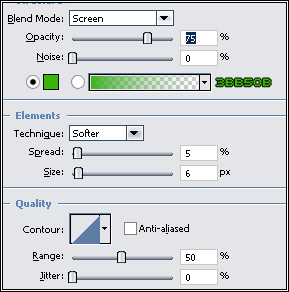

Inner Glow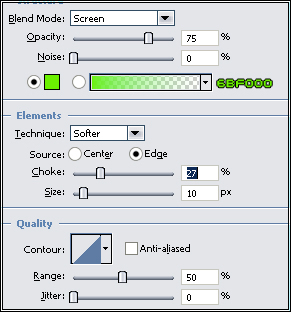
Bevel and Emboss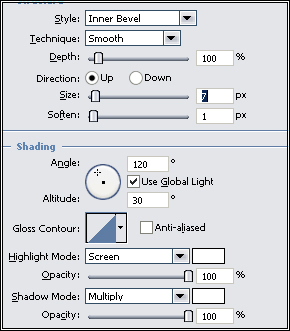
Contour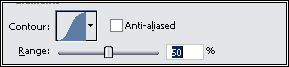
Color Overlay
Step Five.
And you have just made your text into gel! 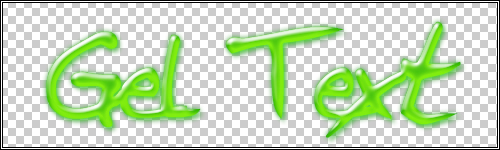





Comments