Portfolio Web Layout
April 18th, 2007 by ART-D Posted in Adobe Photoshop, Web Layout
Using the same instrument, try to make a small circle on the lowest part of the site’s panel: 
The layer’s parameters:
Blending Options>Drop Shadow
Blending Options>Inner Glow
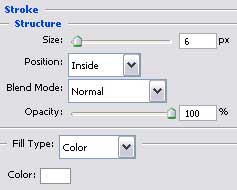
Blending Options>Stroke
Selecting the previous instrument, it’s possible to draw several more circles on the lowest part of the site’s panel: 
The layer’s parameters:
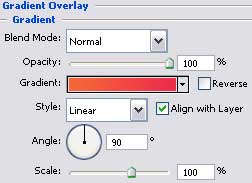
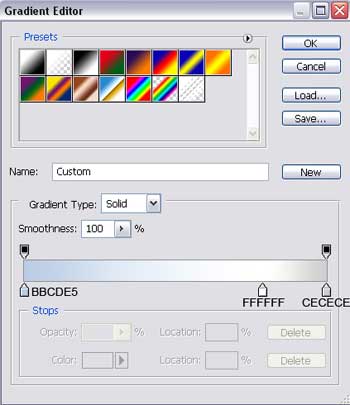
Blending Options>Gradient Overlay
Gradient’s parameters: 


Cem
05/09/2009
Hi!
Which version do you use on photoshop?
For example, cs 4 or extended version?
Because, i use cs4 extended version but i’can’t do gradient tool. =(
Sincerely,
Cem
Addon Solutions
06/08/2010
Hey,
Its more interesting information that how anyone can design best layout from this tutorials thanks for sharing here
Thanks
Nuß
04/09/2010
-Cem, Photoshop has had the gradient tool going all the way back to 3.0 I believe. You will find it as an alt tool of the paint bucket. Click and hold over the different tools, to get the other options or just press apple + G (mac) Ctrl+G (PC)
Hire PHP Developers
19/10/2010
this nice …… and thnks
kenichifc
17/12/2010
thanks for tutorial. Love it, simple and effective
Adam
01/02/2011
I dont get this:
(make a mouse’s click, pressing the Alt button simultaneously between the window’s layer and the screenshot’s one)
Dana
22/02/2011
Thanks for all the tutorials. They are very helpfull, no extra details.. so I don’t get bored… reading 10000 steps
. Short and clear.
Regards
J. Hendrix
17/03/2011
Thanks for sharing, this is a nice tutorial
Chicken
24/05/2011
(make a mouse’s click, pressing the Alt button simultaneously between the window’s layer and the screenshot’s one)
I don’t understand this step.
Can someone help me clear this up?
Thanks a lot!
Piotr Plachta
30/05/2011
Great tutorial
guest
22/06/2011
Step – (make a mouse’s click, pressing the Alt button simultaneously between the window’s layer and the screenshot’s one) , is not at all clear.. I could not get the screen shot in ecllipse.
Steven H
26/06/2011
Hey. i have followed this tutorial and where the links will be in the tabs there is no way of turning them into a role over image and placing them inside the tabs and linking them in dreamweaver. can anyone help me out on how to make a rollover image and placing them into the tabs for the links.
i want to keep the slant look but i dont know how to make the rollovers to place in them tabs.
Tom
04/07/2012
I’m trying to build a HTML page from a similar design. I’m having trouble making the slanted menu tabs into links. I have them saved as separate images and can get them to link, but I cannot line them up because the ‘square’ around the menu tabs is there. Is there any way of overlapping the squares and making this work as a menu? Also the background around the image also acts as a link
prachi
20/12/2012
What a lovely tutorial. Very creative.Thank you for sharing.
I have a request. Can you please tell us how to convert such photoshop designs to css web layout ? Any css tutorial which breaks the classic boxed layout ? I have the same query as TOM and Steven have asked.