Portfolio Web Layout
April 18th, 2007 by ART-D Posted in Adobe Photoshop, Web Layout
Do the same with the rest of them: 
Then choose the known Ellipse Tool (U) to create a layer reserved for the scrolling button, which color should be FD9B00. 
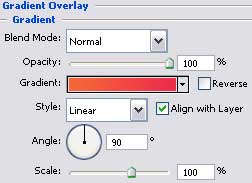
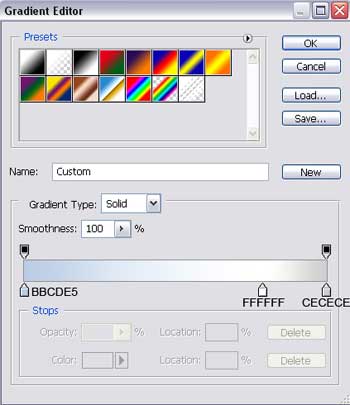
The layer’s parameters:
Blending Options>Drop Shadow
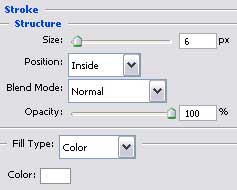
Blending Options>Stroke
Create a new layer. Represent on the already made scrolling button a white pointer directed to the left side, choosing the usual Pencil Tool (B) for these operations: 

Merge down in a group all the layers composing the scrolling button (keep pressed the Ctrl button to mark out the necessary layers and press simultaneously the left mouse’s button to move the marked layers lower on Create a new group option). Make a copy of the new made group and select the Free Transform option to turn the copy over and place it the way you may see below: 
The final result is this one!
View full size here.


Cem
05/09/2009
Hi!
Which version do you use on photoshop?
For example, cs 4 or extended version?
Because, i use cs4 extended version but i’can’t do gradient tool. =(
Sincerely,
Cem
Addon Solutions
06/08/2010
Hey,
Its more interesting information that how anyone can design best layout from this tutorials thanks for sharing here
Thanks
Nuß
04/09/2010
-Cem, Photoshop has had the gradient tool going all the way back to 3.0 I believe. You will find it as an alt tool of the paint bucket. Click and hold over the different tools, to get the other options or just press apple + G (mac) Ctrl+G (PC)
Hire PHP Developers
19/10/2010
this nice …… and thnks
kenichifc
17/12/2010
thanks for tutorial. Love it, simple and effective
Adam
01/02/2011
I dont get this:
(make a mouse’s click, pressing the Alt button simultaneously between the window’s layer and the screenshot’s one)
Dana
22/02/2011
Thanks for all the tutorials. They are very helpfull, no extra details.. so I don’t get bored… reading 10000 steps
. Short and clear.
Regards
J. Hendrix
17/03/2011
Thanks for sharing, this is a nice tutorial
Chicken
24/05/2011
(make a mouse’s click, pressing the Alt button simultaneously between the window’s layer and the screenshot’s one)
I don’t understand this step.
Can someone help me clear this up?
Thanks a lot!
Piotr Plachta
30/05/2011
Great tutorial
guest
22/06/2011
Step – (make a mouse’s click, pressing the Alt button simultaneously between the window’s layer and the screenshot’s one) , is not at all clear.. I could not get the screen shot in ecllipse.
Steven H
26/06/2011
Hey. i have followed this tutorial and where the links will be in the tabs there is no way of turning them into a role over image and placing them inside the tabs and linking them in dreamweaver. can anyone help me out on how to make a rollover image and placing them into the tabs for the links.
i want to keep the slant look but i dont know how to make the rollovers to place in them tabs.
Tom
04/07/2012
I’m trying to build a HTML page from a similar design. I’m having trouble making the slanted menu tabs into links. I have them saved as separate images and can get them to link, but I cannot line them up because the ‘square’ around the menu tabs is there. Is there any way of overlapping the squares and making this work as a menu? Also the background around the image also acts as a link
prachi
20/12/2012
What a lovely tutorial. Very creative.Thank you for sharing.
I have a request. Can you please tell us how to convert such photoshop designs to css web layout ? Any css tutorial which breaks the classic boxed layout ? I have the same query as TOM and Steven have asked.