Virtual DJ Picture

April 27th, 2007 by ART-D Posted in Adobe Photoshop, Drawing Techniques

In this detailed tutorial we will learn how to design this nice DJ smile.

Create a new file with 1280×1024 px and 72 dpi and select the Rectangle Tool (U) to represent the primary layer for the picture to be next.

Create Virtual DJ Picture in Photoshop CS

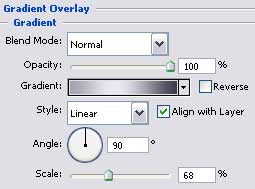
The layer’s parameters:
Blending Options>Gradient Overlay
Create Virtual DJ Picture in Photoshop CS

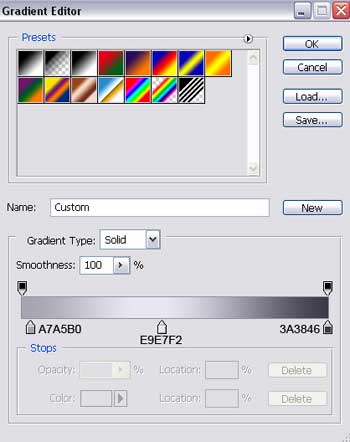
Gradient’s parameters:

Create Virtual DJ Picture in Photoshop CS

Next we have to choose the Ellipse Tool (U) and draw the lowest layer for the small ball we want to picture out next.
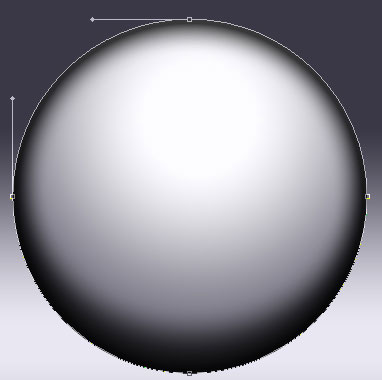
Create Virtual DJ Picture in Photoshop CS

The layer’s parameters:
Fill 26% on they layers.
Blending Options>Inner Shadow
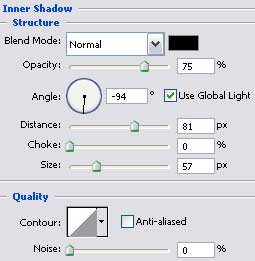
Create Virtual DJ Picture in Photoshop CS

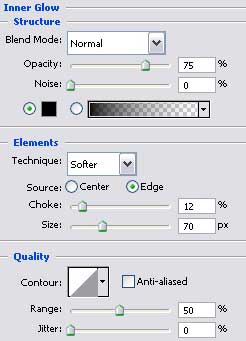
Blending Options>Inner Glow

Create Virtual DJ Picture in Photoshop CS

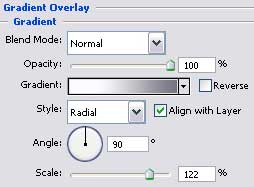
Blending Options>Gradient Overlay

Create Virtual DJ Picture in Photoshop CS

Post Pages: 1 2 3 4 5 6 7 8 9 10 11

  • frostI

    22/08/2009

    amazing outcome. i love tech, so this is wonderful for me.

    badly enough i can’t make it. not enough skill.

    only got skill at signatures

  • Graphic Student

    08/10/2009

    Not liking this tutorial very much. It’s missing a few things that throws off students trying to go along with this tut. Many in my class cannot understand this past page 3.

  • fjellrev

    12/12/2009

    where is the rest of it?

  • anthony

    07/01/2010

    I thought it was a great tutorial. There are a few details that you are missing in the tutorial, like how to move the positioning of a radial gradient in blending mode. I still haven’t been able to figure that one out.

  • Pinina

    09/01/2010

    Wow… this was an amazing tutorial. It only took me like… 5 days to figure out but it was SO MUCH FUN!!!! I loved it. :) Here’s my result:

    ~Pinina

  • Pinina

    09/01/2010

    Oops.. didn’t work. Here’s the URL so just copy it and paste. http://i821.photobucket.com/albums/zz137/tedashiifan/virtualdjbackground.jpg

    ~Pinina

  • Kiru

    15/03/2010

    Awsome loved the tutorial, here is my piece that I made with GIMP instead. but thank you for the tutorial (^_^)

  • Kiru

    15/03/2010

    Bah forgot to link my completed piece again thank you
    http://i266.photobucket.com/albums/ii244/Hantakira/Gimped/dj-eq.jpg

  • Julia

    29/04/2010

    HORRIBLE. sorry but this was very confusing and was not fun at all. you need to work on your directions alot becuase this was the biggest waste of my time ever

  • 3d models

    05/05/2010

    Wow great tutorials. thanks for sharing

  • taria

    15/07/2010

    I loved it, my only prblem was that everything was going oppisit of what was done. like the silver bits the black line was on the bottom and ot on the top. or the spot was on the bottom and not on the top. But other then that, total time it took me a couple of hour not including the interuptions I got while I was doing it. nice tut. got anymore????

  • Josh Wagner

    24/07/2010

    nice tutorial, but I’m having some trouble
    I’m using Photoshop CS3 and have some trouble with the creating the first earphone
    Do i create it on the same layer as the main object? And how do i get the convert point tool working? I tried using it once I’d done the earphone but it says ‘no options for the convert point tool’
    Help please!