Love Wallpaper for the desktop

July 5th, 2007 by ART-D Posted in Adobe Photoshop, Drawing Techniques

Create a new layer and apply the same brush used before – fingerprints brushes by hawksmont and represent several fingers’ prints and patches. The color’s code is #660000.

Create Love Wallpaper for the desktop in Photoshop CS3

Next we have to choose the Rectangle Tool (U) and represent a thin stripe colored in #330000 and after that we’ll select the Free Transform option to turn over the stripe the way it is shown next image.

Create Love Wallpaper for the desktop in Photoshop CS3

Apply the here presented Blending Options> Inner Shadow.

Create Love Wallpaper for the desktop in Photoshop CS3

We should get a metallic effect:

Create Love Wallpaper for the desktop in Photoshop CS3

Now make a copy of this stripe:

Create Love Wallpaper for the desktop in Photoshop CS3

Next we’ll create three more stripes, colored in black and place them as it is demonstrated next image. The layers must be placed under those created earlier.

Create Love Wallpaper for the desktop in Photoshop CS3

Create a new layer and apply on it the Brush Tool (B), Opacity of 20% to represent the needle’s dents.

Create Love Wallpaper for the desktop in Photoshop CS3

Create a new layer and after that a rectangle on it, choosing the Rectangular Marquee Tool (M) for representing the dent. The Paint Bucket Tool (G) is necessary to paint the marked zone. The color’s code in this case is #FFFFCC

Create Love Wallpaper for the desktop in Photoshop CS3

We have to block out this layer just not to get outside the stripe’s edges when working with it in the future.

Create Love Wallpaper for the desktop in Photoshop CS3

Choose a kind of brush like that one from below with the Opacity of 10%. We’ll use it for creating the effect of the blood, hachuring the picture. The color’s code is #993333

Create Love Wallpaper for the desktop in Photoshop CS3

Take the Polygonal Lasso Tool (L) and mark out the place shown below. Next select the Burn Tool (O) and put a shadow on the picture by hachuring the necessary place, imitating the paper’s bends.

Create Love Wallpaper for the desktop in Photoshop CS3

The Burn Tool (O) must have the next parameters:

Create Love Wallpaper for the desktop in Photoshop CS3

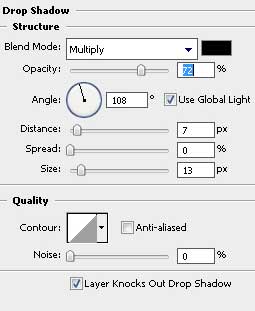
Apply next the Blending Options>Drop Shadow.

Create Love Wallpaper for the desktop in Photoshop CS3

It’s the result that we have at this moment:

Create Love Wallpaper for the desktop in Photoshop CS3Make a click on the right mouse’s button on the layer and select the Create Layer option as it is shown below:

Create Love Wallpaper for the desktop in Photoshop CS3

Select the separate layer containing the shadow and apply the Eraser Tool (E) to erase the upper edges and the lateral shadow’s parts.

Create Love Wallpaper for the desktop in Photoshop CS3

Create again a new layer and use on it the Polygonal Lasso Tool (L) to represent a marking, looking like a stripe created when tearing off the sticky band and then select the Burn Tool (O) to paint the marking with the color #999999

Create Love Wallpaper for the desktop in Photoshop CS3

Apply for this layer the Blending Options>Drop Shadow.

Create Love Wallpaper for the desktop in Photoshop CS3

Apply the layers’ parameters for the layer in case:

Create Love Wallpaper for the desktop in Photoshop CS3

We should get the same result as this one:

Create Love Wallpaper for the desktop in Photoshop CS3We should make the sticky band look more visible, that is why we’ll create a new layer and place it under the band’s layer. Make several clicks with the brush (Opacity – 10%) to get the same result like this one from next image:

Create Love Wallpaper for the desktop in Photoshop CS3

Make a copy of the sticky band’s layer and turn it over together with the shadow’s layer, placing them on the opposite side.

Create Love Wallpaper for the desktop in Photoshop CS3

Next step includes writing the corresponding text on the band:

Create Love Wallpaper for the desktop in Photoshop CS3

The text’s parameters are included in this table:

Create Love Wallpaper for the desktop in Photoshop CS3

Next we have to create one more new layer and mark it out both with the text’s layer. Press after that on the next combination of buttons: Ctrl+E, for the layers to stick together. Choose now the Eraser Tool (E) with the Opacity of 10% and erase the new image as it is demonstrated below:

Create Love Wallpaper for the desktop in Photoshop CS3

Finished!

View full size here.

  •  

  •    
  •  


Post Pages: 1 2

Tags: , , , , , , ,

  • McMardigan

    16/03/2010

    Man One of the most complete tutorials on the web
    just love it
    keep doing it cool

  • hannah

    29/07/2010

    this was kind of confusing. what is hachuring? and some of it wasn’t completely explained.

  • hannah

    29/07/2010

    also in the 64bit version of cs5 it doesn’t have lighting effects. so i’m screwed for that part

  • Ly Pham

    21/01/2011

    wow, i looooove it :) This is an awesome tut! Thank you for sharing the information.

  • joey

    03/03/2011

    how can i make one?

  • gozo

    16/04/2011

    thanx ya’ll this is amazing….

  • carlos

    26/04/2011

    it’s a awesome design, but it’s a little confusing and wasn’t fully explained some things mmm the font where get download? sorry with my english =D

  • Trinity

    13/05/2011

    This is an awesome design. However, I must point out the bad and good points. I would say this tutorial is more for the moderate to advance PS user. I am being a beginner user. So this Tut is my very first attempt at using PhotoShop CS3.

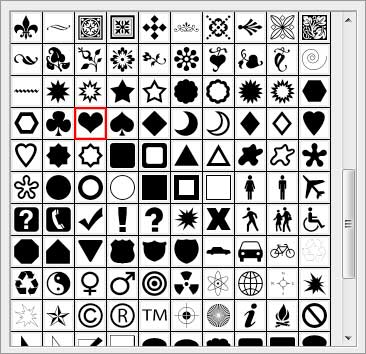
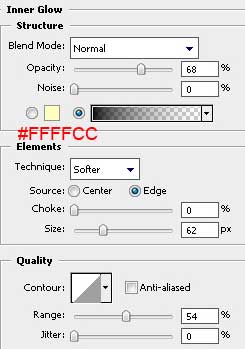
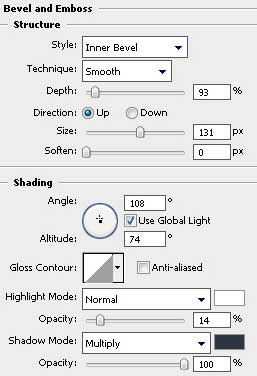
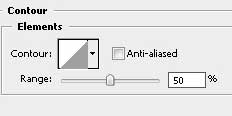
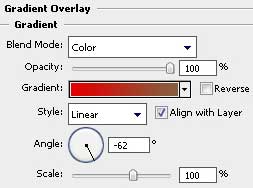
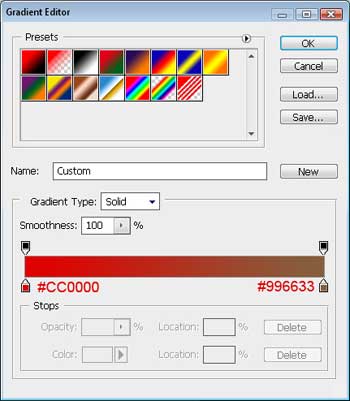
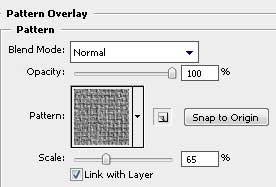
    The Tut doesn’t mention what version is being used. My version does not have the “Pattern Overlay. The texture set Artist surfaces. The texture’s name is Dark coarse weave.” preset into the program. The writer doesn’t tell you how to rotate the image of the heart layer and not the whole canvas. (HOW TO ROTATE: http://photo.net/digital-darkroom-forum/00MA70) The writer doesn’t offer links to websites where you can download the custom shape tools, brushes or patterns. (Download sites are linked below.) It doesn’t tell you how to adjust the color swatch in the “Inner Glow” and “Gradient Overlay” steps (I had to double click on the tiny paint bucket on the slider.), nor does it tell you in the “Inner Glow” step how to select the black fade to transparent. To this day I still don’t know how this person got that. (Must have been something pre-made by the writer of this Tut.) I was able to download the Blood_Splatter_Brushes_By_Vexing_Art but I was not able to find “Evil_Blood_Splat_By_Vexing_Art” anywhere so I had to wing it.

    Here are the sites I was able to find to download the necessary brushes for this Tut.

    finger prints brushes by hawksmont: (“Evil_Blood_Splat” was not found)
    http://hawksmont.com/blog/photoshop-brushes-fingerprints/

    Blood_Splatter_Brushes_By_Vexing_Art:
    http://vexingart.deviantart.com/art/Blood-Splatter-Brushes-11819573

    ALTERNATIVES are below:

    I used the “small angel mesh” in the metal Pattern download which I found was a nice alternative to the “Dark coarse weave” that was required for the Tut since my PS version didn’t have this pattern. (I’m assuming there is a cs3 patch out there to get this pattern but I haven’t found one yet.)
    http://www.cruzine.com/2010/06/25/professional-photoshop-patterns/

    Custom Shape Tool with the shape Heart Card:
    http://graphicssoft.about.com/od/photoshopdownloads/ss/shapes1.htm

    Overall, I would still say this Tutorial was helpful is showing me where some things are in PhotoShop and what the affects are. I know I didn’t make an exact copy of the Tutorial but I think is still came out nice. :)
    http://i278.photobucket.com/albums/kk102/juciecotour/BleedingHeartWallpaper.jpg

  • lived

    22/10/2011

    Great tutorial, very well explained and very neat idea ;)

  • trip media

    06/02/2012

    dude wheres the blending option?? cant find it .. im just new to this and because valentines is right out of the corner.. can someone tell me where it is ??

  • Gumper

    17/02/2012

    @tripmedia…if your referring to Blending Option/Drop Shadow and your using a newer version of PS, it will be part of the fx options in the Layers pallet. With the that layer selected, go the the fx button at the bottom of the layers pallet and select Drop Shadow from the menu. (This is the best way because you can go back and tweak it if needed)

    Also available in the top menu bar of Photoshop. Go to Layer/Layer Style/Drop Shadow.

    Hope you got it worked out in time for the big V-Day.