
Summer Effects
This tutorial shows you how to design summer wallpaper, that can we can use on the web, or any other practical use.
This lesson I’ll tell you how to represent nice wallpapers for the desktop. We’ll start by creating a new file (File>New) that would have 1024×768 px and 72 dpi. Set the same colors presented in the next image on the tools’ palette.

the color’s code is #00FF00. Next we’ll select this option – Filter>Render>Clouds and then this one: Filter>Blur>Gaussian Blur…
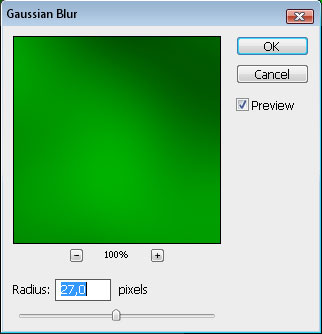
We should have in the end a kind of background like this one from below:

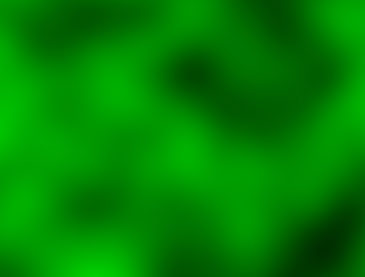
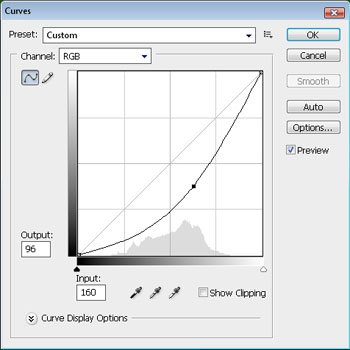
Press now on the next combination of buttons: Ctrl+M and set everything as it is shown next image:
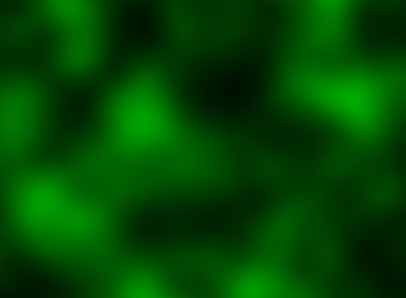
We’ll get a darkening like this one from the image:
After that we have to select the Brush Tool (B) with this color’s code #00FF00 and represent on a new layer a horizontal line with the next brush’s parameter:
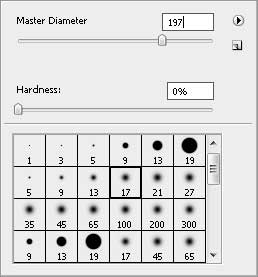
You should get the result as this one presented below:
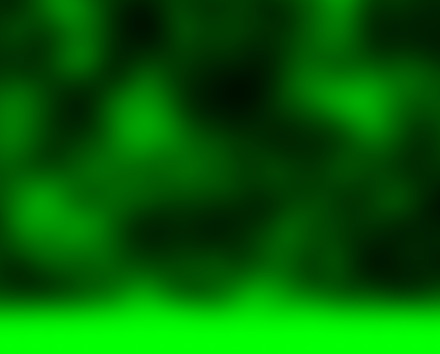
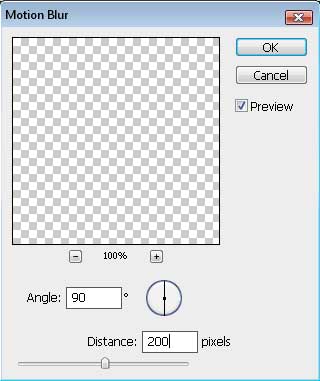
Select next option: Filter>Blur>Motion Blur… and set the next shown parameters:
Comments