
Business Web Page
In this detailed tutorial you will learn how to create a web layout for your business.
Create a new file (File>New) with 780×700 px and 72 dpi.

Create a new layer and select the Rectangular Marquee Tool (M) to mark out the necessary zone and take the Paint Bucket Tool (G) to paint the marked zone in black color.
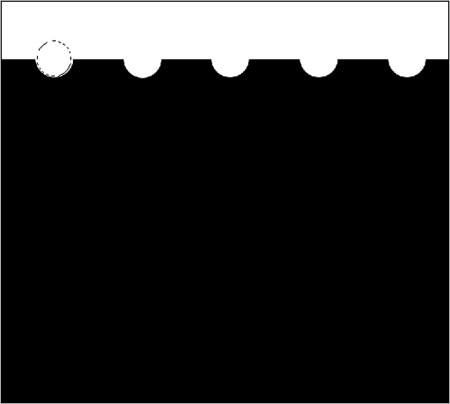
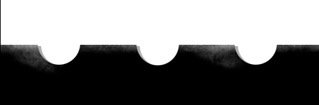
Next use the Elliptical Marquee Tool (M) (on the same layer) to mark out the zone as it is shown on the picture and press Delete button. This operation must be done five times.

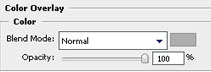
Make a copy of the recently made layer and place it under the original layer of black color on the layers palette. Using the Free Transform selection, it’s possible to move the layer to the right side, changing also the layer’s parameters. The color in this case should be #AEAEAE.
Blending Options>Color Overlay
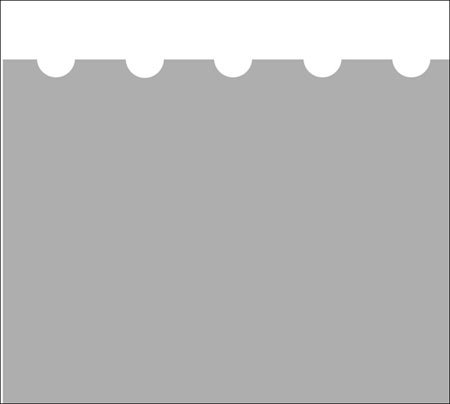

Show again the previous layer.
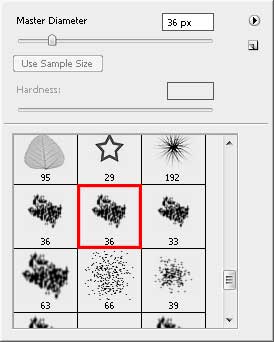
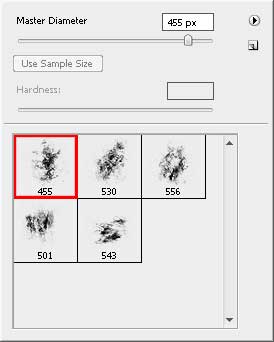
Select now the Brush Tool (B) of standard type.
Use now the Dodge Tool (O) on the black layer (we should use the earlier selected brush).
Comments