
MP3 Player Interface
In this tutorial you will design an interface for a modern MP3 player.
Firstly create a new file (File>New), having 1024×768 px and 72 dpi. The Rectangle Tool (U) will help us to represent a rectangle on the whole page.
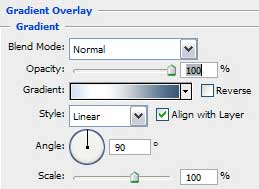
Select Blending Options>Gradient Overlay and set the parameters from below:
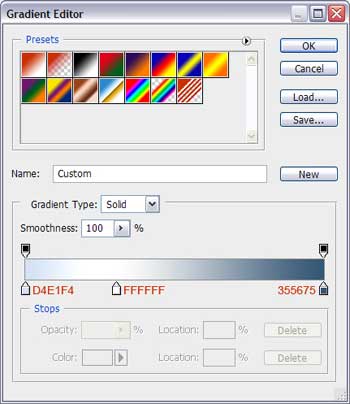
Set the gradient also, taking care of the colors’ codes shown next:

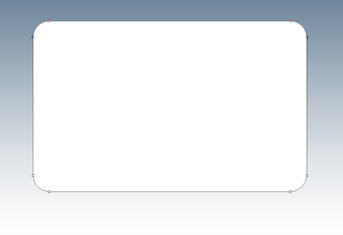
It’s the picture we should get for now:

Now we’ll try to create the corps of the player to be, so let’s choose the Rounded Rectangle Tool (U) with 35 px radius to represent a corps with rounded corners, placing it the way demonstrated below.
Make it look of metal texture. Select Blending Options>Gradient Overlay:
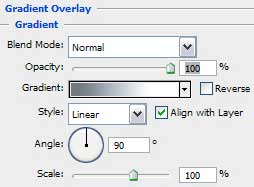
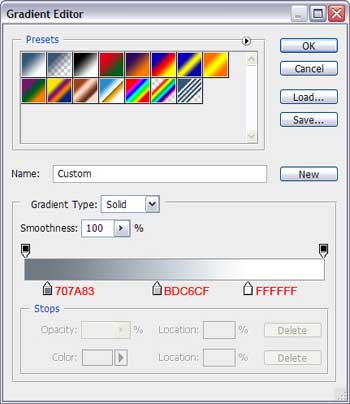
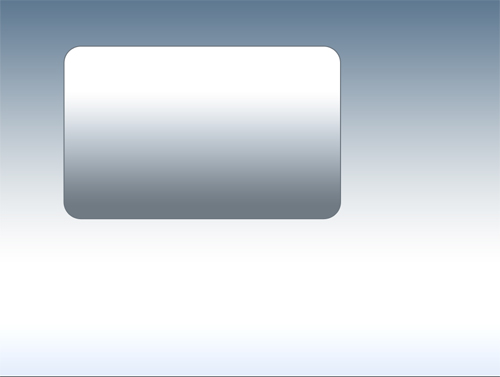
We should get the next picture:

Next step we should make the corps look thicker, just for it not to let the impression of being too thin as a sheet of paper. So select Blending Options>Stroke and set the next parameters:
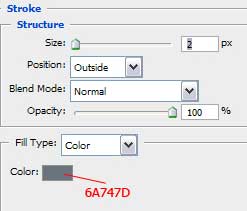
Using the Rectangle Tool (U), it’s possible to represent a screen. Fill 0% on the layer’s parameters:
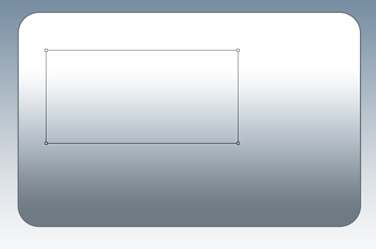
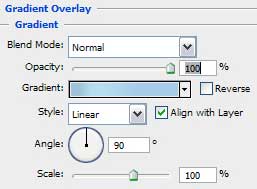
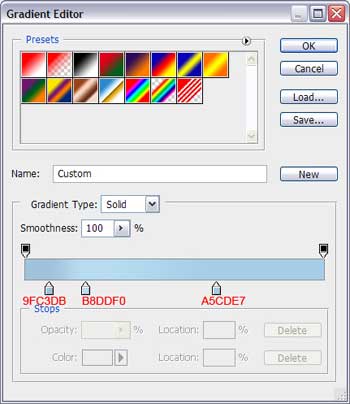
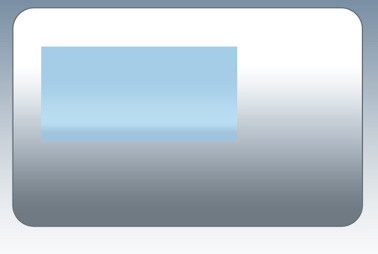
Select Blending Options>Gradient Overlay
Give the volume effect to the screen with Blending Options>Inner Shadow
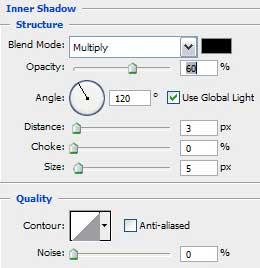
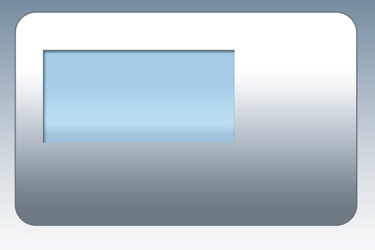
Blending Options>Stroke:
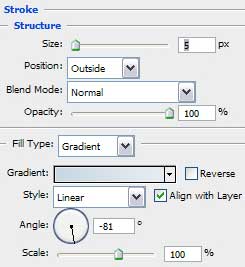
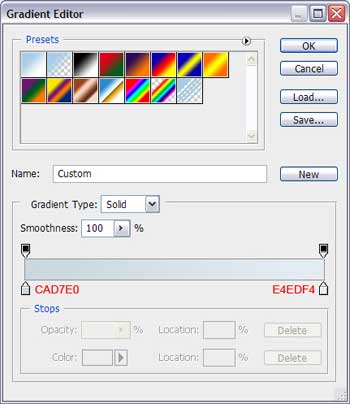
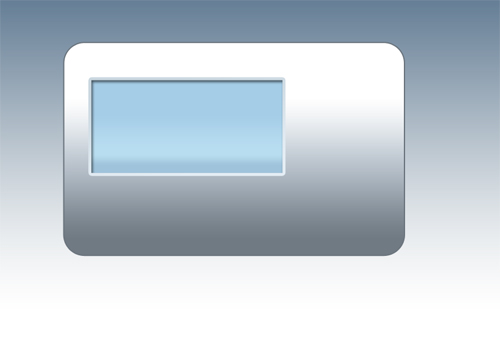
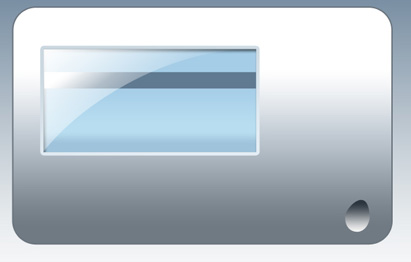
Using the Rectangle Tool (U) with the color #5f7990, try to make a small stripe, as the next one on the screen.
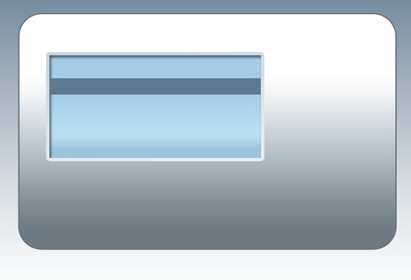
Create a small gradient with Blending Options>Gradient Overlay:
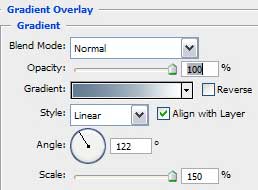
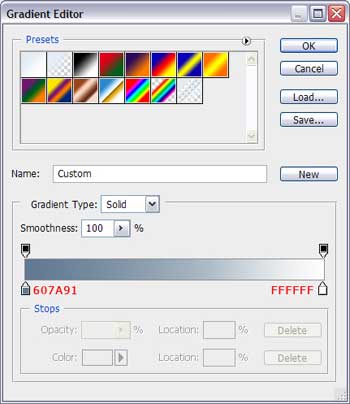
Gradient’s parameters:
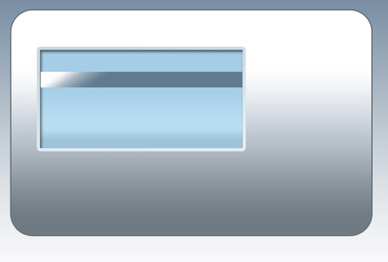
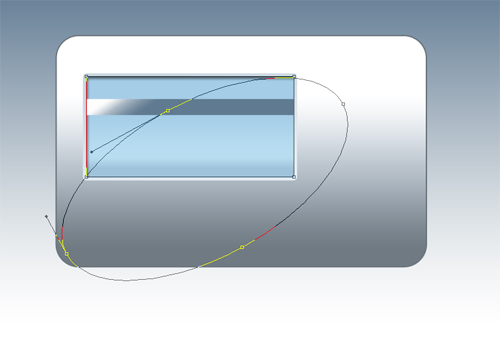
Now we should make a small flare on the screen. Make a copy of the screen’s layer and situate it above he stripe’s layer. Cancel all the Blending options and Fill 0% on the layer. After that select the Ellipse Tool (U) and press simultaneously Alt button to stretch out the roundness as the picture from below shows it:
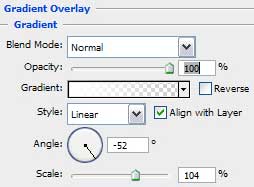
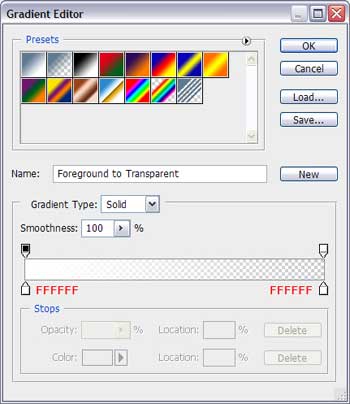
Enter the Blending Options>Gradient Overlay and set the new parameters:
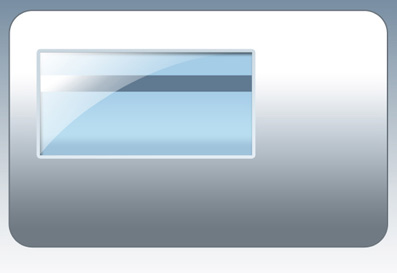
Working with the screen is finished. Let’s begin representing the buttons now. Select the Ellipse Tool (U) and picture out roundness, but we should change the placement of the upper point the way it is shown below:
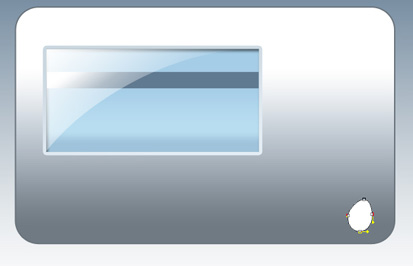
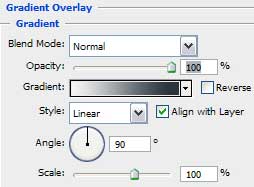
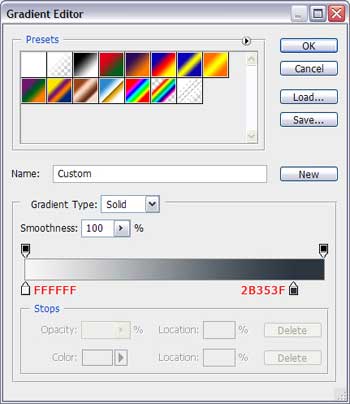
Apply the gradient for it and select Blending Options>Gradient Overlay:
Comments