
Music dreamer effects
Find the right Urban Vibe Illustration in this tutorial. Pure Street Style!
Create a new file (File>New) that would have 1024×768 px and 72 dpi. After that, choose the Rectangle Tool (U) to represent the background of the next picture.

The layer’s parameters: Blending Options>Gradient Overlay
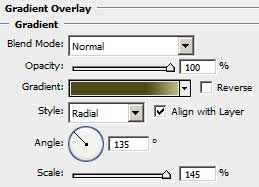
Gradient’s parameters:

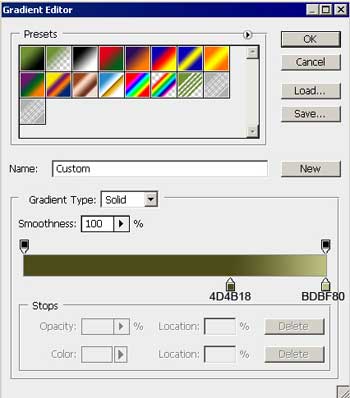

Download from Internet a set of ready to use brushes for Adobe Photoshop: ABSTRACT_MEGA_PACK_BRUSHES, VECTOR_ABSTRACT_2, Floral_ornaments, Clouds_brushes.
Next find in Internet a picture, representing a DJ.
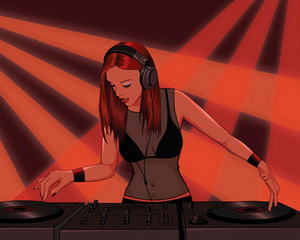
Cut out the DJ’s figure:
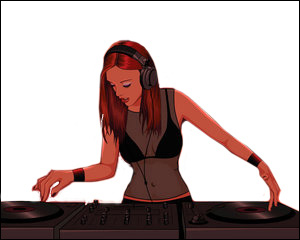
Apply for the DJ’s layer the next parameters: Blending Options>Color Overlay 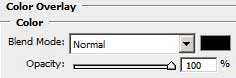
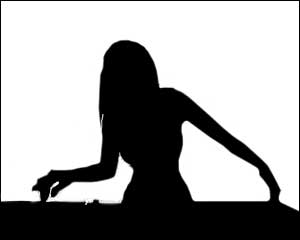
Insert also the DJ’s silhouette on the central part of our picture.
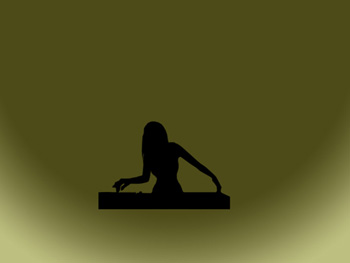
On a new layer (Create a new layer) we’ll use the brushes from the set, VECTOR_ABSTRACT_2.
We’ll use the next brushes: the fourth colored with #89AA39, the fifth colored with #B7B854 (the layers containing the brushes must be placed lower than the DJ’s layer)
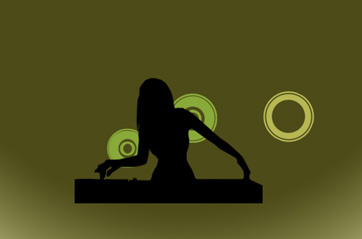
Create a new layer (Create new layer) and select the floral_ornament _05 brush out of the Floral ornaments set, colored with #545B15 and the brushes from the set ABSTRACT_MEGA_PACK_BRUSHES.
We’ll use the next brushes out of this set: Circle 1, colored #949D1E, Circle 4, colored #305601.
The set VECTOR_ABSTRACT_2 gives the possibility to use here the brushes 17 and 21, colored with #4F5534 and the brush 23, colored with #363921.
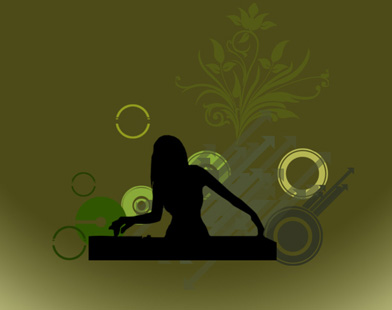
(the brushes’ layers must be placed lower than the DJ’s layer).
Page: 1 2
Comments