
Star Wars Poster
In this tutorial you will learn how to make a custom Star Wars Theme using Adobe Photoshop CS3.
Create a new file (File>New) with 1024×768 px and 72 dpi and select for it the Paint Bucket Tool (G) to paint the file in black color.

Apply also for this layer the next option: Filter>Noise>Add Noise
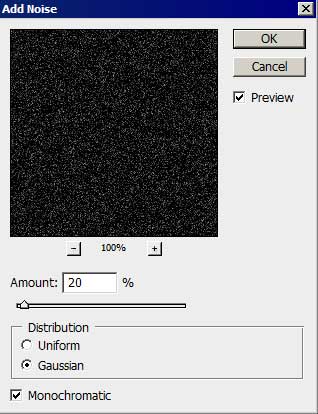

Make a copy of the new made layer and change Blending Mode – Multiply
Make another copy of the layer, changing the Blending Mode-Vivid light 
Create a new layer and use on it the standard brush of black color to dark out the lowest part of the picture.
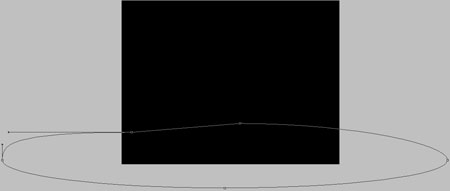
Select now the Ellipse Tool (U) to make the picture’s surface look black and then we have to apply the Add Anchior Point Tool to insert one more top on the picture. The Convert Pont Tool may help us in correcting the element’s shape.
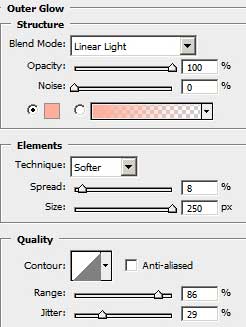
The layer’s parameters: Blending Options>Outer Glow
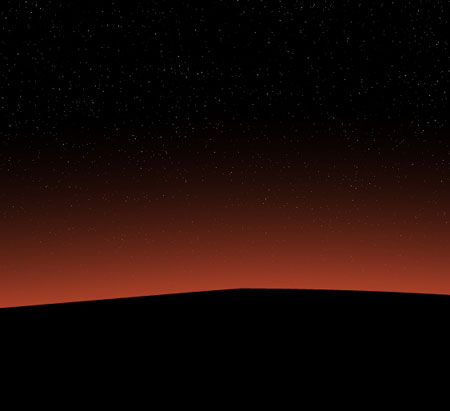
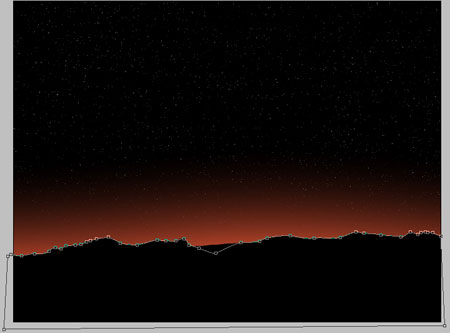
Next step includes selecting the Pen Tool (P) and making the first plan of the picture look entirely black. The shape may be corrected again with the Convert Pont Tool.
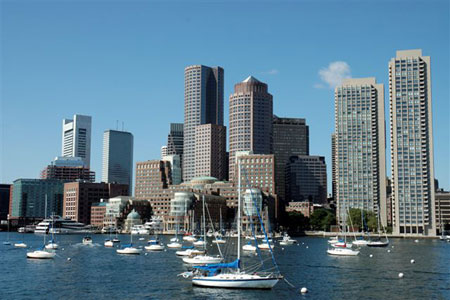
Find in Internet a picture representing a city.
Comments