Online Photo Portfolio
October 24th, 2007 by ART-D Posted in Adobe Photoshop, Web Layout
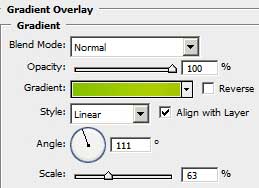
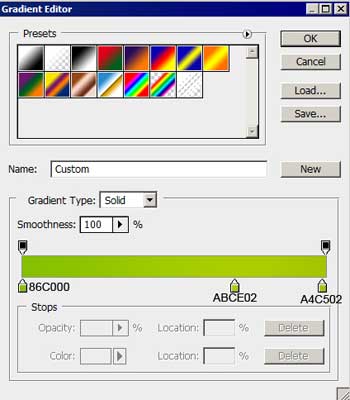
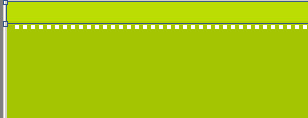
Make a copy of the last made layer and choose Free Transform option for making the copy smaller, applying for the copy the color shown next: #49BD14
The layer’s parameters: Blending Options>Stroke
Using the Rectangle Tool (U), try to make a highlight on the number’s place. The color is #E3E3E3. We shall use also the Add Anchior Point Tool on the lowest part of the highlight. The shape may be corrected with the Convert Point Tool.
Keep pressed the Alt button to make a mouse’s click between the highlight’s layer and the green layer reserved for the number for the highlight to be applied in the limits of the number’s green layer.
The layer’s parameters: Fill 50%
For the final result we need to Combine in a group all the layers composing the place reserved for the number (press on Ctrl button to mark out the necessary layers and keep pressed the left mouse’s button to take the marked layers on Create a new group option). Make two copies of the last made group and select again the Free Transform option to place the copies in the appropriate site’s sections. We need also to change the basic colors of the copies: the first copy – #ED9300; the second copy - #5EA9D1 (the color Blending Options>Stroke is the same with that one from the number’s place color).
We need to number the site’s sections, but the number should look a little inclined, that is possible to do with Free Transform option.
The numbers’ layers’ parameters are the same: Blending Options>Drop Shadow
Insert the site’s title: 


Türks Bilişim
09/09/2009
this, very thank you..
Your site full professional and very beautiful…
css ajax styles
09/09/2009
yes this article is very fine.
vezir
01/03/2010
eeeeexcellent!!!!
Webdesign Mannheim
15/07/2010
Thanks a lot
Philliptan
17/07/2010
Thanks a lot , this is useful and i love your article !!!
Craig
08/09/2010
Great tutorial and really nice finished design, Thanks!
Lisa Thomason
20/09/2010
Wow! Fantastic online photo portfolio tutorial, very easy to follow, Thank you. LT
Md. Afsar Khan
07/11/2010
Very beautiful article realy …
but please let me know how can we make it live i mean slicing and setting in dreamweaver etc.
kenichifc
17/12/2010
thanks for tutorial. Love it, simple and effective
9633a
31/12/2010
Thank you for the tutorial
It is very beautiful
Ajveth
19/01/2011
Thank u this tutorial is very useful
โหลดเพลงฟรี
14/04/2011
very nice for this theme
Kapil
27/10/2011
very nice and eye catching website theme
thanks
amrew
04/12/2011
very nice