Online Photo Portfolio

October 24th, 2007 by ART-D Posted in Adobe Photoshop, Web Layout

Create Online Photo Portfolio in Photoshop CS3

Apply the same parameters for all the buttons’ titles:
The layer’s parameters: Blending Options>Drop Shadow

Create Online Photo Portfolio in Photoshop CS3 

Create Online Photo Portfolio in Photoshop CS3

It’s time to represent now the primary layers reserved for the pictures, using the Rectangle Tool (U) and the white color.

Create Online Photo Portfolio in Photoshop CS3

The layers’ parameters are the same: Blending Options>Drop Shadow

Create Online Photo Portfolio in Photoshop CS3 

Create Online Photo Portfolio in Photoshop CS3

Insert the pictures in the recently made sections:

Create Online Photo Portfolio in Photoshop CS3

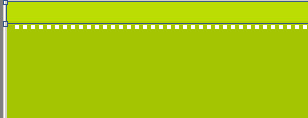
Now we’ll represent a double dividing stripe, choosing the Rectangle Tool (U). The left stripe should have a green texture, but the right one – a white one:

Create Online Photo Portfolio in Photoshop CS3

The layers’ parameters for the left stripe: Fill 0%
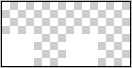
Blending Options>Pattern Overlay
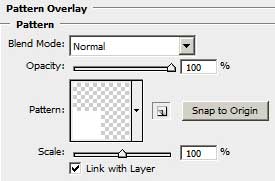
Create Online Photo Portfolio in Photoshop CS3

The parameters for the right stripe: Opacity 70%
Fill 0%
Blending Options>Pattern Overlay


Create Online Photo Portfolio in Photoshop CS3 

Create Online Photo Portfolio in Photoshop CS3 

Create Online Photo Portfolio in Photoshop CS3

Make a copy of this new made layer and choose again the Free Transform selection to place the copy the way demonstrated below:

Create Online Photo Portfolio in Photoshop CS3

Post Pages: 1 2 3 4 5 6 7 8

  • Türks Bilişim

    09/09/2009

    this, very thank you..

    Your site full professional and very beautiful…

  • css ajax styles

    09/09/2009

    yes this article is very fine.

  • vezir

    01/03/2010

    eeeeexcellent!!!!