Night Sky

November 4th, 2007 by ART-D Posted in Adobe Photoshop, Special Effects

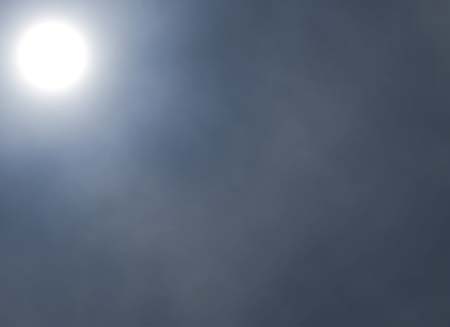
It’s time to represent the starry sky. It’s necessary in this case to create a new layer (Create new layer) and choose the Paint Bucket Tool (G) of black color. Place this layer upper than the previous layers and upper than the layer of the big planet (on the layers’ panel).

Create Night Sky in Photoshop CS3

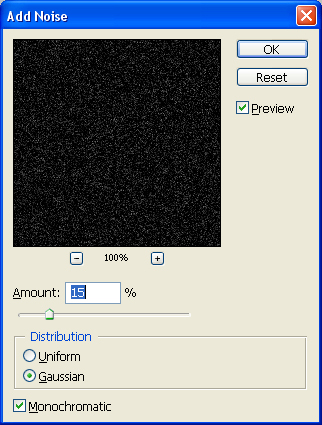
Apply for the last layer Filter>Noise>Add noise

Create Night Sky in Photoshop CS3 

Create Night Sky in Photoshop CS3

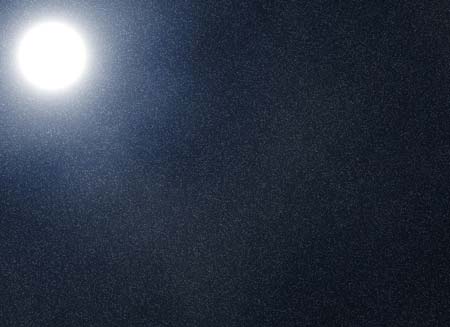
Apply the layer’s parameters: Blending mode-Linear light
Make also a mouse’s click on the lowest part of the layers’ panel on Add a Mask option. After that it’s necessary to select the Brush Tool (B) with blurred edges, diameter – 300 and black color to erase the unnecessary part of our picture.

Create Night Sky in Photoshop CS3

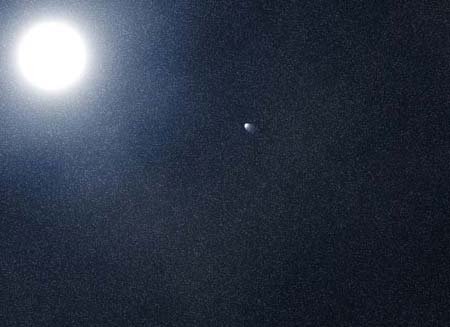
Try to picture now a meteorite. Create a new layer and choose a standard brush on it - Brush Tool (B) of white color and diameter – 7 to represent a patch and than apply the Eraser Tool (E), Opacity of 30% to clean out a little the meteorite’s tail.

Create Night Sky in Photoshop CS3 

Create Night Sky in Photoshop CS3

Now we have to represent the meteorite’s reflection. In this case we’ll make a copy of the last made layer and select the Free Transform option to turn over the copy and to place the copy exactly it is shown below. Fill 50% on the copied layers.

Create Night Sky in Photoshop CS3

Create another new layer (Create new layer) and select on it the Rectangular Marquee Tool (M), mark out the necessary area and paint it in this color - #0000FF, choosing for this operation the Paint Bucket Tool (G)

Create Night Sky in Photoshop CS3

Apply the next layer’s parameters: Fill 29%
Blending mode- Color Burn

Create Night Sky in Photoshop CS3

Using the same instrument - Rectangular Marquee Tool (M), try to mark out the appropriate area and select one more time the Paint Bucket Tool (G) to paint the marked place with #898989

Create Night Sky in Photoshop CS3

Apply for this layer the next selection - Filter>Noise>Add noise

Create Night Sky in Photoshop CS3 

Create Night Sky in Photoshop CS3

One more filter’s option should be applied on the layer: Filter>Blur>Motion blur

Create Night Sky in Photoshop CS3 

Create Night Sky in Photoshop CS3

The parameters of the same layer: Fill 50%
Blending mode-Soft Light

Create Night Sky in Photoshop CS3

The picture is finished!

Inspired  from Nightly Journey by gucken and taenaron
View full size here.

Post Pages: 1 2 3 4