
Merry Christmas Greeting Card
What your mother, father, sister, brorher, etc would like to get on Christmas more than anything, is a hand-made greeting card. If you have no color paper and glue, create it in Photoshop.
Final Image Preview

Start creating the file (File>New), that would have 800×300 px and 100 dpi.
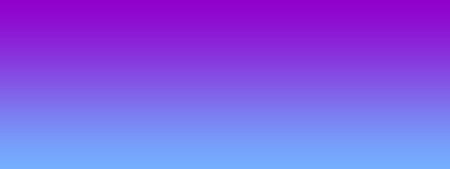
Using the Rectangle Tool (U), try to represent the background of the picture we want to have on the final stage of our work.
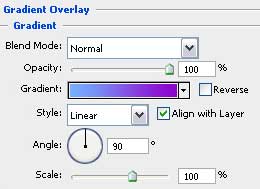
Select the next parameters by making a mouse click on the layer we work with on the layers’ panel: Blending Options>Gradient Overlay
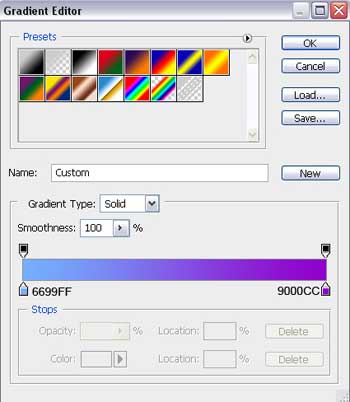
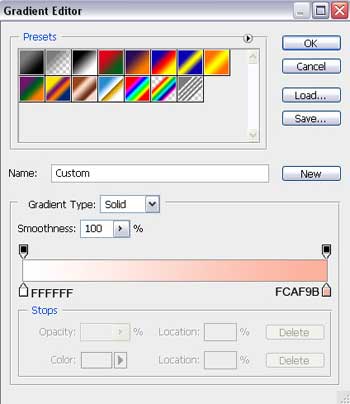
Gradient’s parameters:

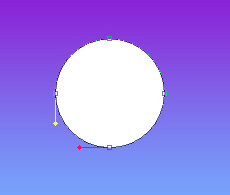
Using the Ellipse Tool (U), try to draw now the primary layer of a Christmas toy decoration
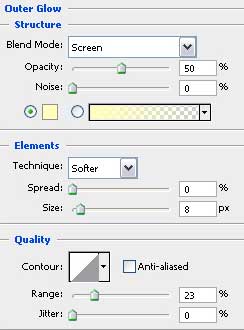
The layer’s parameters: Blending Options>Outer Glow
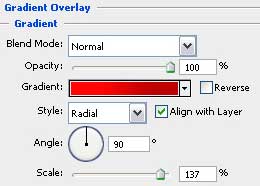
Blending Options>Gradient Overlay
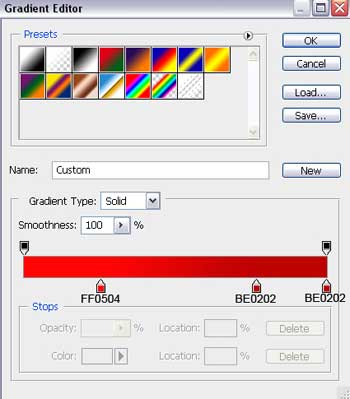
Gradient’s parameters:
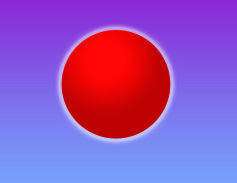
Select the previous instrument and picture out three more toy decorations of different colors.
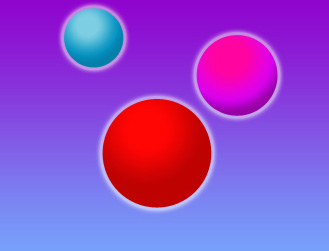
The parameter Blending Options>Outer Glow is the same for all the toys (the same with the red toy decoration). The parameters for the blue toy decoration: Blending Options>Gradient Overlay
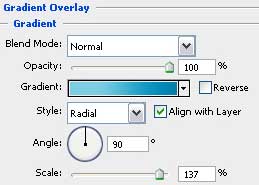
Gradient’s parameters:
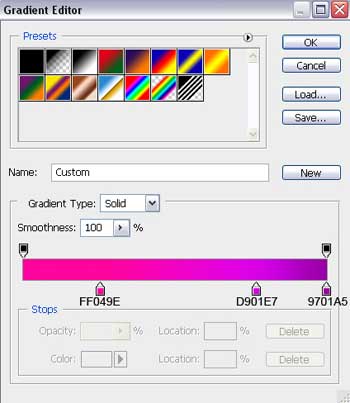
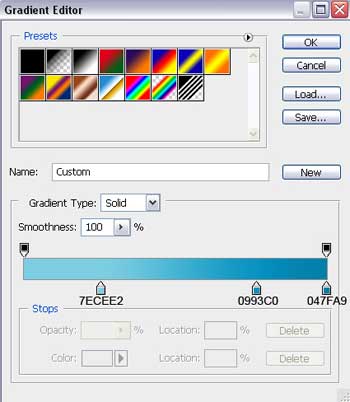 The parameters for the violet toy decoration: Blending Options>Gradient Overlay
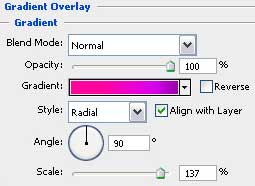
Gradient’s parameters:
Next we’ll make the top part of the decorations, applying the Rectangle Tool (U) and correcting the elements’ parts with the Convert Point Tool.
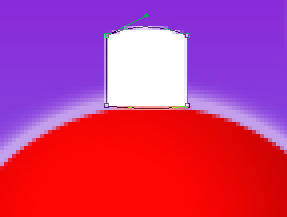
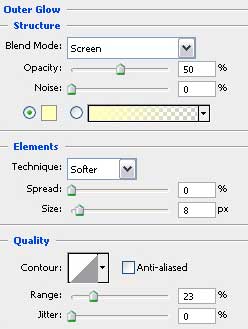
The layer’s parameters: Blending Options>Outer Glow
Blending Options>Gradient Overlay
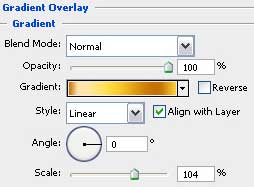
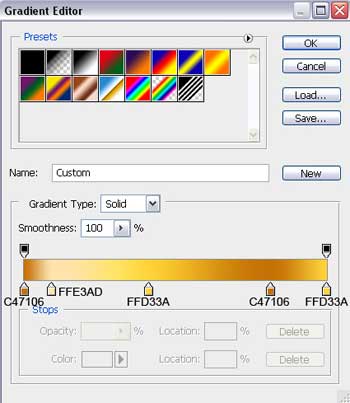
Gradient’s parameters:
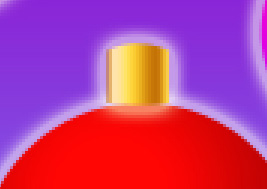
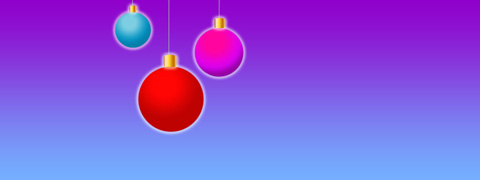
Make three copies of the layer containing the top part of the decoration and select Free Transform option to make the necessary copies smaller, placing them as it is shown below:
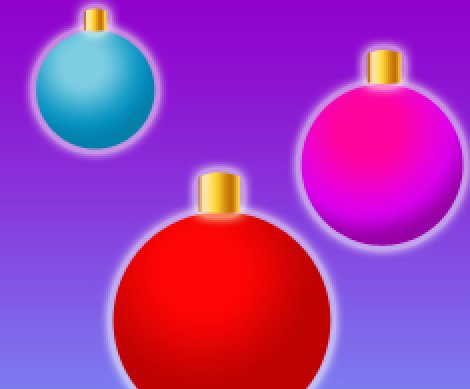
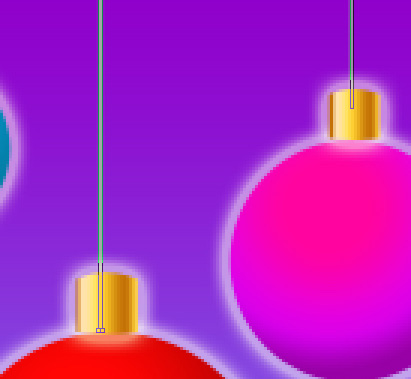
Let’s make the threads now the toys hang up with. In this case we should choose the Line Tool (U) and place the threads’ layers lower than the layers containing the colored toys (on the layers’ panel). Select also this color – #7B7B7B.
Insert now some ornaments on our toys by applying the Pen Tool (P) and making the appropriate corrections on them with the Convert Point Tool.
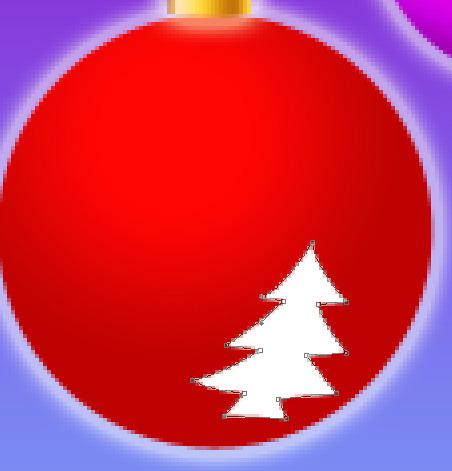
The layer’s parameters: Blending Options>Gradient Overlay
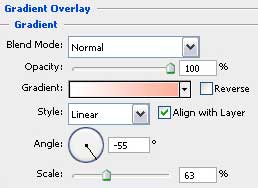
Gradient’s parameters:
Comments