
Christmas ornaments wallpaper
Learn how to create a great holiday wallpaper with Christmas Balls, snowflakes.
Final Image Preview

Begin by creating a new file (File>New) that would have 1024×768 px and 72 dpi.
Next we shall apply the Rectangle Tool (U) for representing the background of the picture we want to create next.

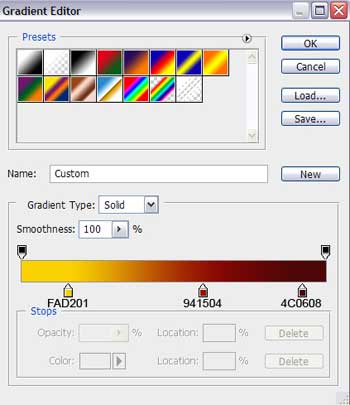
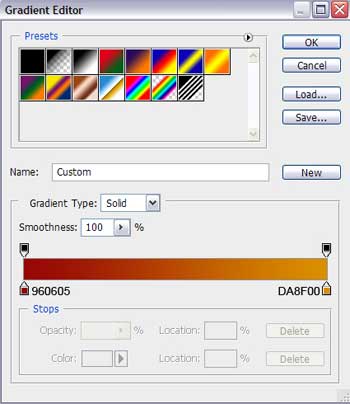
Apply for the made layer the next demonstrated parameters by making a mouse click on the layer we work with on the layers’ panel: Blending Options>Gradient Overlay
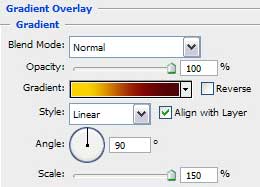

Gradient’s parameters:

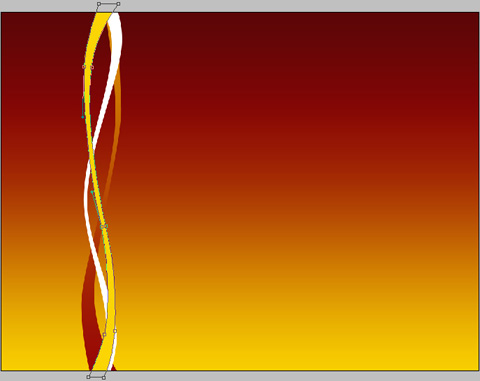
Select on this stage the Pen Tool (P) to draw a vertical stripe that is possible to be corrected on its shapes with the Convert Point Tool.
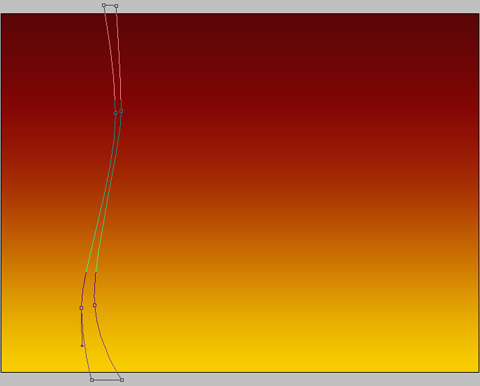
The layer’s parameters: Fill 0%
Blending Options>Gradient Overlay
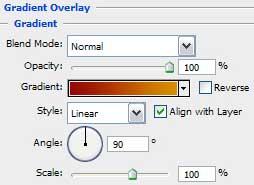
Gradient’s parameters:

Using the last method, try to draw another stripe of white color.

Select the last instrument to represent one more vertical stripe, colored with #FBD504
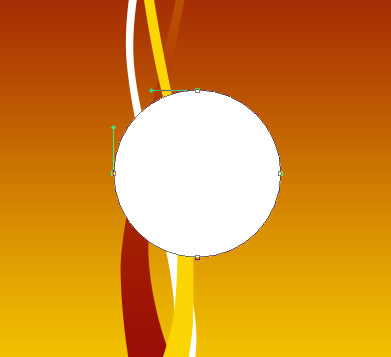
Use now the Ellipse Tool (U) and try to picture a Christmas toy decoration of rounded shape.

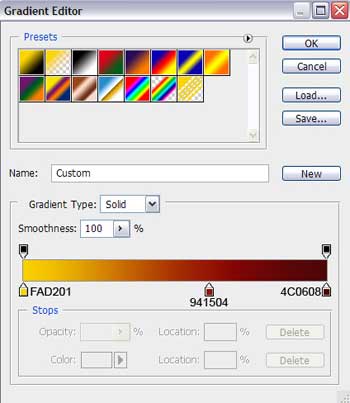
Set the next layer’s parameters: Blending Options>Gradient Overlay
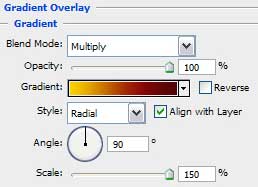
Gradient’s parameters:


Select now the Rectangle Tool (U) to draw the top part of the toy decoration which shape may be corrected with the Convert Point Tool.
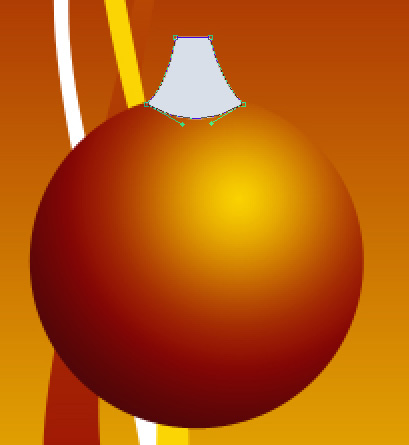
The layer’s parameters: Blending Options>Gradient Overlay
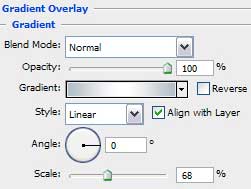
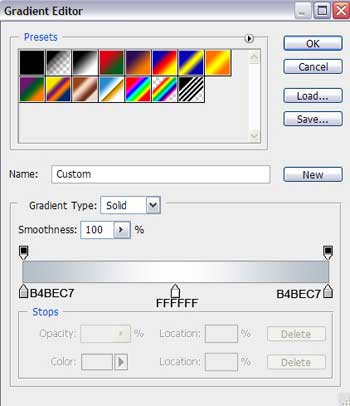
Gradient’s parameters:

Next we shall picture out the place reserved for the thread the toy hangs up with. In this case we have to select the Ellipse Tool (U) for the operation. Place this layer lower than the previous layer on the layers’ panel:
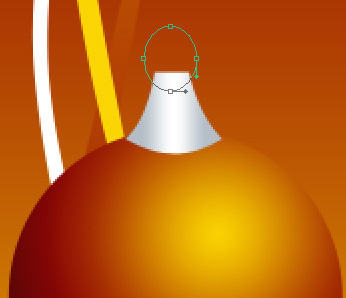
The layer’s parameters: Fill 0%
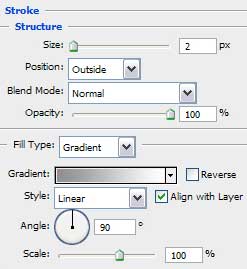
Blending Options>Stroke
Page: 1 2
Comments