
Fresh Christmas Tree
This tutorial teaches you how to create a stylized Christmas tree design with stars.
Final Image Preview

Begin by creating a file that would have 1024х768px and 72dpi.
Paint the new made file with the next shown color’s code – #06377A and the usual instrument applied in these cases – Paint Bucket Tool (G).

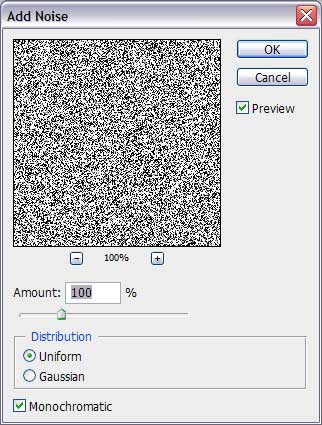
Next we shall create a new layer (Create new layer) and paint it in white color, using the earlier applied tool – Paint Bucket Tool. After that we should select the next option – Filter>Noise>Add Noise and set the parameters indicated below:

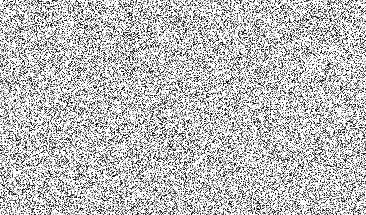
That is the result we should get on this stage:
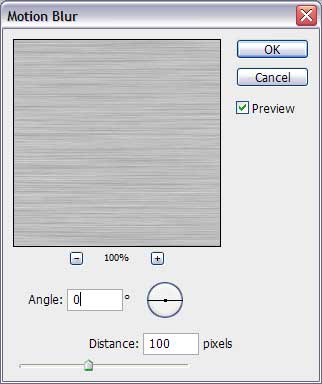
On the same layer we shall apply now the next selection – Filter>Blur>Motion Blur

Try to make this layer looking like it is represented below, applying the Free Transform option by making a right click on the processed layer:

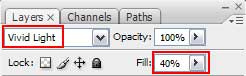
Select the next demonstrated parameters for this layer just for it to become half transparent after setting the parameters from below:
This is what we should get on this stage:

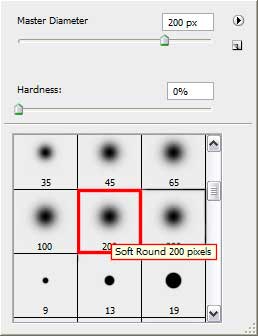
Create a new layer and apply the Brush Tool (B) to introduce several strokes of white color on our picture to be:
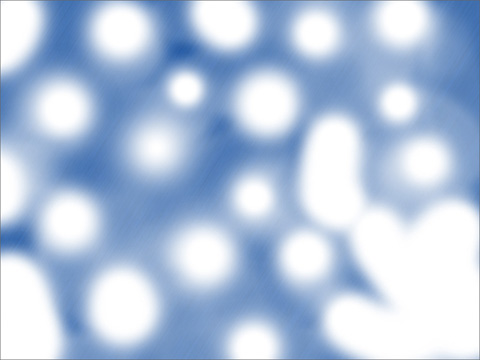
You should get the same picture from below:
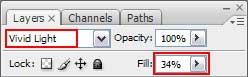
Apply the next layer’s parameters for the earlier made layer:
You must get the same result from next picture:

Page: 1 2
Comments