We wish you a Merry Christmas
December 13th, 2007 by ART-D Posted in Adobe Photoshop, Drawing Techniques
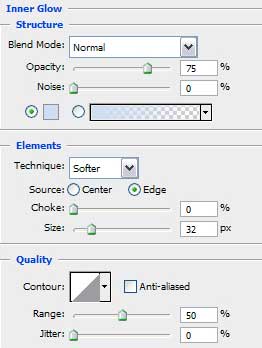
Blending Options>Inner Glow


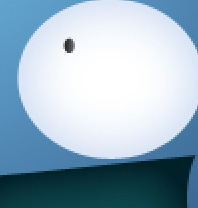
Let’s represent several stripes on the scarf, choosing the Rectangle Tool (U) and Convert Point Tool for correcting the shapes. The stripes’ layers should be placed lower than the snowman head’s layer, following the primary scarf’s layer (on the layers’ panel).

Hold on Alt button and make a mouse click between the scarf’s layer and the layers containing the colored stripes for the stripes to be placed on the scarf itself.

Let’s make another layer reserved for the scarf too, colored with #F3CE58. This time we’ll select the same tools – the Pen Tool (P) and Convert Point Tool. Place this layer lower than the previous layers belonging to the scarf.

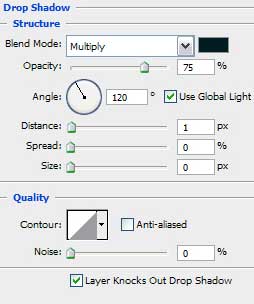
The layer’s parameters: Blending Options>Drop Shadow


We shall represent several more stripes on the scarf the way we did earlier, applying the Rectangle Tool (U). This layer must be situated lower than the layers containing the stripes of the previous scarf.

Hold on Alt button and make a mouse click between the scarf’s layers and the stripes’ layers for the last ones to be placed on the scarf.


Using the same tools and the same method, we shall represent the next scarf’s layer, colored with #F3CE58. This layer must be placed also lower than the snowman’s head (on the layers’ panel).

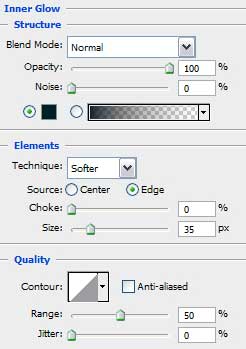
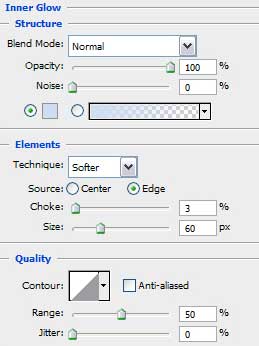
The layer’s parameters: Blending Options>Inner Glow

Let’s represent on this scarf’s layer several more stripes, choosing for this manipulation the same Rectangle Tool (U) and placing the stripes’ layers lower than the layer containing the snowman’s head.

Press Alt button and make a mouse click between the layers containing the stripes and the scarf’s layer for the stripes to be placed on the scarf itself.


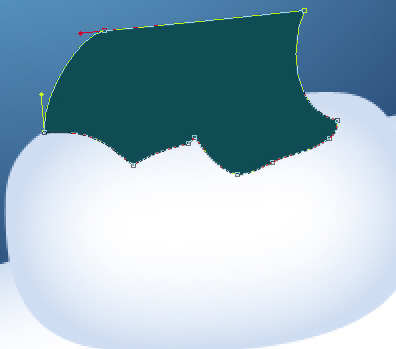
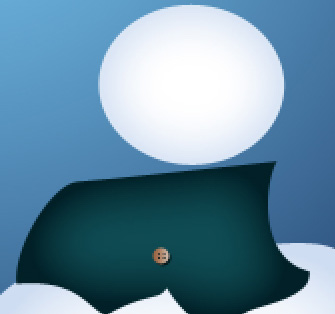
Let’s make the final segment of the scarf, colored with #F3CE58 by choosing the Pen Tool (P) and the Convert Point Tool for making the necessary corrections on the shape. This layer should be placed upper than the previous scarf’s layers, but lower than the layers containing the snowman’s head.
The layer’s parameters: Blending Options>Drop Shadow

Blending Options>Inner Glow


Let’s represent the colored stripes on the last made scarf’s segment the way we did before. This time we shall select also the Pen Tool (P) and the Convert Point Tool that is helpful in introducing the necessary changes on the elements’ shapes.

Hold on Alt button and make a mouse click between the scarf’s layers and the stripes’ slayer for the last ones to lay on the scarf’s layer.


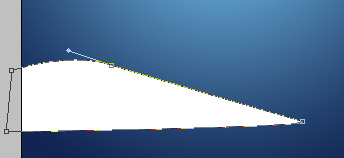
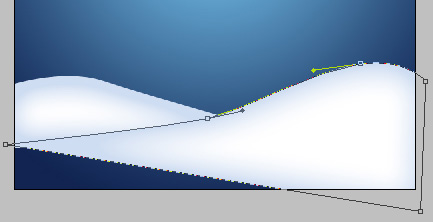
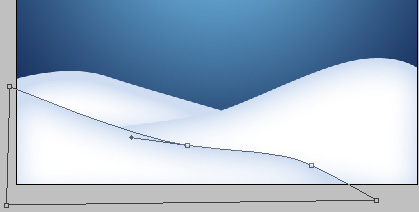
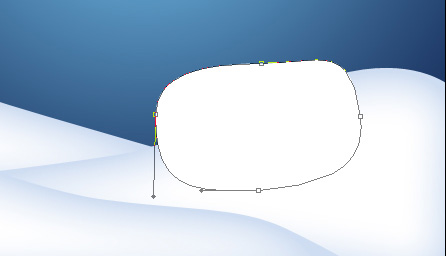
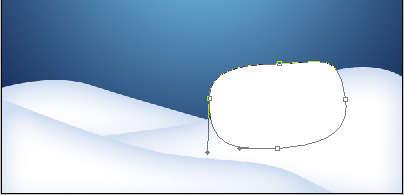
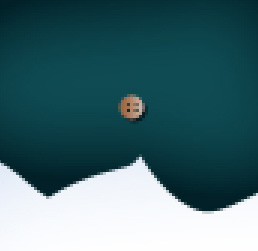
Now we shall represent near the snowman a white snow hillock. In this case we’ll apply the Pen Tool (P) and the Convert Point Tool for introducing the necessary changes on the element’s shape.

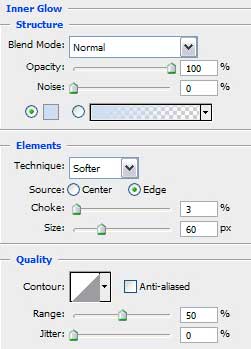
The layer’s parameters: Blending Options>Inner Glow


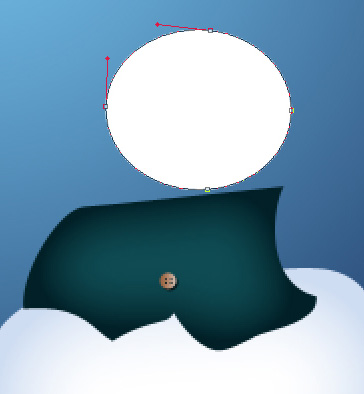
Next we have to draw a small fir tree near the snowman, choosing the same Pen Tool (P) and Convert Point Tool.

The layer’s parameters: Fill 0%
Blending Options>Inner Glow

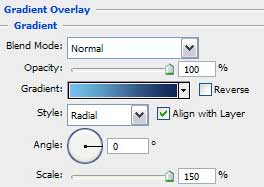
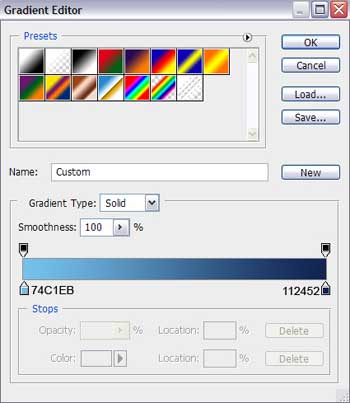
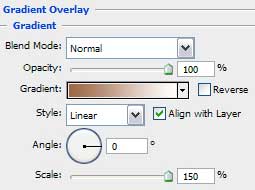
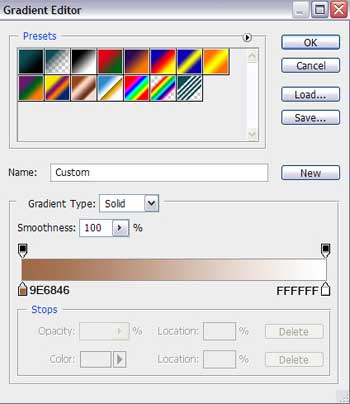
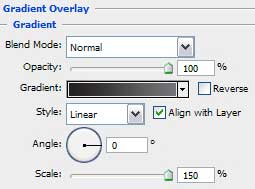
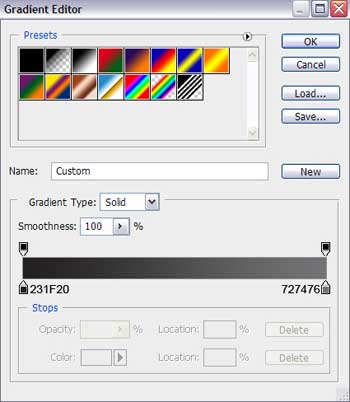
Blending Options>Gradient Overlay

Tags: card, christmas, design, Photoshop, snowman, tree, wallpaper


jesanpark1986
30/10/2009
nice job
Thank
martha
24/11/2009
hola esta muy linda esta pagina me gusto
Joe
04/12/2009
Very nice card, but the grammar is off…
It should read, “We wish you a Merry Christmas”
jim
26/02/2010
great guide but this guy shows u how to do it with commentary
Ruth
18/09/2010
aww que lindos todos los tutoriales ya he hecho dos estan hermosos..!!
wedding photographers sydney
28/11/2010
Great job ! Well done ! Thanks.
wedding photographers sydney
28/11/2010
Nice posting ! Thanks.
Boangiu George
07/12/2010
Awesome job mate. thank you and merry christmas !!!
Santa
16/12/2010
Ummm, good job you spelled “wish” wrong.
Gosh, “We with you a Merry Christmas”….really?
Vinayak Mali
06/01/2011
Very good Job. Text sentence grammatically wrong, but no problem. Main thing is Very Goo……..d Design.
Laser Level
08/01/2011
Better greetings ! Thanks for your nice job.
Scott Kenley
25/07/2011
You have mentioned very interesting details! ps nice site.