
Christmas Snowflake
This tutorial will show you how to create Christmas themed wallpaper.
Final Image Preview

Let’s begin by starting Photoshop and creating a new file (File>New) of 1024×768 px and 72 dpi.
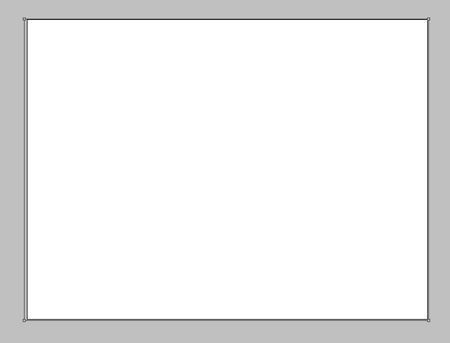
Select after that the Rectangle Tool (U) and represent a rectangle on the made file:
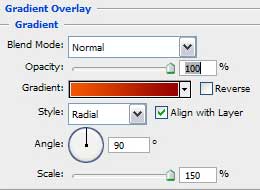
Select Blending Options and choose here the Gradient Overlay indicated below:

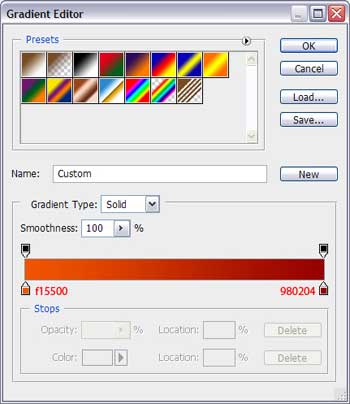
This is what we should get on this step:

Next we shall represent a rounded element, applying the usual instrument for these operations – Ellipse Tool (U), placing the made element like it is shown next picture:

Set Fill option on 10% instead of 100%.

Make a copy of the represented rounded element, placing the copy exactly the way it is shown next picture:

Now it’s time to create another rounded element, having the color #7c0100

Set Fill option on 80 % instead of 100%.

Make a copy of the last made rounded element, placing it the way demonstrated next image:

Page: 1 2
Comments