Categories

Partners
  • IPowerWeb Hosting

  • Free Flash Website

  • Website Templates

  • Adobe Photoshop Tutorials

  • Bittorent and
    Google desktop programs

  • Free Stock Photos and Images

  • Adobe Photoshop Tutorials

  • Photoshop, Flash, 3dsmax tutorials

  • Merry Christmas Tree
  • Search


    Advanced Search


    PSD to HTML

     »  Adobe Home  »  Adobe Photoshop  »  Special Effects  »  Star Explosion
    Star Explosion
    Published  12/23/2007 | Special Effects
       
    Star Explosion - part 1


    Learn how to create a star explosion using textures, glows, and blurs.

    Inspired from The Outburst by taenaron.

    Let’s begin! Create a new file (File>New) that must have 1024x488px and 72 dpi. The file should be painted in black color.

    Create Star Explosion in Photoshop CS3

    Next we must make a copy of the black file and select the here demonstrated option: Filter> Noise> Add noise. Set the same parameters shown next picture:
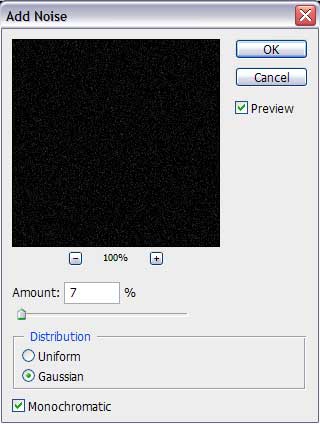

    Create Star Explosion in Photoshop CS3

    We have got something remembering the starry sky.
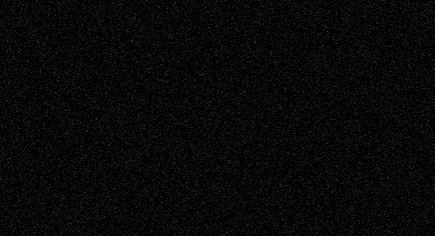
    Create Star Explosion in Photoshop CS3

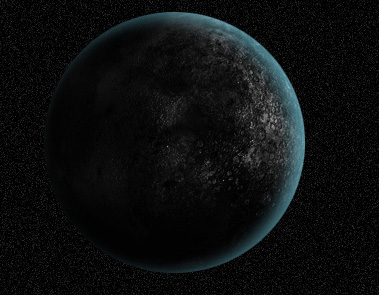
    Try to find by searching system a picture representing a planet:
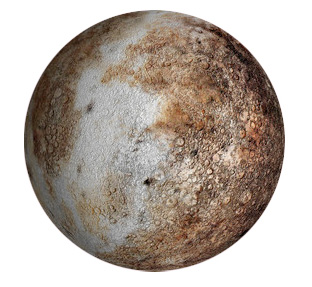
    Create Star Explosion in Photoshop CS3

    Cut it out and place it on our file with the starry sky.
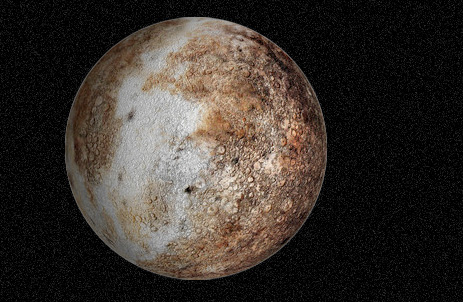
    Create Star Explosion in Photoshop CS3

    Press on the next combination of buttons: Shift+Ctrl+U to make the planet look black and white.
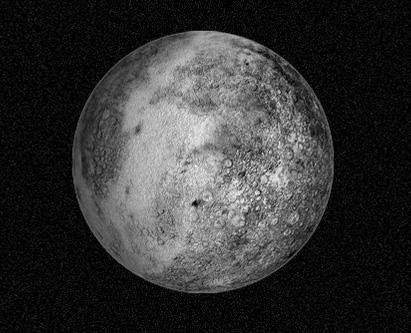
    Create Star Explosion in Photoshop CS3

    It’s necessary now to select the Burn Tool (O) to set the Range: Midtones and Exposure: 40%
    The brush’s Hardness is set on 0% that makes possible darkening out the planet as it is indicated on the next image:
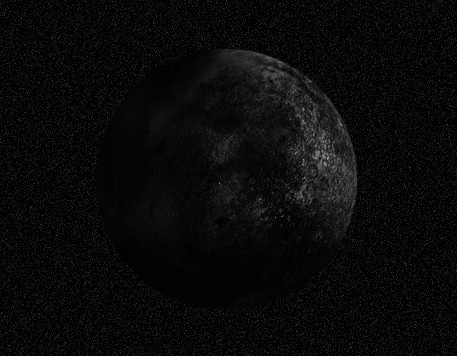
    Create Star Explosion in Photoshop CS3

    Select now the Blending Options and choose the Inner Shadow option:
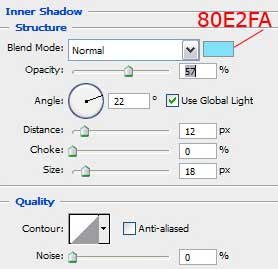
    Create Star Explosion in Photoshop CS3 

    Create Star Explosion in Photoshop CS3

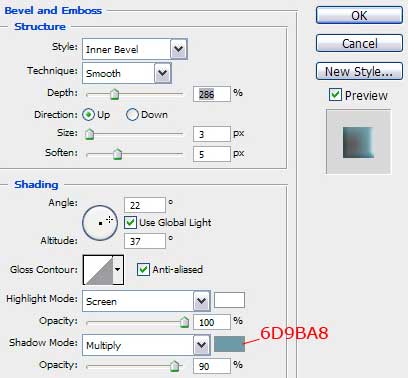
    Blending Options>Bevel and Emboss:

    Create Star Explosion in Photoshop CS3 

    Create Star Explosion in Photoshop CS3

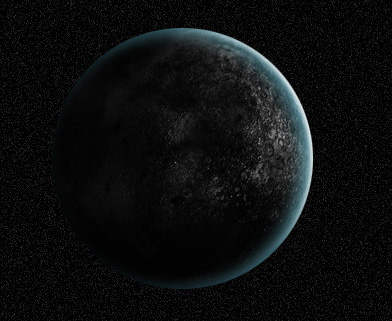
    Next step includes choosing the stars’ layer and the Eraser Tool (E) with Opacity set on 20% to erase some areas on the sky for the stars not to look so monotonous.
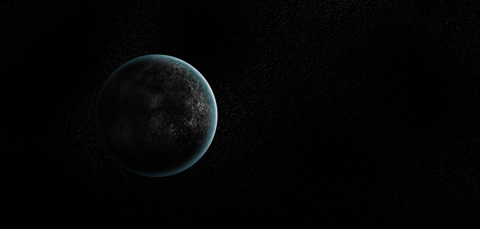
    Create Star Explosion in Photoshop CS3

    Create Star Explosion in Photoshop CS3 Star Explosion
    Learn how to create a star explosion using textures, glows, and blurs.