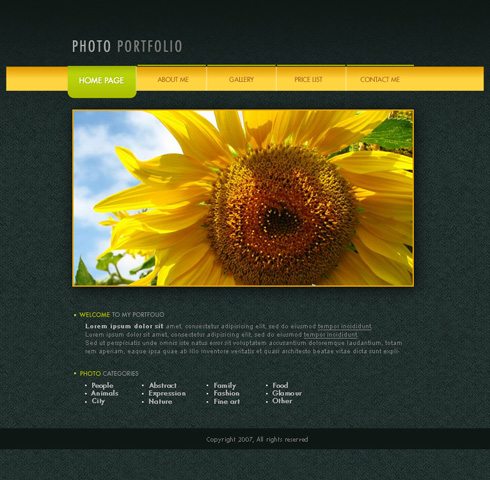
Photo Portfolio Web Page Layout
February 13th, 2008 by ART-D Posted in Adobe Photoshop, Web Layout
Hold on Alt button and make a mouse click between the photo’s layer and the reserved layer for the photos and the selected photo will be placed immediately in limits of the reserved layer for the photos.


Insert the necessary titles of the divisions.

WELCOME, PHOTO

TO MY PORTFOLIO, CATEGORIES

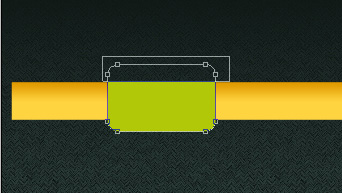
Now we should represent by rectangle to the left side of the divisions. Each one should be situated on a different layer and the instrument used in this case is the Rectangle Tool (U).

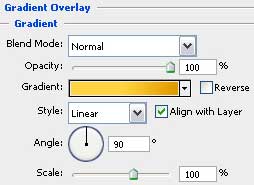
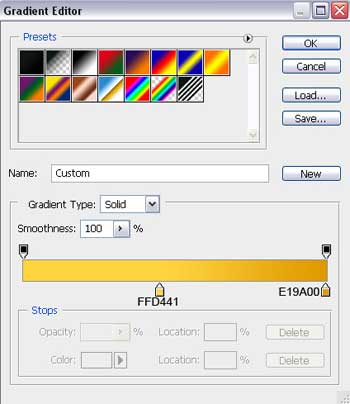
Use the next parameters for the rectangles’ layers: Blending Options>Gradient Overlay

Gradient’s parameters:

Fill the division with the corresponding text:

the bold text

the basic text of the division


Web designers
04/09/2009
Cool design with refreshing look to make someone ‘s day as sunny as sunflower.
rich
09/09/2009
nice job ,
very creative
kartit
26/10/2009
Very nice tutorial Thanks a lot , keep it up!
Club Penguin Secrets
12/11/2009
Very nice and clear tutorial. I am going to try it now with some modifications. thanks alot for the effort!
dare2go
19/12/2009
Looks very nice – BUT
absolutely not what you want for a website!!! Everything is in form of graphics, which SEARCH ENGINES cannot read. You need text on a web page in order to get spidered (and a good page rank)with any search engine. And don’t start with ‘alt text’ – it will never replace decent text. PLUS: copyright 2007 – do you really want to change/update this image every year to keep it current? Or are you planning to design a new site every year?
Web pages done by designers usually look very good, and work very badly – sorry to say so
admin
19/12/2009
@dare2go
article was posted in February 13th, 2008
Gajanand Sharma
16/01/2010
It is very nice.
Regards
Nanovor
24/01/2010
Very nice and clear tutorial. I am going to try it now with some modifications. thanks alot for the effort!
ram
22/03/2010
it is very useful for us.,.,thank u
shrijan
11/04/2010
thanks for share i am always hungry this kinda tut
Suman
08/07/2010
Great post… very much helpful for the beginners
SHISHUPAL SODHA
14/08/2010
Hi,
thnx in advance
i have viewed your tutorial that’s fantastic i like it but you have not explained that what to do after the complete design(i mean to say that how to make an HTML page)
honey
15/09/2010
….i want a step by step process on how your webpage created
peterp
26/09/2010
may i use that pattern for commercial use?
M.MAJID
21/10/2010
THIS IS A GOOD TUTORIAL ,BUT I AM A BEGINNER SO FOR ME THE MANUAL PART IS HARD TO MANAGE , HOW YOU SPLIT THE MENU BAR INTO EQUAL PARTS AND HOW DO YOU DELETE THE UPPER PART FROM THE ROUNDED RECTANGLE
PLEASE DO HELP
mehdi
27/10/2010
really tanks it was pertty good
τρακτερ
05/12/2010
It is awesone
Olajide Tobun
16/02/2011
Cool, but could you please compile the whole tutorial into a pdf file.
houman
04/05/2011
It is awesome,thanx
starker01
24/05/2011
?Nice tutorial to make good layout
rajesh
04/07/2011
hi thanks i learn somthing
ashish sanap
27/07/2011
Very nice!!!
I want to make such a beauty web site.
amrew
04/12/2011
very nice
dinesh kuamr
16/12/2011
very very nice dear
Muddaser
30/01/2012
wow i made it “same” its amazing thanks for sharing
javad
12/03/2012
thanks .i enjoy from this post.
please insert psd file’s for every post is very good
Dee
04/05/2012
This is nice but how do you code it?
Amin
05/07/2012
very good , I like it.