Categories

Partners
 
  • Photoshop Templates

  • Website Templates

  • Web Templates

  • Flash Web Sites

  • WordPress Templates

  • Free Ringtones

  • Free Stock Photos and Images

  • Photoshop

  • St. Louis LASIK | LASIK info

  • Load Cells

  • osCommerce Templates

  • Web Hosting


  • Website Templates
    Search


    Advanced Search


    Semaphore Lights Effects
    Published  02/16/2008 | Special Effects
       
    Semaphore Lights Effects - part 1


    This tutorial will teach you to create amazing "magic" color effects using some simple methods. It will greatly beautify every fantasy-style work.

    Create a new file (File>New) that must have 1280x1024 px and 72 dpi. Use immediately after that the Paint Bucket Tool (G) to paint the made layer in black color.

    Create Semaphore Lights Effects in Photoshop CS3

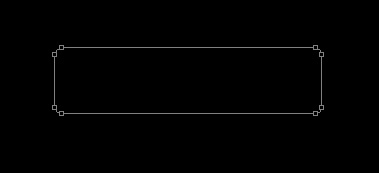
    Next we have to select the Rounded Rectangle Tool (U) with a radius of 10 px and draw the basis reserved for many – colored lights that would compose our picture. The color in this case is black.
    Create Semaphore Lights Effects in Photoshop CS3

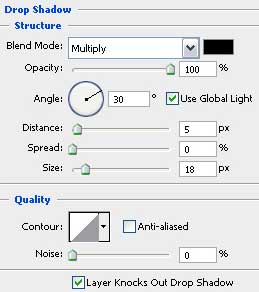
    Apply the next parameters on the last made layer by making a mouse click on the processed layer in the layers’ panel: Blending Options>Drop Shadow

    Create Semaphore Lights Effects in Photoshop CS3

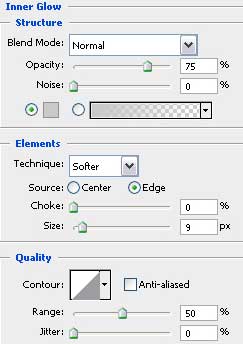
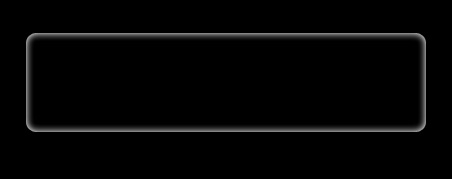
    Blending Options>Inner Glow

    Create Semaphore Lights Effects in Photoshop CS3 

    Create Semaphore Lights Effects in Photoshop CS3

    Use now the Ellipse Tool (U) to represent the primary layer of the colored small lights.
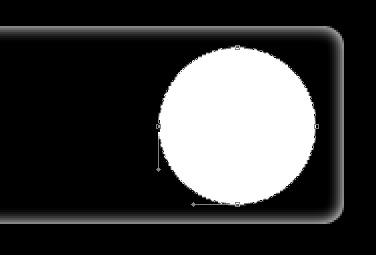
    Create Semaphore Lights Effects in Photoshop CS3

    Make three copies of the last represented layer and select Free Transform option to place the copies exactly the way shown next image. We have to apply also the next parameters for each layer.

    Create Semaphore Lights Effects in Photoshop CS3

    The parameters for the Red light: Blending Options>Outer Glow
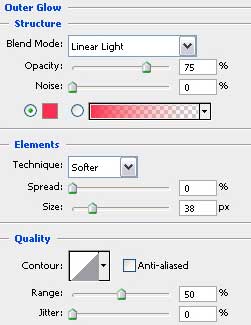
    Create Semaphore Lights Effects in Photoshop CS3

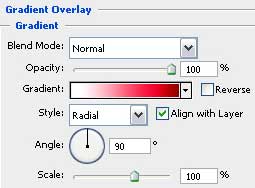
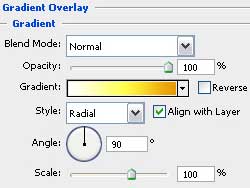
    Blending Options>Gradient Overlay

    Create Semaphore Lights Effects in Photoshop CS3

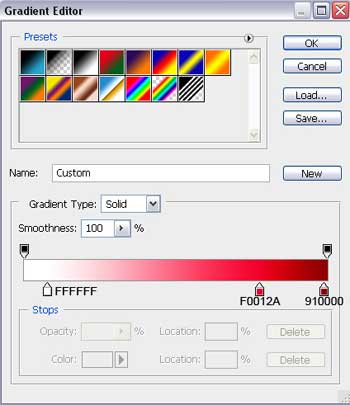
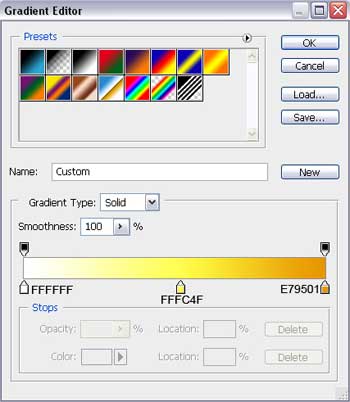
    Gradient’s parameters:

    Create Semaphore Lights Effects in Photoshop CS3

    The parameters of the Orange light: Blending Options>Outer Glow
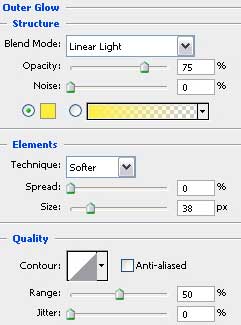
    Create Semaphore Lights Effects in Photoshop CS3

    Blending Options>Gradient Overlay

    Create Semaphore Lights Effects in Photoshop CS3

    Gradient’s parameters:

    Create Semaphore Lights Effects in Photoshop CS3

    Create Semaphore Lights Effects in Photoshop CS3 Semaphore Lights Effects
    This tutorial will teach you to create amazing "magic" color effects using some simple methods. It will greatly beautify every fantasy-style work.


    PSDTUTS+ Photoshop Tutorials and More