Categories

Partners
 
  • Photoshop Templates

  • Website Templates

  • Web Templates

  • Flash Web Sites

  • WordPress Templates

  • Free Ringtones

  • Free Stock Photos and Images

  • Photoshop

  • St. Louis LASIK | LASIK info

  • Load Cells

  • osCommerce Templates

  • Web Hosting


  • Website Templates
    Search


    Advanced Search


    Personalized Puzzle Effects
    Published  02/20/2008 | Drawing Techniques
       
    Personalized Puzzle Effects - part 1


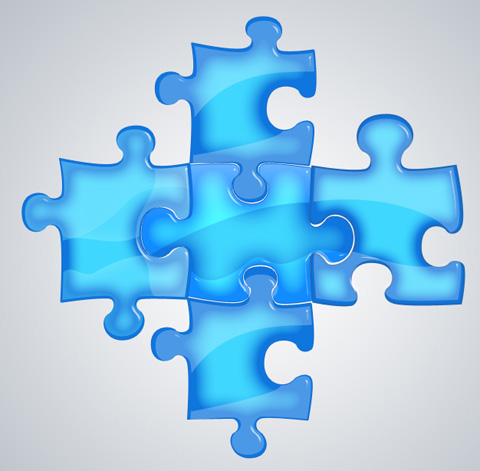
    In this tutorial we will learn a simple way to create a seamless puzzle pattern.

    Create Personalized Puzzle Effects in Photoshop CS3

    Create a new file (File>New) with 1280x800 px and 72 dpi.

    Create Personalized Puzzle Effects in Photoshop CS3

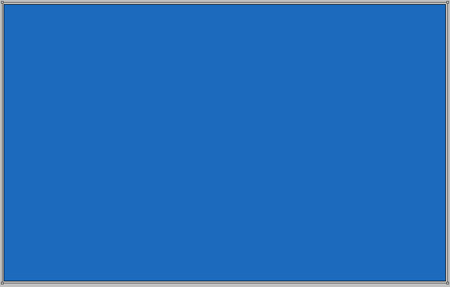
    Next we shall use the Rectangle Tool (U) to draw the background of the picture to be.

    Create Personalized Puzzle Effects in Photoshop CS3

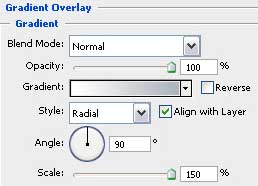
    Select these parameters for the new layer by making a mouse click on the processed layer on the layers’ panel: Blending Options>Gradient Overlay

    Create Personalized Puzzle Effects in Photoshop CS3

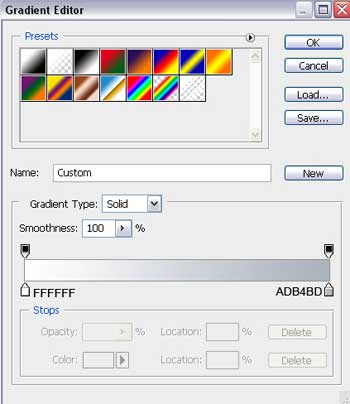
    Gradient’s parameters:

    Create Personalized Puzzle Effects in Photoshop CS3 

    Create Personalized Puzzle Effects in Photoshop CS3

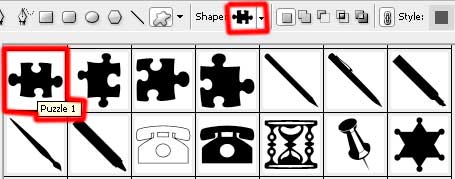
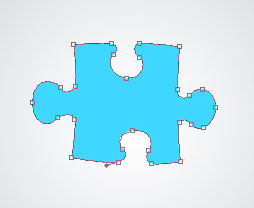
    Take the Custom Shape Tool (U) and select from the next table a puzzle’s element, colored with #40D7FE

    Create Personalized Puzzle Effects in Photoshop CS3 

    Create Personalized Puzzle Effects in Photoshop CS3

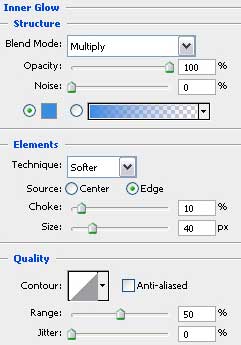
    The layer’s parameters: Blending Options>Inner Glow

    Create Personalized Puzzle Effects in Photoshop CS3

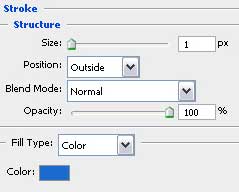
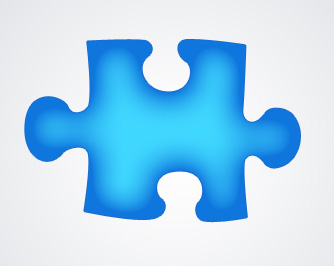
    Blending Options>Stroke

    Create Personalized Puzzle Effects in Photoshop CS3 

    Create Personalized Puzzle Effects in Photoshop CS3

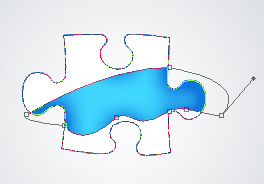
    Make a copy of the last made layer and move off the layer’s effects. Choose after that the Paint Bucket Tool (G) to give the layer white color. Press Alt button and select the Pen Tool (P) to cut out an opening on the layer.

    Create Personalized Puzzle Effects in Photoshop CS3

    The layer’s parameters: Fill 0%
    Blending mode-Hard Mix
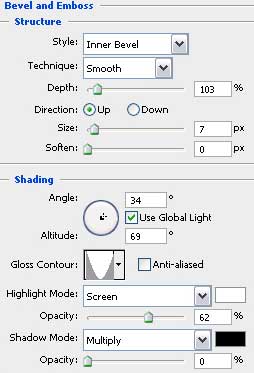
    Blending Options>Bevel and Emboss

    Create Personalized Puzzle Effects in Photoshop CS3

    Create Personalized Puzzle Effects in Photoshop CS3 Personalized Puzzle Effects
    In this tutorial we will learn a simple way to create a seamless puzzle pattern.

    PSDTUTS+ Photoshop Tutorials and More