
Ghost Linebacker
Change an ordinary picture into a ghost photo effects picture.
Create a new file (File>New) that would have 1024×768 px and 72 dpi. Select on this layer the Paint Bucket Tool (G) to fill the new layer with this color – #B7AC74

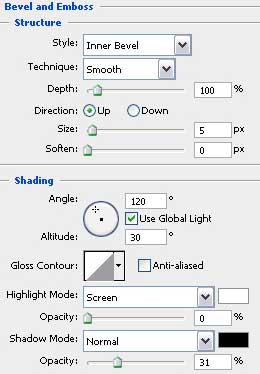
Apply the next indicated parameters for the new layer by making a mouse click on the layer we work with on the layers’ panel: Blending Options>Bevel and Emboss
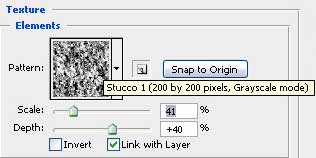
Blending Options>Bevel and Emboss (Texture)

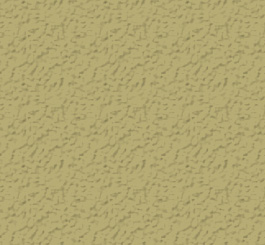
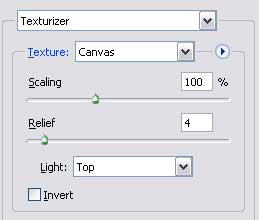
Make a copy of the last made layer and move off the copied layer the effects, applying the next demonstrated options: Filter>Filter Gallery>Texture>Texturizer

Select the next parameters for this layer: Blending mode-Darker Color

Use the Rectangle Tool (U) and try to represent a kind of darkening on our picture.
The layer’s parameters: Fill 0%
Blending Options>Gradient Overlay
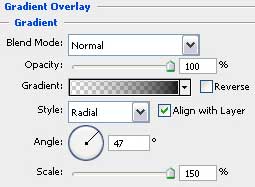
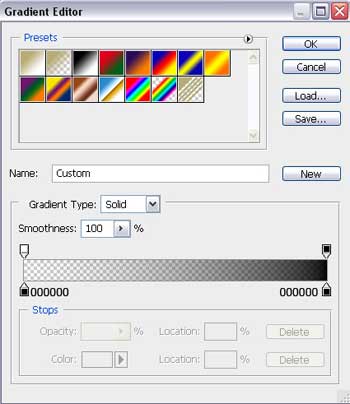
Gradient’s parameters:
Comments