Categories

Partners
  • Bayesian Spam Filter for Outlook and Outlook Express

  • Bittorent and
    Google desktop programs

  • Free Stock Photos and Images

  • Adobe Photoshop Tutorials

  • Photoshop, Flash, 3dsmax tutorials
  • Search


    Advanced Search


    Subscribe

     »  Adobe Home  »  Adobe Photoshop  »  Designing  »  Futuristic Beetle
    Futuristic Beetle
    Published  03/25/2008 | Designing
       
    Futuristic Beetle - part 1


    Create this polished finished product of a Futuristic Beetle.

    Start working by creating a new file (File>New), having 1024x768 px and 72 dpi

    Find in Internet and download the next pattern - s0nkite Spiderman pattern.
    Save it in the directory: Adobe Photoshop>Presets>Patterns.
    Use the Rectangle Tool (U) to draw the background of the picture we want to have in the end.

    Create Futuristic Beetle in Photoshop CS3

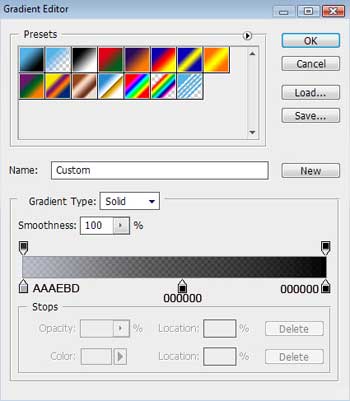
    Apply on the made layer the parameters indicated below by making a mouse click on the processed layer on the layers’ panel. Blending Options>Gradient Overlay
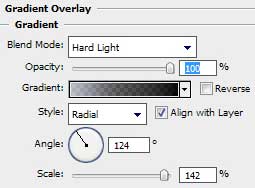
    Create Futuristic Beetle in Photoshop CS3

    Gradient’s parameters:

    Create Futuristic Beetle in Photoshop CS3

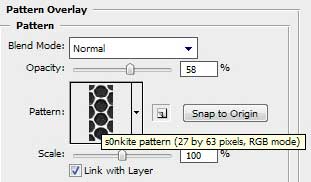
    Blending Options>Pattern Overlay

    Create Futuristic Beetle in Photoshop CS3 

    Create Futuristic Beetle in Photoshop CS3

    Select the Ellipse Tool (U) to represent the abdomen of a metallic beetle, having black color.
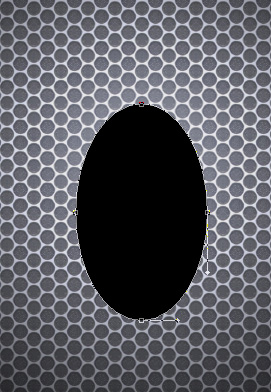
    Create Futuristic Beetle in Photoshop CS3

    The layer’s parameters: Blending Options>Drop Shadow
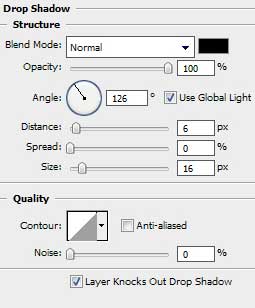
    Create Futuristic Beetle in Photoshop CS3

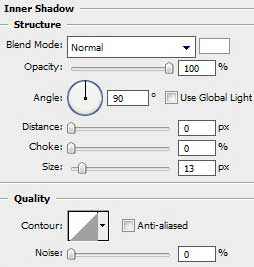
    Blending Options>Inner Shadow

    Create Futuristic Beetle in Photoshop CS3

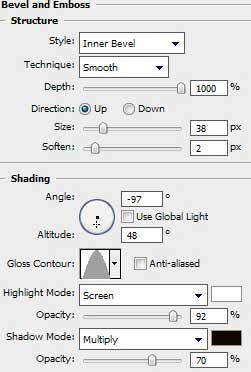
    Blending Options>Bevel and Emboss

    Create Futuristic Beetle in Photoshop CS3

    Blending Options>Bevel and Emboss (Contour)
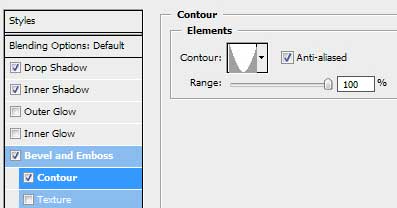
    Create Futuristic Beetle in Photoshop CS3

    Share/Save/Bookmark

    Create Futuristic Beetle in Photoshop CS3 Futuristic Beetle
    Create this polished finished product of a Futuristic Beetle.

    WiFiReview.com - your guide to the wireless world