
Video Blog Web Page
In this Photoshop tutorial, we’ll go through the steps of creating a white and blue theme template. This design can be use for any type of website or blog.
Create a new file (File>New) that would have 788×1000 px and 72 dpi.
Using the Rectangle Tool (U), try to draw the basic layer reserved for a site’s page. The layer’s color is #EFF2F5

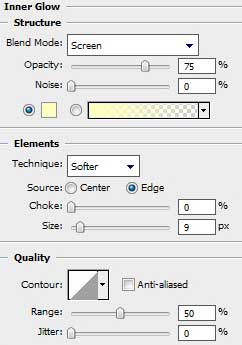
Select the next demonstrated parameters by making a mouse click on the processed layer on the layers’ palette: Blending Options>Inner Glow

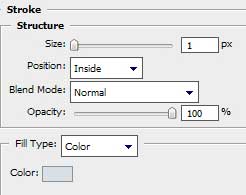
Blending Options>Stroke

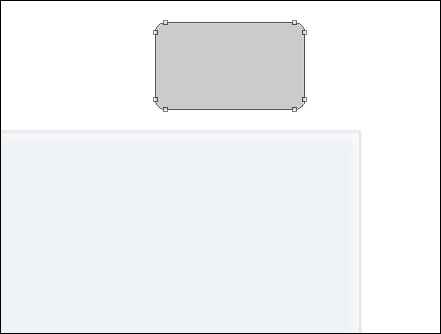
Next we shall draw the menu’s button on the site’s header. Use for this operation the Rounded Rectangle Tool (U) with the radius 5 px.
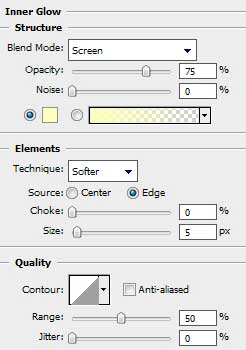
The layer’s parameters: Blending Options>Inner Glow
Blending Options>Gradient Overlay
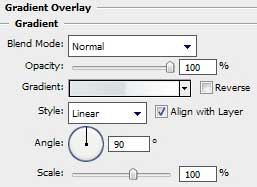
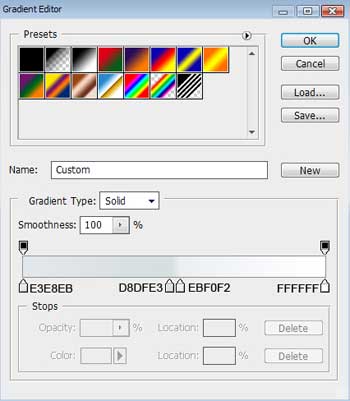
Gradient’s parameters:
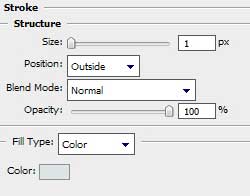
Blending Options>Stroke
Comments