Video Blog Web Page

March 27th, 2008 by ART-D Posted in Adobe Photoshop, Web Layout

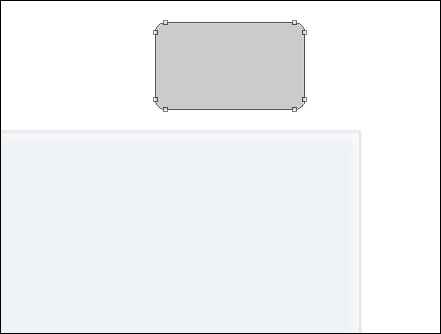
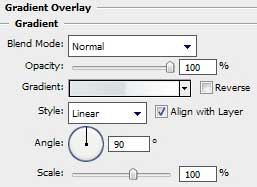
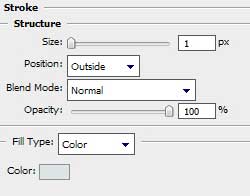
Next we have to add the play line indicator under the video file’s picture, applying the Rounded Rectangle Tool (U) with a radius of 5 px.

Create Video Blog Web Page in Photoshop CS3

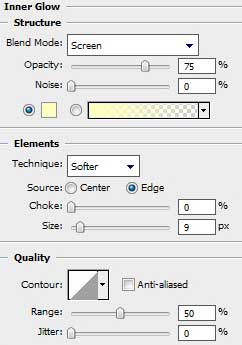
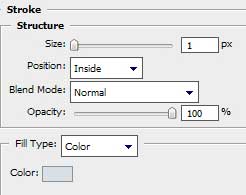
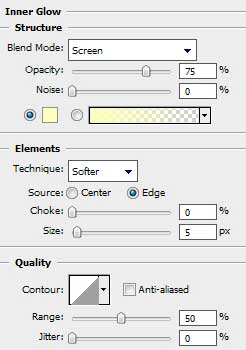
The layer’s parameters: Blending Options>Gradient Overlay

Create Video Blog Web Page in Photoshop CS3

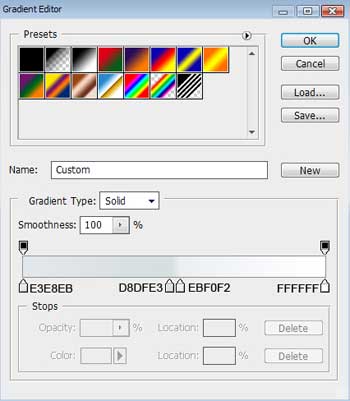
Gradient’s parameters:

Create Video Blog Web Page in Photoshop CS3 

Create Video Blog Web Page in Photoshop CS3

Using the same Rounded Rectangle Tool (U) (radius of 5 px), try to make the play line indicator of the color #1EA1FF. Press Alt button when using the Rectangle Tool (U) to cut out the indicator on the left side.

Create Video Blog Web Page in Photoshop CS3 

Create Video Blog Web Page in Photoshop CS3

On the right and left indicator’s sides we’ll introduce the track’s duration:

Create Video Blog Web Page in Photoshop CS3 

Create Video Blog Web Page in Photoshop CS3

We have to insert also the special button, reserved for conducting the video player. This time the used instrument is Ellipse Tool (U) of the color #575757

Create Video Blog Web Page in Photoshop CS3

The layer’s parameters: Blending Options>Drop Shadow

Create Video Blog Web Page in Photoshop CS3

Post Pages: 1 2 3 4 5 6 7 8 9

  • Bill Bartmann

    02/09/2009

    Cool site, love the info.

  • Bill Bartmann

    09/09/2009

    Excellent site, keep up the good work

  • sandrar

    10/09/2009

    Hi! I was surfing and found your blog post… nice! I love your blog. :) Cheers! Sandra. R.

  • Bill Bartmann_

    11/09/2009

    Great site…keep up the good work.

  • Carl Vandors

    30/09/2009

    Hey very nice blog!!….I’m an instant fan, I have bookmarked you and I’ll be checking back on a regular….See ya