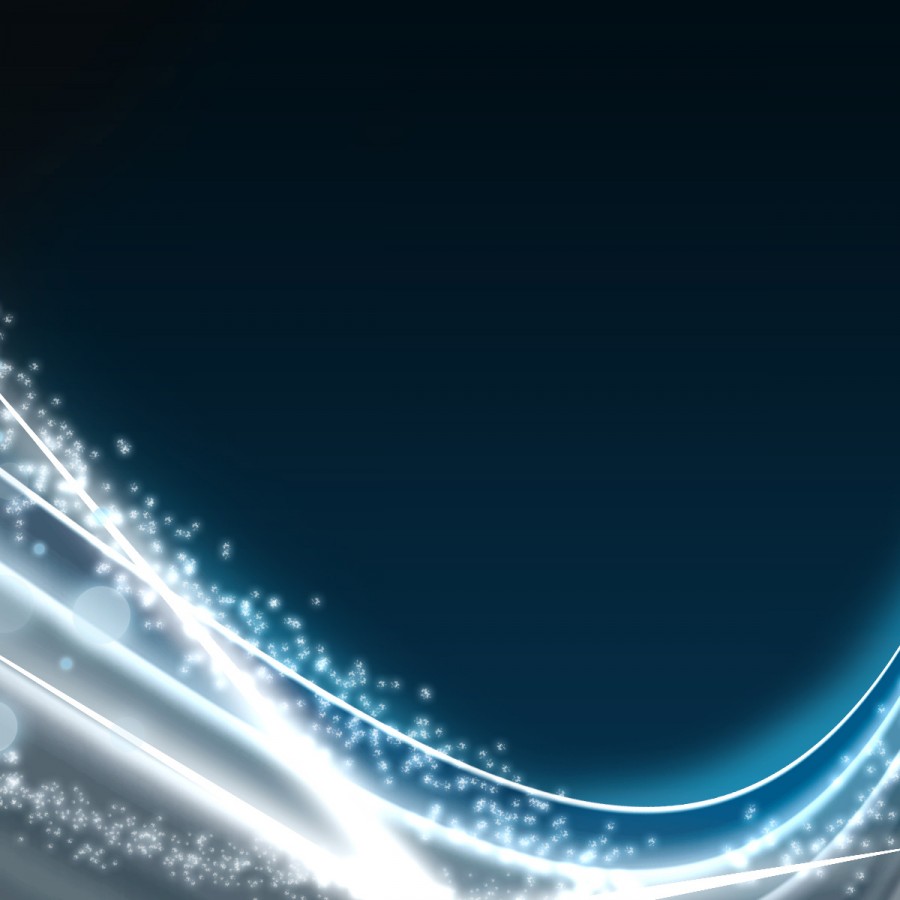
Abstract art wallpaper

April 1st, 2008 by ART-D Posted in Adobe Photoshop, Designing

The layer’s parameters: Fill 0%
Blending Options>Outer Glow

Create Abstract Art Wallpaper in Photoshop CS3

Blending Options>Color Overlay

Create Abstract Art Wallpaper in Photoshop CS3 

Create Abstract Art Wallpaper in Photoshop CS3

Make many copies of the layers containing the circles and then select the Free Transform option to change the copies’ sizes. We should also pay attention to Opacity option and if necessary it should be changed in the selection of the layers’ parameters:

Create Abstract Art Wallpaper in Photoshop CS3

Create a new layer on which we shall apply the Brush Tool (B) of white color, to represent a kind of train made of small fires.

Create Abstract Art Wallpaper in Photoshop CS3

Select the next shown parameters for the brush:

Create Abstract Art Wallpaper in Photoshop CS3 

Create Abstract Art Wallpaper in Photoshop CS3 

Create Abstract Art Wallpaper in Photoshop CS3 

Create Abstract Art Wallpaper in Photoshop CS3

The layer’s parameters: Blending Options>Outer Glow

Create Abstract Art Wallpaper in Photoshop CS3 

Create Abstract Art Wallpaper in Photoshop CS3

Changing the brush’s diameter, it’s possible to represent on a different layer (Create new layer) several more small fires, having the layer’s parameters the same with the previous one:

Create Abstract Art Wallpaper in Photoshop CS3

Representing the picture came to end!

View full size here.

  •  

  •    
  •  


Post Pages: 1 2 3 4

  • Noor Nawaz

    18/11/2009

    There following things that i couldn’t understand:
    1. Why did you draw the rectangle tool?
    2. When I created the same color combinations as shown in 4th picture and tried to rotate the canvas 90 cw it was completely changing from your work outs

    What are your instructions for me in your above problems.

    Thanks

  • visitor

    12/08/2010

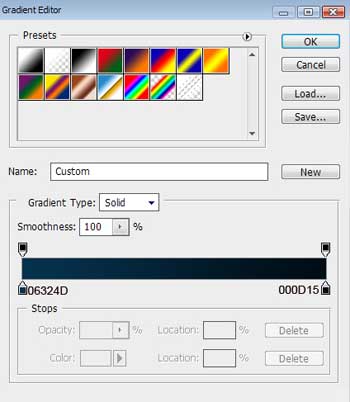
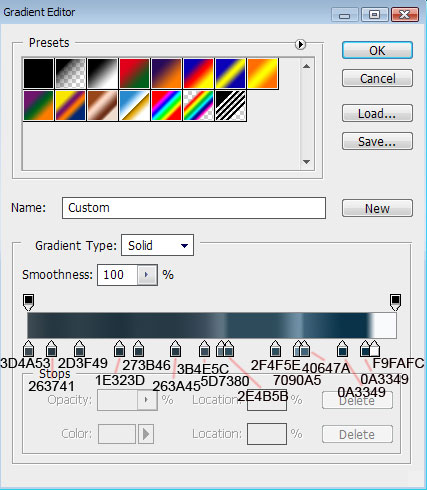
    how do you get to the Gradient’s parameters? I can’t seem to find it on photoshop :(
    BTW good tutorial :D

  • sss

    12/08/2010

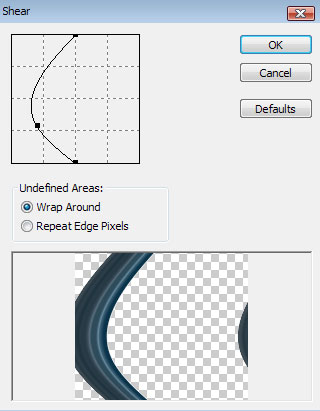
    your instruction “Create a new layer. Mark it out, so mark the previous layer and press CTRL+E” doesnt make sence to an amiture. I cant seem to distort the picture

  • Alexa

    19/08/2010

    I don’t understand what you mean by “mark it out” either. I was wondering if you could tell me what you mean by that.

  • Rocio

    25/08/2010

    no puedo distorionar la imagen no encuentro donde sea :(

  • Anonym

    06/09/2010

    Your explanation is awful …

  • aika

    12/09/2010

    what a nice design, so please teach me more..:) thanks

  • Stars and glitter

    12/09/2010

    This is really hard to follow along with. Better explanations, please.

  • D J Vaishnav

    03/12/2010

    on chich layer pen tool is used, I dont gate glow on the spines drow by pen tool but I gate glow on the distorted layer please specify which layer is selected for the use of pen tool

  • uragonjake

    30/01/2011

    thank you for this abstract 3d background..i use this in my designing..thank you so much

  • Nicki

    03/03/2011

    What I did for the ‘mark it out’ part was change the layer into a smart object and then rasterized it. The rest went pretty well from there.

  • jay

    23/03/2011

    nikki sounds hot

  • anonymus

    23/03/2011

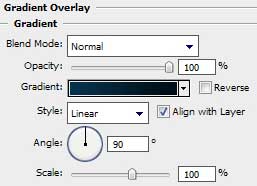
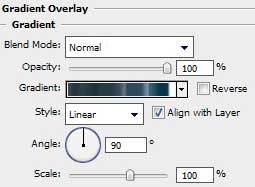
    where do u put the thigs in gradient overlay at by manosa

  • Visitor3/23/11

    24/03/2011

    When he/she says press CTRL+E it merges the layer down.

  • CalGor

    19/04/2011

    This tutorial was rather hard to follow, I understood most of it though some of it was difficult to understand what it was saying. The product came out well and though this tutorial was indeed helpful, there needs to be more detail in the explanation.

  • dani

    30/04/2011

    Use the Free Transform option to change the bitmap layer as the next picture indicates it:

    HOWWWWWWW?????:SSSSSSSSSSSSS

  • Mahdi

    13/05/2011

    Dani
    first you should use perspective option and then make your object little bigger.

  • ReDevil

    08/09/2011

    nice result! :)
    but Not a clear tutorial for beginners, many things are not explained well.