Art wallpaper with stars
April 10th, 2008 by ART-D Posted in Adobe Photoshop, Designing
A really in-depth tutorial on how to create a nice abstract art style wallpaper.
Inspired from Summer Collection – Wallpaper by Benjigarner
Begin by representing the file that would have 1600×1200 px and 72 dpi.
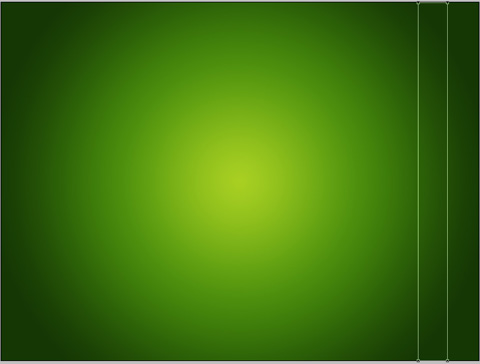
Choose after that the Rectangle Tool (U) to draw the background of the picture to be.
Select next parameters for the made layer by making a mouse click on this layer on the layers’ palette.
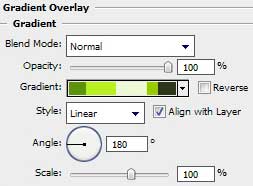
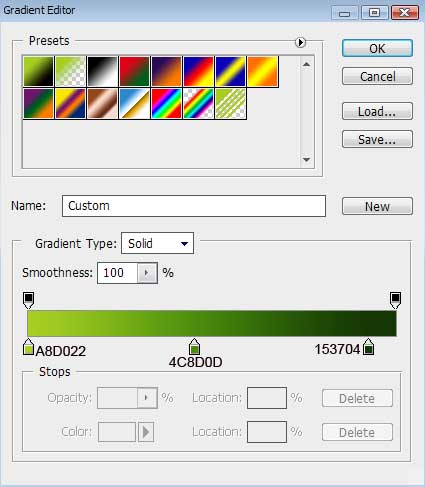
Blending Options>Gradient Overlay
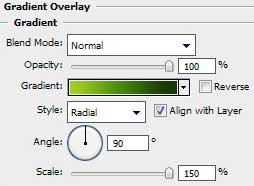
Gradient’s parameters:
Use the last applied tool to draw this time a vertical stripe.
The layer’s parameters: Fill 0%
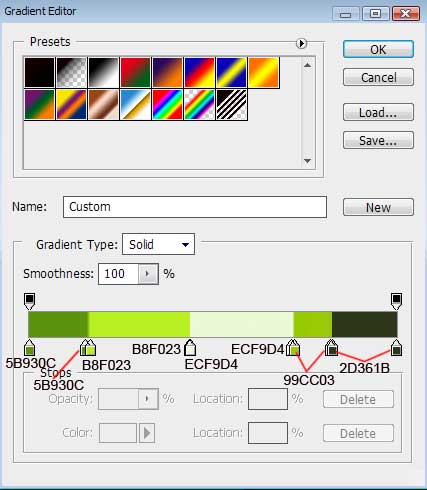
Blending Options>Gradient Overlay
Gradient’s parameters:

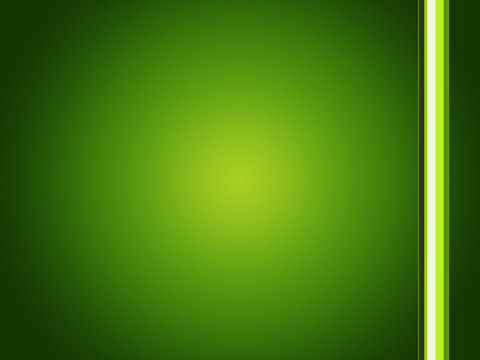
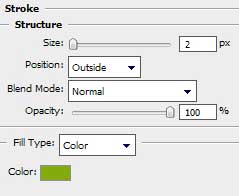
Blending Options>Stroke


kunal kulkarni
02/11/2009
it is amazing!!!!!!!!!!!!!!!!!!!!!!!!!!!!!
DJ Marik
07/12/2009
Yay! I’m finally finished! lol. You weren’t kidding when you said “many layers”! I made 153 layers and it was worth it! awesome tut!!! here are my results. ^_^
http://blakkenshin.deviantart.com/art/Streams-of-Greens-145997469
MJP
29/01/2010
Wow! just tons of inspiration on this whole site! Just fantastic! Thanks so much!
dear25
07/04/2010
This is cool but the part where copying and resizing all the stars is soo tedious… Instead I just used a brush for the stars… Much easier for the same results
Greenafik
30/10/2010
I really like the final result ^^
Julie
03/02/2011
Can you help me please? My boss want an orange and green combinations of that,. please help me,
CSC
03/08/2011
Great picture!!! like it very much!!! Thanks
TayJ
20/08/2011
im having trouble with the part where you make the 2nd line and curve it round. because the lines in it just go straight down and don’t follow the shape that i have made. please help
Apoljak
15/03/2012
I wish this explained some stuff more thoroughly.
espada
03/01/2013
can we replace step making star using brush method…
ululf01
21/02/2013
is very nice thank you.