
Angry Emoticon
Learn about special effects while converting an ordinary orb into a fantasy art piece in this Adobe Photoshop tutorial.
Let’s create a new file, having 1024×768 px and 72 dpi which must be processed with the Paint Bucket Tool (G) and the color #BBC2BB

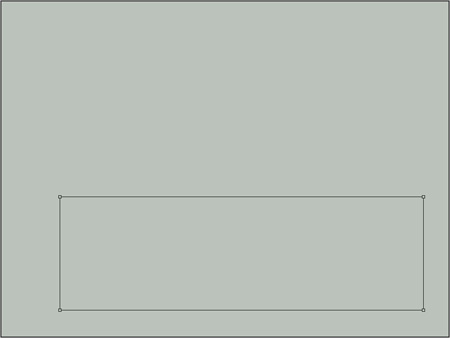
Next we shall select the Rectangle Tool (U) to represent the next demonstrated element:
Set the next parameters for the last made layer by clicking on this layer on the layers’ panel. Fill 0%
Blending Options>Gradient Overlay

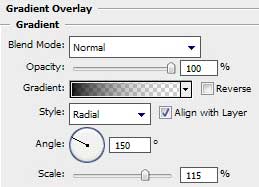
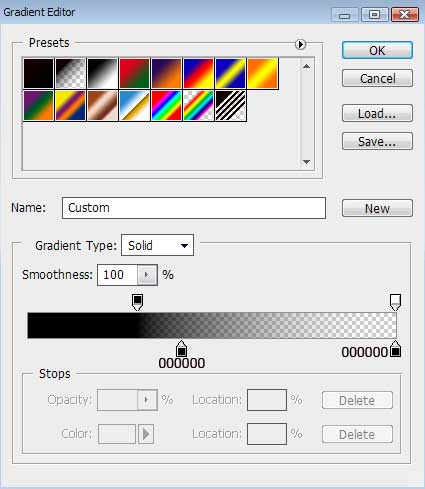
Gradient’s parameters:
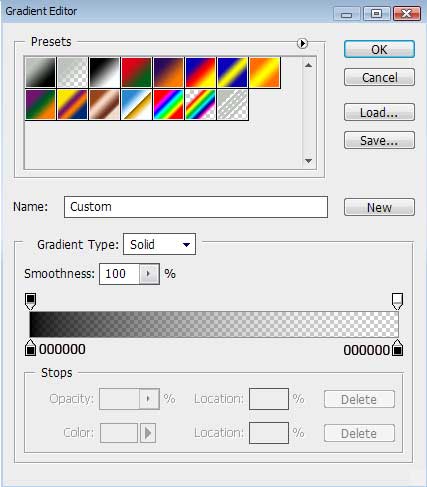

Make a copy of the last created layer, setting different parameters for the new copy – layer. Fill 0%
Blending Options>Gradient Overlay
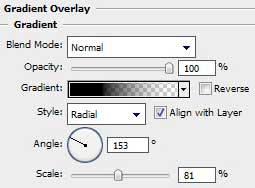
Gradient’s parameters:

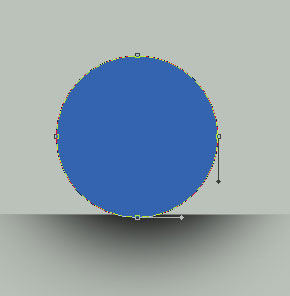
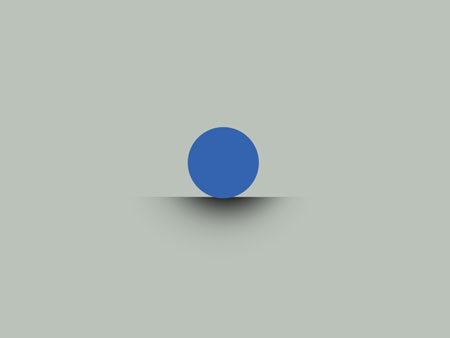
Use now the Ellipse Tool (U) to draw the basis for the rounded element’s body, so called emoticon. The layer’s color is #3464AE
Comments