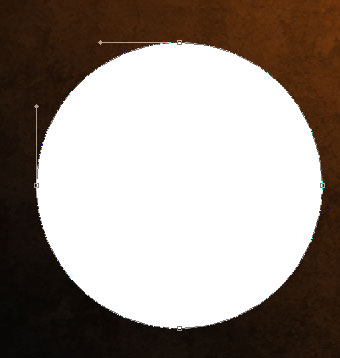
Loading Interface

April 21st, 2008 by ART-D Posted in Adobe Photoshop, Designing


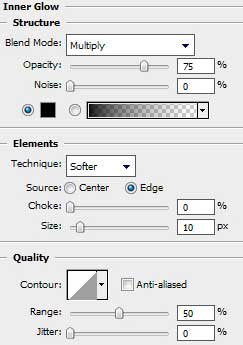
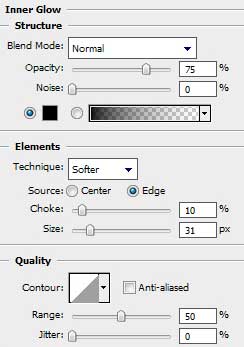
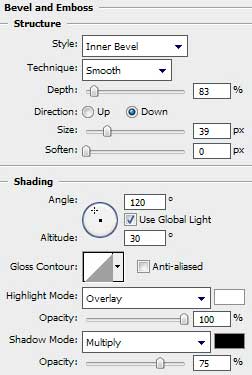
Blending Options>Inner Glow

Create Loading Interface in Photoshop CS3

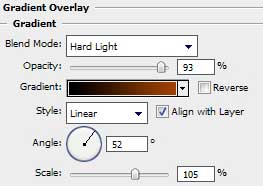
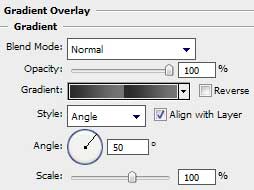
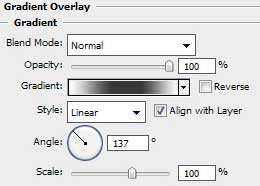
Blending Options>Gradient Overlay

Create Loading Interface in Photoshop CS3

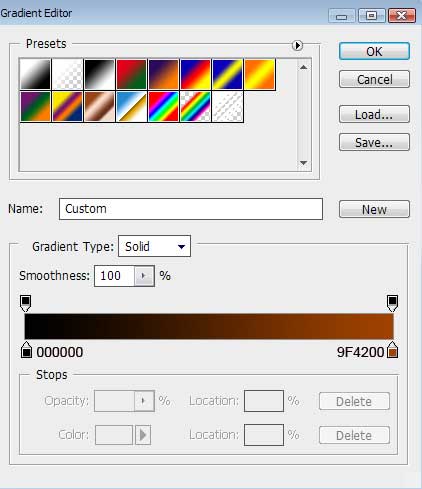
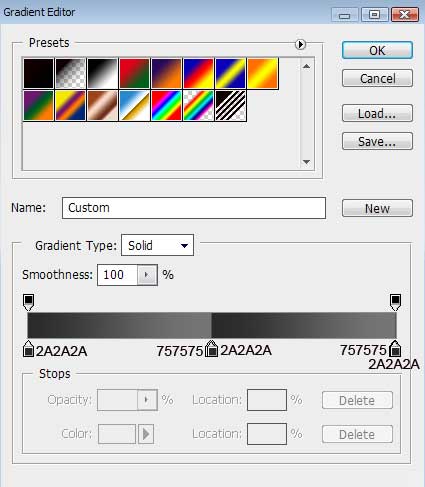
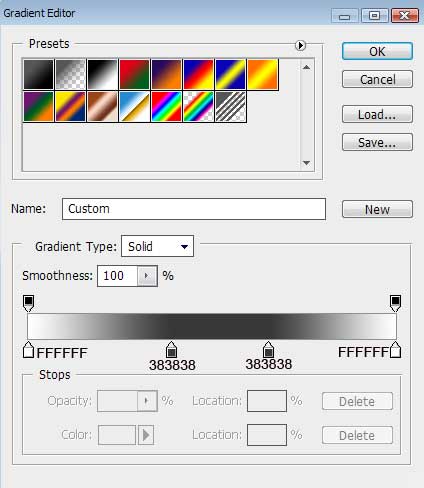
Gradient’s parameters:

Create Loading Interface in Photoshop CS3

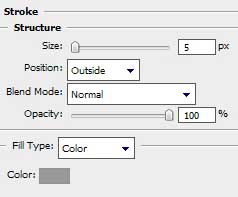
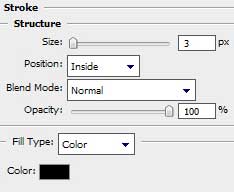
Blending Options>Stroke

Create Loading Interface in Photoshop CS3

Gradient’s parameters:

Create Loading Interface in Photoshop CS3 

Create Loading Interface in Photoshop CS3

Select the Rectangle Tool (U) for the next step to draw a vertical black stripe, crossing the central part of the colored circle:

Create Loading Interface in Photoshop CS3Make twenty - three copies of this last made layer and select Free Transform option to turn the copies around their axes on a certain angle:

Create Loading Interface in Photoshop CS3 

Create Loading Interface in Photoshop CS3 

Combine in a group all the layers containing the black lines (press Ctrl button to mark out the corresponding layers and hold on the left mouse’s button to take the accentuated layers on Create a new group selection). Apply the next indicated parameters for the new group: Opacity 20%

Create Loading Interface in Photoshop CS3

Make a copy of the last made group containing the black lines. We need to get back the Opacity option on 100% on the copied group, erasing on the copy all the lines, except those shown below:

Create Loading Interface in Photoshop CS3

Select the Ellipse Tool (U) to represent the next layer of the abstract element on the central part of the colored circle:

Create Loading Interface in Photoshop CS3

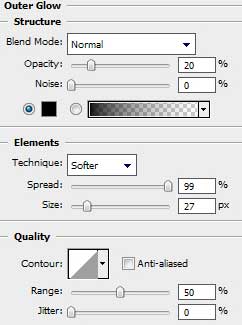
The layer’s parameters: Blending Options>Outer Glow
Create Loading Interface in Photoshop CS3

Blending Options>Gradient Overlay

Create Loading Interface in Photoshop CS3

Gradient’s parameters:

Create Loading Interface in Photoshop CS3

Blending Options>Stroke

Create Loading Interface in Photoshop CS3 

Create Loading Interface in Photoshop CS3Try to make one more circle, choosing the same Ellipse Tool (U). Firstly we’ll represent the outside edges of this circle and then when pressing Alt button, applying the mentioned tool, it’s possible to cut out the middle part of the circle and after that cut out one more part of the same circle, like it is represented below:

Create Loading Interface in Photoshop CS3

The layer’s parameters: Fill 20%
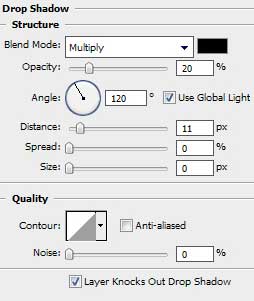
Blending Options>Drop Shadow


Create Loading Interface in Photoshop CS3

Blending Options>Gradient Overlay

Create Loading Interface in Photoshop CS3

Gradient’s parameters:

Create Loading Interface in Photoshop CS3 

Create Loading Interface in Photoshop CS3

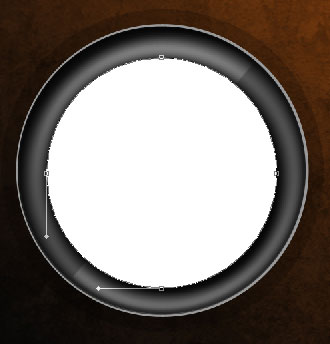
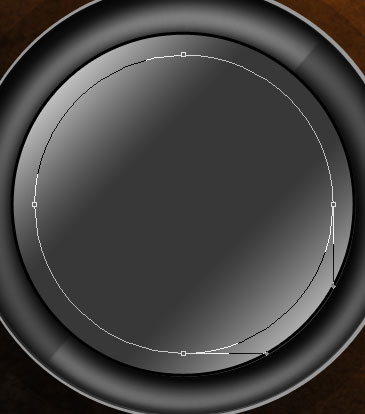
Use the Pen Tool (P), for drawing the next layer of the abstract figure. Its shape may be corrected with the Convert Point Tool.

Create Loading Interface in Photoshop CS3

Post Pages: 1 2 3

  • Pete

    04.21.08

    Thanks for this tut, it was fun and I learned a few things!

    Pete

  • Biju Subhash

    04.21.08

    Thank you for sharing the great tutorial :D